
Why Square's help CSV imports break mid-catalog
Square Online stores are powered by Squarespace Commerce, and the product CSV importer lives under Commerce → Products → Import / Export. It accepts a single .csv file with 22 columns covering the full product model: Product Type, Product Page, Product URL, Title, Description, SKU, GTIN, MPN, three Option Name / Option Value pairs, Price, Sale Price, On Sale, Stock, Categories, Tags, weight and dimension, Visible, and the column that decides whether the gallery actually shows up: Hosted Image URLs.
The pattern we keep seeing in failed imports is the same four issues, in roughly this order:
- Local file paths or base64 blocks in the image column. Square Online's importer cannot read from the hard drive. A cell that contains
file:///Users/me/tee.jpgor a raw base64 string is silently treated as a failed URL, and the product imports without any image. - URLs that do not end in an image extension. Squarespace checks the path. A
cdn.example.com/img/tee-front.jpg?v=2URL sometimes fails the extension test because of the query string. Plain HTML product pages never work. - Wrong separator between multiple image URLs. The official help article says "separate multiple with spaces or line breaks." Sellers frequently paste URLs with commas or semicolons and lose every image after the first.
- Product Page slug does not exist on the receiving site. v7.1 requires the slug to point to an existing store page. A typo here makes the entire row fail to import, even when the URL is perfect.
What Sheet Image Downloader can and cannot do for Square Online. The tool reads your spreadsheet column of image URLs, downloads each file to a local folder named by Product URL slug, and writes a failure report for any URL that returns a non-200 response or times out. It does not push files into Squarespace, validate the Squarespace product option syntax, or check image dimensions. After preflight, you run the Squarespace CSV importer yourself with the verified file.
Required columns and v7.1 vs v7.0 differences
The Squarespace product CSV ships with a fixed column order. Most "the import half-worked" stories come from sellers editing the wrong columns. The reference table below covers the columns that drive an image-only update, with the v7.1 vs v7.0 difference called out where Squarespace treats them differently.
| Column | Required | v7.1 vs v7.0 | Rules |
|---|---|---|---|
Product Type | Yes | Both | Required. Do not edit existing values; leave blank cells blank. |
Product Page | v7.1: yes / v7.0: varies | Differs | Store page URL slug (without /). v7.1: required, receiving site must have identical slug or import fails. v7.0: optional in some use cases (e.g., moving between sites); required when bulk-editing on the same site. |
Product URL | Yes | Both | URL slug without /. 3-200 chars, dashes between words, no spaces or special characters. Capital letters auto-lowercase. Only add to first product row if there are options. |
Title | Yes | Both | Up to 200 characters. Only add to first product row if there are options. |
Categories | v7.0: yes / v7.1: optional | Differs | Must match existing categories. Use the URL slug from the filtered category / subcategory page, including /. Up to 25 chars per category. Multiple → comma. v7.0 stores require at least one category on every active product; v7.1 stores accept blank. |
Visible | Yes | Both | Yes = visible after import. No = hidden. Only add to first product row if there are options. |
SKU | Optional | Both | Up to 20 characters. Blank = auto-generated. |
Price | Optional | Both | Numbers and decimals (.) only. Max two decimal places; 10.513 must round to 10.51. |
Stock | Optional | Both | Number, or enter unlimited. |
Hosted Image URLs | Optional (but the only image column) | Both | Full URL to an image ending in .jpg, .gif, or .png. Multiple URLs separated by space or line break. Cannot read from local drive. Squarespace becomes image host after import. |
Tags | Optional | Both | Up to 80 chars per tag. Comma-separated. Only on first product row if there are options. |
Image URL order is gallery order. The first URL in the cell becomes the main image on the product page. The second URL is the first gallery image, and so on. If your cell accidentally puts the back of the shirt before the front, that becomes the main image on the live store.
The Hosted Image URLs column and what it accepts
Square Online has a single column for images: Hosted Image URLs. Every other platform we cover — Shopify, Ecwid, Wix, TikTok Shop — has its own quirks, but the Squarespace rule is the strictest of the four. The CSV importer runs a strict extension check on the URL and silently drops anything that fails it. Three categories fail that check on most imports:
- HTML product pages. A URL like
https://example.com/products/teereturns a 200 to a browser, but Squarespace's worker looks at the path, sees no image extension, and skips it. The product imports with no image. - Query strings on otherwise-valid URLs. A URL like
https://cdn.example.com/img/tee-front.jpg?v=2works in a browser, but some Squarespace builds reject the path because the extension is followed by characters Squarespace does not parse. Host the clean URL when possible. - Local file paths and base64 blocks.
file:///Users/me/Desktop/tee.jpgand raw base64 strings are not URLs. Squarespace cannot fetch them. The image column stays empty after import.
Two more cases that look like failures but are actually fine: a URL on a CDN that returns 200 to a fetch but is hot-link protected (returns 403 to the Squarespace import worker) shows up as a broken image on the live product page. And a URL that works in the cell but contains a non-ASCII character or an unencoded space will sometimes pass the extension check and then fail the actual fetch. Run a local backup before the import so the URLs that do fail can be re-hosted without losing the file.
Multi-image separator: space or line break
The Squarespace help article is explicit: "separate multiple with spaces or line breaks." Google Sheets uses Alt+Enter to enter a line break inside a cell. Excel on Windows uses Ctrl+Alt+Enter. Excel on Mac uses Control+Option+Return. The line break sits between two URLs in one cell and Squarespace's parser walks through them in order.
Two common mistakes to avoid:
- Comma-separated URLs. A cell with
https://a.com/1.jpg, https://a.com/2.jpgreads as one URL with a comma in the middle. The extension check fails and the cell becomes empty. - Adding image URLs to every variant row. When a product has Option Names, image URLs must only appear on the first product row of that variant set. Squarespace reads the first row's image cell as the gallery for the whole variant group.
v7.1 vs v7.0 and the bulk-edit limitation
The Square Online product CSV is built around three use cases that the help article calls out explicitly: moving products between Squarespace sites, editing products in bulk on the same site, and importing from a different platform. Each use case has a different set of required columns. Image handling differs the most between the first use case and the other two.
For moving products between sites, the Hosted Image URLs column is editable and re-import will pull the URLs in from the CSV. For editing products in bulk on the same site, the Squarespace help article states that Hosted Image URLs is "not editable when bulk-editing." The same restriction applies when importing from an external platform: the image column is honored, but any URL that returns a non-200 response or fails the extension check is silently skipped without re-trying the row.
This is the practical reason a preflight matters: a Hosted Image URL that worked last month on a bulk import may fail the extension check after a CDN switches to a query-string format. The local backup you create before the import is the only copy of the file that exists outside Squarespace.
Variant images cannot be assigned through the CSV. The Hosted Image URLs cell on the first product row becomes the gallery for the whole variant group, but Squarespace does not let you attach different images to different variants inside the same product via CSV. After import, add variant-specific images one at a time through the Squarespace product editor. Plan for that manual step if your catalog has more than one variant per product.
Version-specific rules that change which column is required:
- v7.0 sites:
Categoriesis required on every active product row. A blank Categories cell fails the import for that row, even when every other field is correct.Product Pageis optional when importing new products from another platform, and required when bulk-editing on the same site. - v7.1 sites:
Categoriesis optional. A product row with a blank Categories cell imports successfully and goes live without a category assignment.Product Pageis required on v7.1 in every use case. - Import caps: v7.1 accepts up to 10,000 products per import; v7.0 caps at 200. Both cap at 250 variants per product. If a v7.0 catalog has more than 200 products, split the CSV into chunks of 200 or fewer before importing.
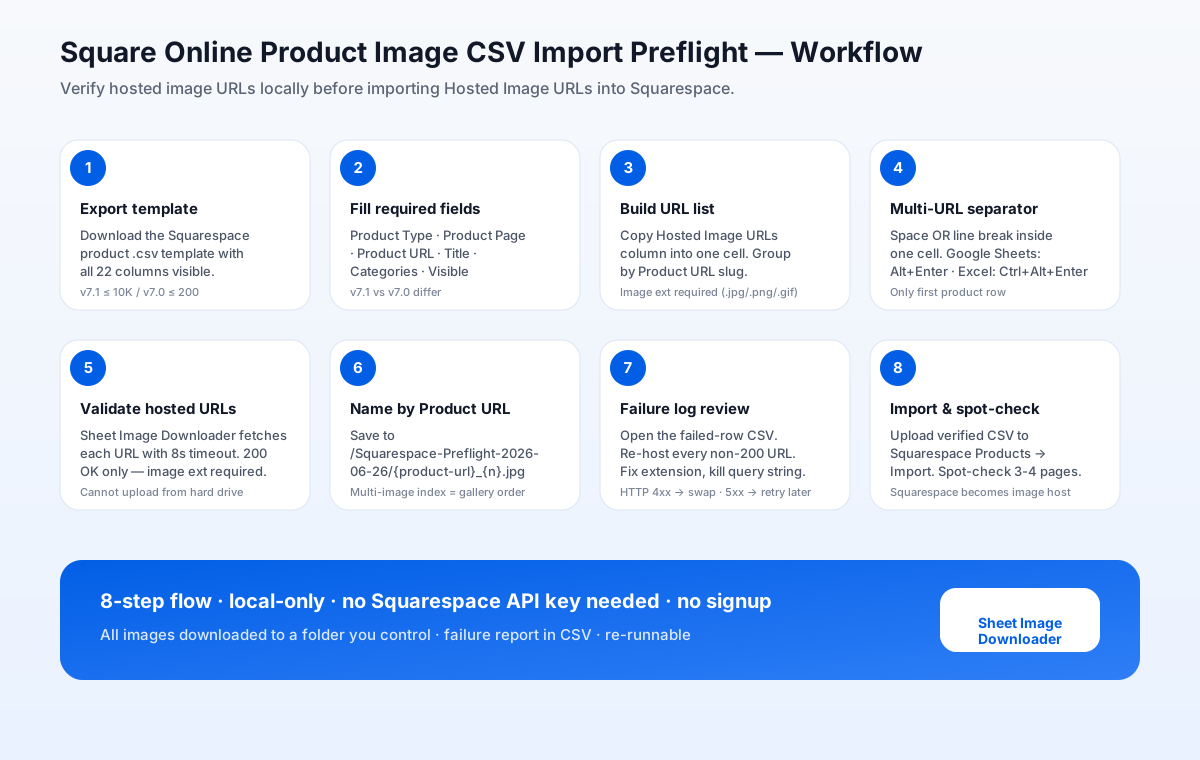
Eight-step preflight workflow
The workflow assumes you have already exported your catalog from another platform or built the CSV by hand, and that you have the Squarespace product CSV template downloaded as a reference. The preflight itself runs locally: no data leaves your machine.
Download the Squarespace template
Open Commerce → Products → Import / Export → Download Template. The template ships with three sample products and the exact column order Squarespace expects. Do not add or rename columns.
Fill the required columns
Set Product Type on every row. On v7.0 stores, Categories is required on every active product. On v7.1 stores, Categories is optional (the importer accepts blank categories and the product still goes live). Product Page is required on v7.1 and may be optional on v7.0 depending on the use case. Leave Product ID blank for new products.
Build the Hosted Image URLs list
Copy the Hosted Image URLs column into a single column. Group URLs by Product URL in display order so the file naming later reflects the same order.
Open Sheet Image Downloader
Launch the desktop app and paste the URL list. Choose a destination folder named after the import run, for example /Squarespace-Preflight-2026-06-26.
Set Product URL slug naming
Set the file naming to include the Product URL slug and the row index. The default template {product-url}_{index}.jpg produces files like v-neck-t-shirt_001.jpg.
Run the download
Start the batch. Every URL is fetched over HTTPS with a short timeout. 200 OK responses are saved to disk; everything else is added to the failure log. URLs without an image extension are filtered out before fetch.
Review the failure log
Open the failure report. Each non-200 URL is listed with its row number, Product URL slug, and the HTTP status or timeout error. Re-host or replace those URLs before continuing.
Import into Square Online
Go back to Commerce → Products → Import / Export → Import, upload the verified CSV, confirm the column mapping, and submit. Spot-check three or four product pages afterward, including the gallery order on a variant product.
Why this order matters. Downloading before importing gives you a backup you control. After the importer runs, Squarespace becomes the image host and the original URL is no longer reachable from the CSV — the only copy of the file lives inside Squarespace. If the import drops a row or a CDN hot-link policy blocks a URL mid-fetch, you already have the file locally and can re-upload by hand or write a small follow-up CSV with just the failed Product URL slugs.
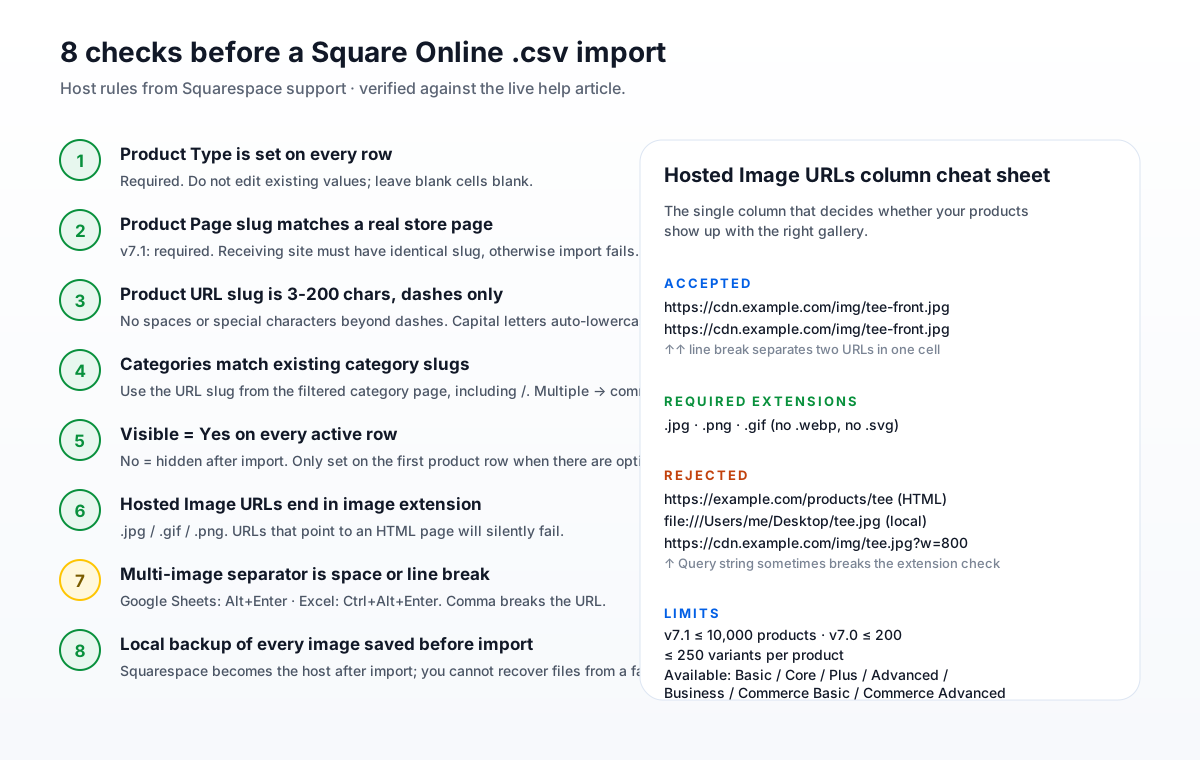
Eight checks before uploading the CSV
These checks are derived directly from Squarespace's Importing products from a .csv help article and from the failure patterns we have seen in repeated runs. Run them in order and the importer will catch fewer surprises.
- Product Type is set on every row. Required. Do not edit existing values; leave blank cells blank.
- Product Page slug matches an existing store page. On v7.1 sites, a non-matching slug fails the entire row. Re-create the store page first, or change the slug.
- Product URL slug is 3-200 chars with dashes only. Spaces and special characters are rejected. Capital letters auto-lowercase, so what you type is not always what is stored.
- Categories match the slug from an existing category page. Use
/clothingnotClothing. Use/clothing/blousesfor nested. Comma-separate multiple categories. - Visible = Yes on every active product row. Only set on the first product row when there are options.
Nohides the product. - Hosted Image URLs ends in
.jpg,.png, or.gif. No HTML pages, no local files, no base64. Query strings sometimes break the extension check — host a clean URL when possible. - Multi-image separator is space or line break. Google Sheets: Alt+Enter. Excel Windows: Ctrl+Alt+Enter. Comma or semicolon will collapse the URLs into a single broken path.
- Local backup completed. Save the files to disk before importing. After import, Squarespace hosts the images and the URLs in your CSV no longer point at the original source.
Common import problems and how to spot them
Products imported without any images
Most likely cause: every Hosted Image URLs cell contains a local file path, a base64 block, or an HTML product URL. Squarespace's extension check fails on all three. Open the failure log, re-host each image at a public URL ending in .jpg / .png / .gif, and re-import.
Some products imported, some did not
On a v7.1 store, the most common cause is a Product Page slug that does not exist on the receiving site. The row fails without an error message. Either re-create the store page or change the slug to match an existing one.
Gallery order is wrong on a variant product
The image URLs ended up in the wrong order inside the cell. The first URL becomes the main image. Reorder the URLs inside the cell, remembering that Google Sheets needs Alt+Enter between URLs and Excel on Windows needs Ctrl+Alt+Enter.
Categories column is empty after import
The values in the Categories column do not match existing category slugs on the receiving site. Use the URL slug from the filtered category page, including /. Example: /clothing, not Clothing.
v7.0 store rejects more than 200 rows
The 200-product limit on v7.0 sites is a hard cap per import, not per file. Split the CSV into chunks of ≤ 200 products and import in batches.
Images uploaded but gallery missing one product image
The URL returned 200 to the Squarespace import worker but the file was actually an HTML page with a 200 response (a CDN misconfiguration). The local backup gives you the file so you can re-host it on a CDN that returns a real image extension and Content-Type.
Verify every hosted image URL locally before any Square Online import.
Try Sheet Image Downloader — paste your URL list, get a local folder named by Product URL slug plus a failure log you can re-run. For questions or edge cases, use the contact page.
Frequently asked questions
Use the Hosted Image URLs column. Squarespace imports it as the product gallery. Each cell can hold one or more URLs separated by a space or a line break (Alt+Enter in Google Sheets, Ctrl+Alt+Enter in Excel on Windows). The URL must end in .jpg, .png, or .gif.
It depends on the use case. When moving products between Squarespace sites, the Hosted Image URLs column is editable and re-import will pull the URLs in from the CSV. When editing products in bulk on the same site, the Squarespace help article states that Hosted Image URLs is not editable via CSV — you have to update product images through the product editor one at a time. Squarespace matches rows by Product ID. Leave Product ID blank for new products, and keep the existing Product ID on updates. On v7.0 sites, Categories is required for every active row; on v7.1 sites, Categories is optional.
No. The Hosted Image URLs column must be a full public URL ending in an image extension. file:// paths, drive shares, and base64 blocks are not supported. The CSV importer cannot read from a local folder.
No. Sheet Image Downloader downloads your image URLs to a local folder named by Product URL slug, logs which URLs failed, and gives you the local backup and failure report. After preflight, you run the Squarespace CSV import yourself with the verified file.
Version 7.1 sites accept up to 10,000 products per import. Version 7.0 sites accept up to 200 products. Both versions accept up to 250 variants per product. Available on Basic, Core, Plus, Advanced, Business, Commerce Basic, and Commerce Advanced plans.
Editorial note: This preflight is based on Squarespace's current "Importing products from a .csv" help article, verified June 2026. Squarespace occasionally updates the column list, the variant limit, and the Hosted Image URLs extension check. Sellers should confirm the latest column list inside the Squarespace dashboard before running a production import. No import outcome is guaranteed by Sheet Image Downloader.