
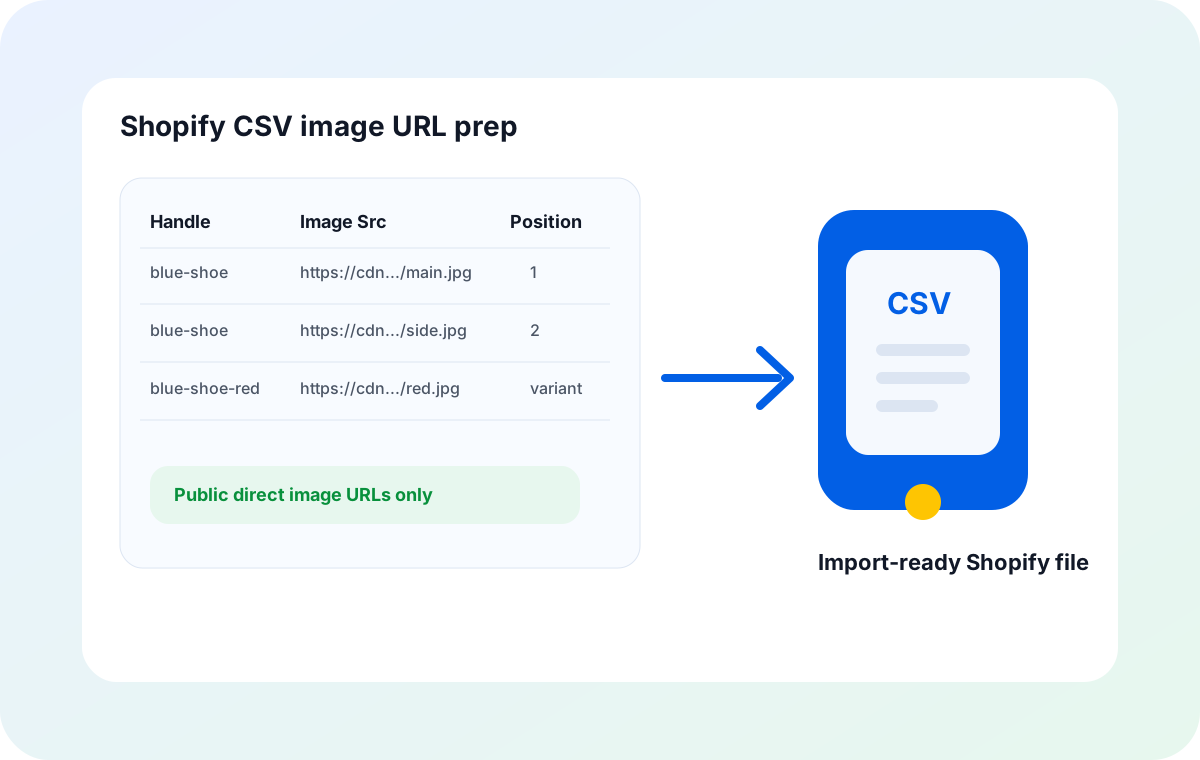
Why Download From a Shopify CSV Export First
Shopify already tracks every product image URL in one place: the product CSV export. Going back to scrape a live storefront, copy image links one by one, or pull from a third-party backup is wasted work. The CSV is the single source of truth for handles, SKUs, image positions, and variant image rows — and it is the cleanest possible input for a local bulk downloader.
Downloading from the export also gives you a safe staging folder. If a re-import fails, a migration gets interrupted, or a partner needs a copy of the catalog images, the folder is already there, locally, with SKU-named files. There is no need to round-trip the data through a cloud service or a browser extension.
Get a Clean Shopify CSV Export
Shopify Admin can export a full product CSV in seconds. The export already includes the image-related columns, so a one-time export is usually enough for the whole workflow.
Open Products → Export
From Shopify Admin, go to Products → Export. Choose CSV for Excel, Numbers, or other spreadsheet programs as the file type.
Pick the scope you need
Export only the products you are about to migrate or re-import. A full-store export is fine for a backup; a filtered export keeps the review pass smaller.
Open the file before passing it to a tool
Open the CSV in Excel or Google Sheets. Confirm the header row, the column names, and the fact that Image Src values look like real https:// links, not empty cells or HTML pages.
Save a copy for the downloader
Make a working copy of the export (e.g. shopify-images.csv). The original stays untouched in case you need to re-export or compare.
CSV Columns That Point to Images
Shopify exports use a stable set of columns for product images. Most catalogs only need three or four of them. The table below is the practical minimum.
| Column | What it carries | Why it matters for the download |
|---|---|---|
| Handle | Product slug such as blue-running-shoe | Anchors every image row to the correct product. Re-uses the same handle across gallery and variant rows. |
| Image Src | The full public image URL | The actual link the downloader fetches. Must be a direct image, not a product page or a hotlink wall. |
| Image Position | Gallery order: 1, 2, 3 | Use 1 for the main image, then number gallery rows intentionally so re-imports keep the storefront order. |
| Image Alt Text | Accessibility and SEO description | Stays in the CSV for the next import. The download itself does not need it, but keeping it visible makes review easier. |
| Variant Image (when present) | Variant-specific image URL | Keep this column intact. The downloader reads it as another image URL and saves it under a variant-tagged filename. |
| SKU (when present) | Your product identifier | Use it as the filename base so the folder is human-readable. If SKU is missing, fall back to the Handle. |
Prepare a Download-Ready Spreadsheet
Five minutes of cleanup is the difference between a clean folder and a 90-minute retry loop. Apply these rules to the working copy before you pass it to the downloader.
Keep the columns the downloader needs
Handle, Image Src, Image Position, and SKU are the working minimum. Hide the rest, do not delete them — you will need them again on re-import.
Sort by Handle, then by Image Position
Sorting by Handle groups every image of one product together. Sorting by Image Position inside that group makes the gallery order obvious in the downloaded folder.
Strip blank image rows
Shopify exports sometimes include extra variant rows with no image. Drop them — the downloader will treat empty Image Src as malformed and skip them anyway, but a clean input saves time.
Verify URLs are public and direct
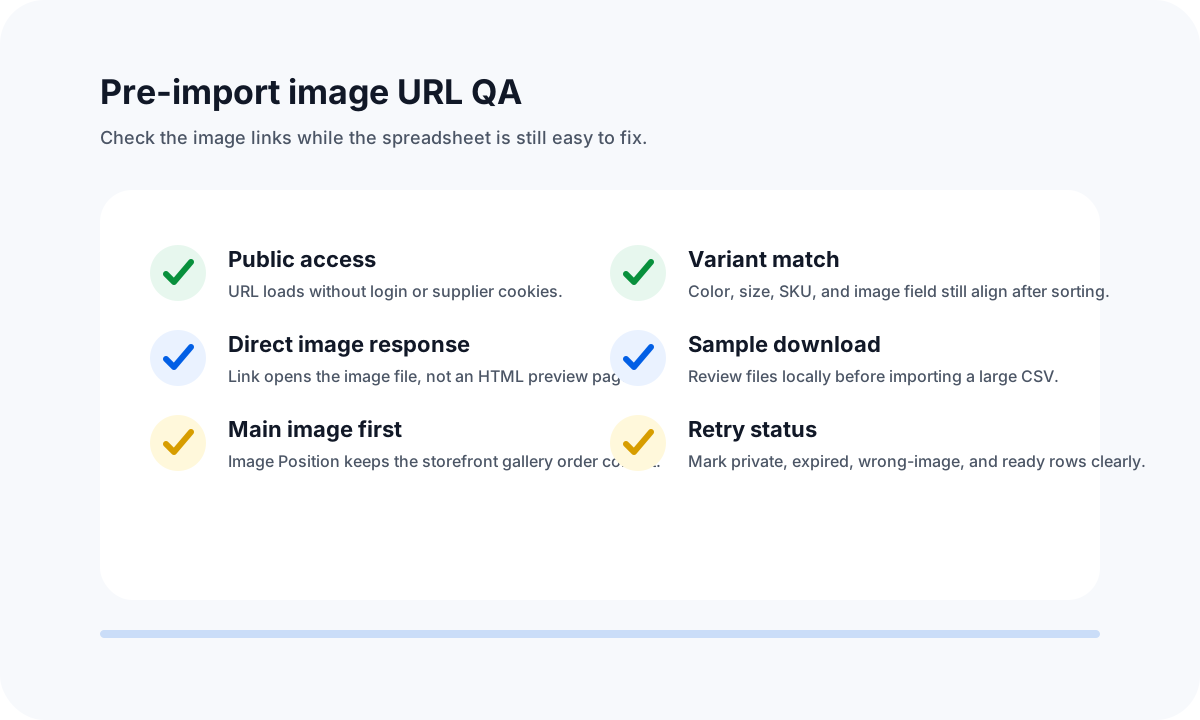
Open five to ten Image Src values in a private browser. If a link requires a Shopify login or redirects to a product page, the downloader will fail on that row and so will any future re-import.
If your catalog also has supplier images from outside Shopify, the easiest path is to add them as extra rows in the same spreadsheet with a custom Source column. One file, one download run, one organized folder.
Run the Bulk Download
With a clean CSV in hand, the download itself is the easy part. Three knobs matter: parallelism, retry, and output folder.
Parallelism
8 to 16 concurrent connections is the sweet spot for Shopify CDN and most supplier CDNs. Higher parallelism triggers rate limits, lower parallelism wastes time. A 1,000-row export should finish in well under 10 minutes.
Retry policy
Retry on 5xx, 429, and timeout. Skip on 4xx except 408 and 429. Cap retries at 3 with exponential backoff. A failed-rows report should be written for any URL that still fails after the final retry.
Output folder
Use a clean folder name such as shopify-images-2026-06-07/. The downloader can create SKU subfolders automatically if your CSV includes a Folder column, which makes re-imports easier.
Validation pass before re-import
Run a quick file or du check on the output folder to confirm there are no zero-byte files, and re-run a hash-based dedup pass to catch any URL duplicates the export hid in plain sight.
Filenames and Folder Rules for Shopify Uploads
Filenames are the difference between a usable folder and a junk drawer. The 2026 best practice is to name files by SKU, with a position suffix for multi-image products, and an optional variant tag for variant images.
| Pattern | Example | Best for |
|---|---|---|
| sku.jpg | BLUE-001.jpg | Single-image SKUs, simple catalogs |
| sku-1.jpg, sku-2.jpg | BLUE-001-1.jpg, BLUE-001-2.jpg | Multi-image products, gallery imports |
| sku-variant-1.jpg | BLUE-001-RED-1.jpg | Variant image matching, color or size specific shots |
| handle/position-sku.jpg | blue-running-shoe/1-BLUE-001.jpg | Folder-based review and migration |
| YYYY-MM-DD/sku.jpg | 2026-06-07/BLUE-001.jpg | Rolling backups and versioned re-imports |
If your CSV is missing the SKU column, fall back to the Handle. The filenames will be slightly less human-readable, but the folder still keeps every image grouped under the right product.
Verify the Downloaded Folder Before Re-Import
The last 5 minutes of the workflow save more time than the first 30. Before treating the folder as ready for a re-import or migration:
- Open 5 to 10 random images and confirm they are real product photos at the expected resolution.
- Check the failed-rows report is empty (or that every failure is a known acceptable skip).
- Verify the filename pattern matches your re-import plan (SKU, SKU-position, or SKU-variant-position).
- Confirm there are no zero-byte files. A zero-byte file usually means a silent 200 with empty body — a sign the URL looked valid but actually returned a placeholder.
- Confirm the total file count matches the input row count minus skips and known failures.
- Spot-check two or three variant images against their SKU rows to make sure the color or size in the filename actually matches the image.
Once the QA passes, the folder is ready for a Shopify re-import, a backup, a partner handoff, or a migration to another platform. A clean CSV-based download turns what used to be a half-day manual job into a 10-minute setup and a 30-minute run.
Frequently Asked Questions
Download Shopify product images from a CSV, locally.
Sheet Image Downloader reads a Shopify product CSV, downloads every image by SKU, retries failed rows, and saves an organized folder ready for re-import. No cloud upload, no signup, no browser extension. For support, use the contact page.