
Why TikTok Shop's Seller Center CSV imports fail mid-catalog
TikTok Shop exposes a bulk listing path under Products → Add Products → Bulk listing in Seller Center, and the workflow has tightened over the last 18 months. The biggest shift is that as of June 2025, the downloaded template no longer covers all categories at once: it is scoped to a single leaf category, which is the deepest node in TikTok's category tree (for example Phones & Electronics → Phones & Tablets → Mobile Phones). If your catalog spans three leaf categories, you need three separate templates and three separate upload passes.
Most preflight mistakes come from the same handful of causes:
- One template, multiple categories. Filling products from a different leaf category into the same template silently fails row-by-row because required columns differ.
- Image URLs that are not directly reachable. CDN hot-link protection, expiring presigned URLs, and login-walled supplier pages all return 200 to a casual click but fail inside Seller Center's image worker.
- Added or removed columns. TikTok Shop's bulk importer rejects any spreadsheet where rows or columns are added, removed, or reordered.
- Image files under the size or resolution floor. Images smaller than 300 pixels on the longer side, or above 5 MB, often get rejected after the URL passes the basic 200 check.
What Sheet Image Downloader can and cannot do for TikTok Shop. The tool reads your image URL column from the template (or any other spreadsheet), downloads every file to a local folder named by SKU, and writes a failure report for any URL that returns a non-200 response or times out. It does not push files into Seller Center, validate TikTok's category rules, or check image dimensions. After preflight, you upload the verified CSV to the bulk listing page yourself.
Leaf-category template and column rules
TikTok Shop's bulk listing template is an Excel file with a fixed column order. Every row is one SKU. The Main Image column is required; Extra Image 1 through Extra Image 8 are optional and accepted on most categories. Required fields are outlined in red in the template itself, which makes them easy to spot, but the column order and the case of the header row are both part of the contract: a header renamed from Main Image to main image will fail.
| Column | Required? | Notes |
|---|---|---|
Category | Yes | Must be the leaf category the template was downloaded for. |
Product Title | Yes | Max 255 characters. Localized languages accepted depending on the market. |
Main Image | Yes | One direct image URL. JPEG, PNG, or WebP. Min 300x300 px, recommended 800x800 or larger. |
Extra Image 1-8 | No | Up to 8 gallery URLs. Same rules as Main Image. |
Brand | Sometimes | Some categories require a brand from a predefined list; others accept "No brand". |
SKU ID | Yes (per variant) | Unique identifier per row. Up to 100 SKUs per parent product. |
Price | Yes | Two decimals. Currency matches the seller market. |
Stock | Yes | Integer. 0 is allowed but the listing will not surface as "in stock". |
Description | Yes | Plain text. HTML is stripped. Length cap varies by category. |
Templates reject row and column edits. TikTok Shop's importer treats the template as a contract. Adding a column, deleting a column, or reordering the headers will cause the entire upload to fail with a "format invalid" error. Fill the existing columns; leave optional fields blank if you do not need them.
Naming the local backup by SKU
The local backup is the part of preflight most teams skip and most regret skipping later. Saving each image locally under its TikTok Shop SKU ID keeps the file path self-explanatory and lets you re-upload by hand if a CDN goes down, a Shopify removes a hosted URL, or Seller Center silently drops a row during publish.
A simple convention works in nearly every case: one folder per parent product, with files numbered to match the Main Image / Extra Image 1-8 column order. That way the local backup maps 1:1 to the live TikTok Shop gallery.
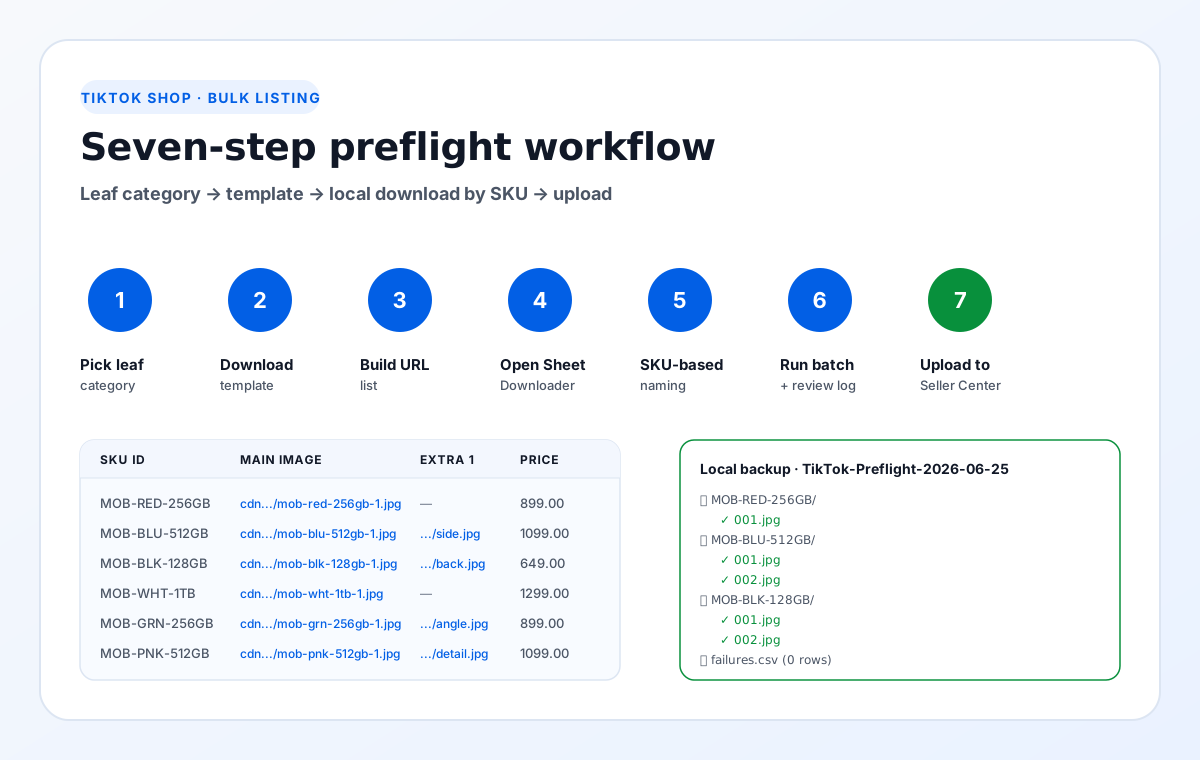
Seven-step preflight workflow
The workflow assumes you have already collected your image URLs into a spreadsheet (exported from a supplier, scraped from your existing site, or pulled from a PIM). The preflight itself runs locally: no data leaves your machine, no sign-up is required, and no browser extension is involved.
Pick the right leaf category
Open Products → Add Products → Bulk listing in Seller Center on desktop. Use the search bar or the category tree to drill down to the deepest node that fits your products. The template is generated for that exact node only.
Download the category template
Click Download template. The file is named with the category name and the date, for example Mobile_Phones_2026-06-25.xlsx. Open it once and confirm the column headers match the table above before you start filling it.
Build a clean URL list
Copy the Main Image and Extra Image 1-8 columns into a single column, paired with the SKU ID for each row. One row per image keeps the downstream download order predictable.
Open Sheet Image Downloader
Launch the desktop app and paste the URL list. Choose a destination folder named after the upload run, for example /TikTok-Preflight-2026-06-25.
Set SKU-based naming
Set the file naming to include the SKU ID and the column index. The default template {sku}_{index}.jpg produces files like MOB-RED-256GB_001.jpg for the main image and _002.jpg through _009.jpg for the gallery.
Run the download and review failures
Start the batch. Every URL is fetched over HTTPS with a short timeout. 200 OK responses are saved to disk; everything else is added to the failure log with the SKU, the URL, and the HTTP status or timeout reason.
Upload the verified CSV
Go back to Products → Bulk listing, upload the verified CSV, fix any row-level errors in the online editor, then click Publish. Spot-check three or four product pages afterward.
Why this order matters. Downloading before uploading gives you a backup you control. If Seller Center's image worker rejects a URL mid-upload, you already have the file locally and can re-host it (a quick swap to your own CDN or a different supplier URL) before re-trying the upload.
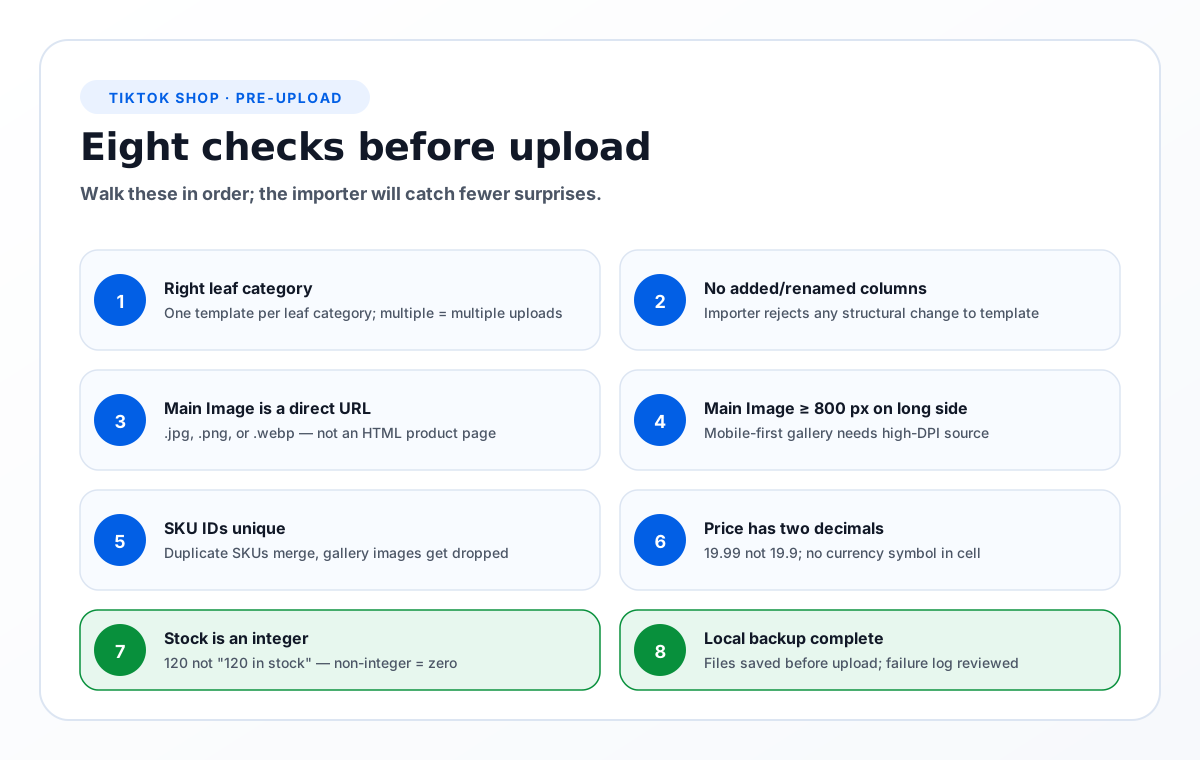
Eight checks before uploading the CSV
These checks are derived directly from TikTok Shop's current bulk listing documentation and from the failure patterns we have seen in repeated runs. Run them in order and the importer will catch fewer surprises.
- Template is the right leaf category. One template per leaf category. If you sell across Mobile Phones, Phone Cases, and Phone Chargers, that is three templates and three uploads.
- No columns added, removed, or renamed. TikTok Shop rejects any structural change to the template headers.
- Main Image URL is a direct image. The path should end in
.jpg,.png,.webp. A URL that points to an HTML product page will fail. - Main Image is at least 800 pixels on the long side. TikTok Shop's mobile-first product page renders gallery images at high DPI; smaller files look blurry.
- SKU IDs are unique across the sheet. Duplicate SKUs are merged into one row and the second row's gallery images are dropped.
- Price has two decimals.
19.99not19.9and not$19.99. Currency symbol goes in a separate column. - Stock is an integer, not text.
120not120 in stocknot~120. Anything non-integer gets parsed as zero. - Local backup completed. Save the files to disk before uploading. If Seller Center's image worker fails on a URL, you have a fallback you can re-host.
Common import problems and how to spot them
Half the catalog updated, half did not
Most likely cause is mixed-category rows in the same template. TikTok Shop's importer is leaf-category-scoped. Split the sheet by category and re-upload each as a separate template.
Images appear on the product page as broken icons
The image URL returned 200 to your preflight check but failed inside Seller Center's image worker. The most common cause is a CDN that only serves the right bytes to a referer-locked request.
Gallery images swapped or out of order
Column order. Extra Image 1 is the first gallery image, Extra Image 2 the second, and so on. The importer does not sort by URL string; it reads the columns in the order they appear.
All rows show "format invalid"
A column was added, removed, or renamed, or the file was saved in a non-supported format. Re-download the template, paste your data back in, and save as .xlsx (not .csv or .numbers).
Verify every image URL locally before any TikTok Shop upload.
Try Sheet Image Downloader — paste your URL list, get a local folder named by SKU plus a failure log you can re-run. For questions or edge cases, use the contact page.
Frequently asked questions
No. Since June 2025, TikTok Shop requires one leaf-category template per upload. If your catalog spans multiple categories, download a separate template for each leaf category and upload them one at a time.
The main image URL sits in the Main Image column of the template. Additional gallery images (up to 8 per product on most categories) are added in the Extra Image 1 through Extra Image 8 columns. Each row is one SKU.
No. TikTok Shop's bulk importer rejects any spreadsheet where rows or columns are added, removed, or reordered. Fill the template exactly as downloaded, and leave blank cells for optional fields you are not using.
No. Sheet Image Downloader downloads your image URLs to a local folder named by SKU, writes a failure report for any URL that returns a non-200 response, and gives you the local backup and failure log. You then run the TikTok Shop bulk importer yourself with the verified CSV.
TikTok Shop recommends 800x800 pixels or larger, square or 4:5, JPEG or PNG, and at least 1000 pixels on the longer side for the main image to look sharp on mobile. Files larger than 5 MB may fail; files smaller than 300 pixels on the long side are usually rejected.
Editorial note: This preflight is based on TikTok Shop's current bulk listing documentation, verified June 2026. TikTok Shop occasionally updates category trees, image size requirements, and the leaf-category template rule. Sellers should confirm the latest template format inside Seller Center before running a production upload. No import outcome is guaranteed by Sheet Image Downloader.