
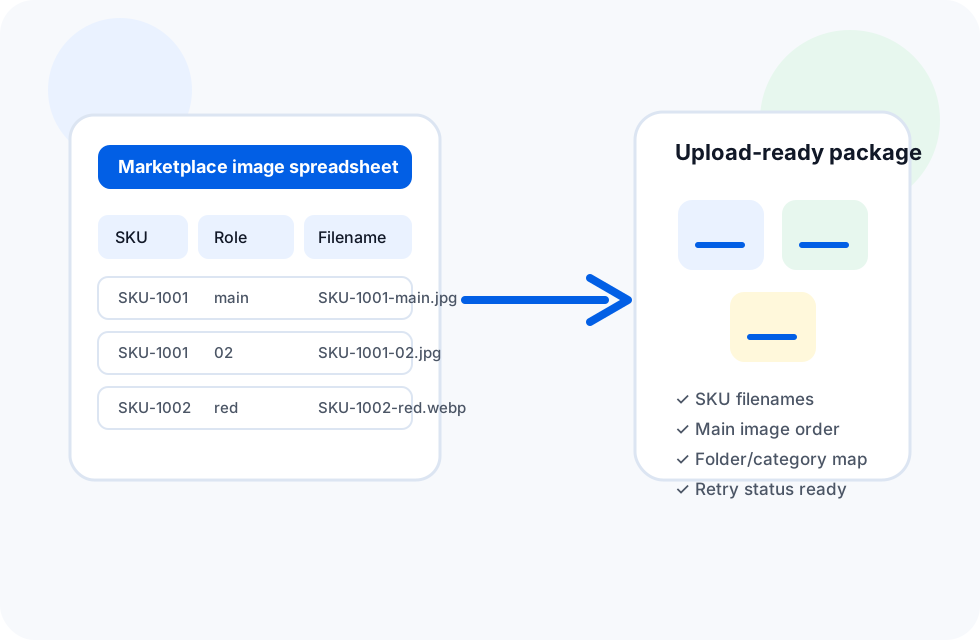
To prepare product image spreadsheets for marketplace upload, create one row per image with columns for SKU, product title, image URL, image role, image position, desired filename, folder/category, and validation status. Download a small sample first, fix failed URLs, verify file names and image order, then upload only the reviewed image set to your marketplace or catalog system.
Most marketplace upload problems start before the upload screen. A product import file may contain valid SKUs but weak image data: copied CDN links, duplicate filenames, unknown image order, private URLs, or product photos that do not match the row. When that happens, the upload process becomes a manual cleanup job.
A better workflow is to prepare the product image spreadsheet as an operations file, not just a list of URLs. The sheet should explain which image belongs to which product, what the file should be called, where it should be saved, and whether it has passed review. Then a desktop tool such as Sheet Image Downloader can turn those rows into organized local files before marketplace import.
Why spreadsheet preparation matters before marketplace upload
Marketplace and ecommerce imports are strict about product data. Even when image rules vary by platform, catalog teams usually need the same preparation layer: clean SKU matching, a main image, optional gallery or variant images, usable file names, and a way to retry broken image URLs.
Required columns for a marketplace-ready image spreadsheet
Use one row per image. This keeps image order, filename rules, and failure reports simple. If one product has six photos, the SKU appears on six rows with different image positions.
| Column | Example | Why it matters |
|---|---|---|
| SKU / Product ID | SKU-1001 | Connects every image back to the product record in your marketplace import file. |
| Product title | Blue Running Shoe | Gives reviewers human context when checking image-product matches. |
| Image URL | https://cdn.example.com/sku-1001-main.jpg | The source link used for downloading or validating the image. |
| Image role | main, gallery, variant, swatch | Explains how the image should appear in the product listing. |
| Image position | 01, 02, 03 | Preserves upload order and prevents gallery images from appearing before the main image. |
| Desired filename | SKU-1001-main.jpg | Creates predictable local files instead of random CDN names or duplicate image.jpg files. |
| Folder / category | shoes/running | Keeps output organized by catalog, supplier, category, or upload batch. |
| Status / notes | checked, retry, rights approved | Tracks review state before files are uploaded or handed to another team. |
How to handle main images, gallery images, and variants
The main image should be easy to identify in the spreadsheet. Use a role value like main and position 01. Additional gallery images can use positions such as 02, 03, and 04. Variant images can include a color, size, or material suffix if that matches your catalog structure.
| Image type | Filename pattern | Example |
|---|---|---|
| Main product image | {sku}-main | SKU-1001-main.jpg |
| Gallery image | {sku}-{position} | SKU-1001-02.jpg |
| Variant image | {sku}-{variant} | SKU-1001-red.webp |
| Marketplace batch backup | {marketplace}-{sku}-{position} | amazon-SKU-1001-01.jpg |
Download and organize the images before upload
Do not rely only on remote URLs at upload time. Source URLs can expire, redirect to HTML pages, require cookies, or return small placeholder images. Downloading the image set locally gives you a reviewable package before the marketplace import starts.
Prepare rows
Normalize SKU values, split multiple URLs into separate rows, and fill role, position, filename, and folder columns.
Run a sample download
Download 5–10 rows first to confirm URLs, file extensions, naming, and folder output.
Download the full set
Use the spreadsheet to save files locally with SKU-based names and category folders.
Retry failures
Fix only the failed rows, then run a focused retry pass instead of repeating the whole catalog.
If you are still building the source file, see How to Build a Product Image URL Spreadsheet Template for Bulk Downloads. If your current task is only downloading the image set, use How to Bulk Download Product Images from a Spreadsheet as the companion workflow.
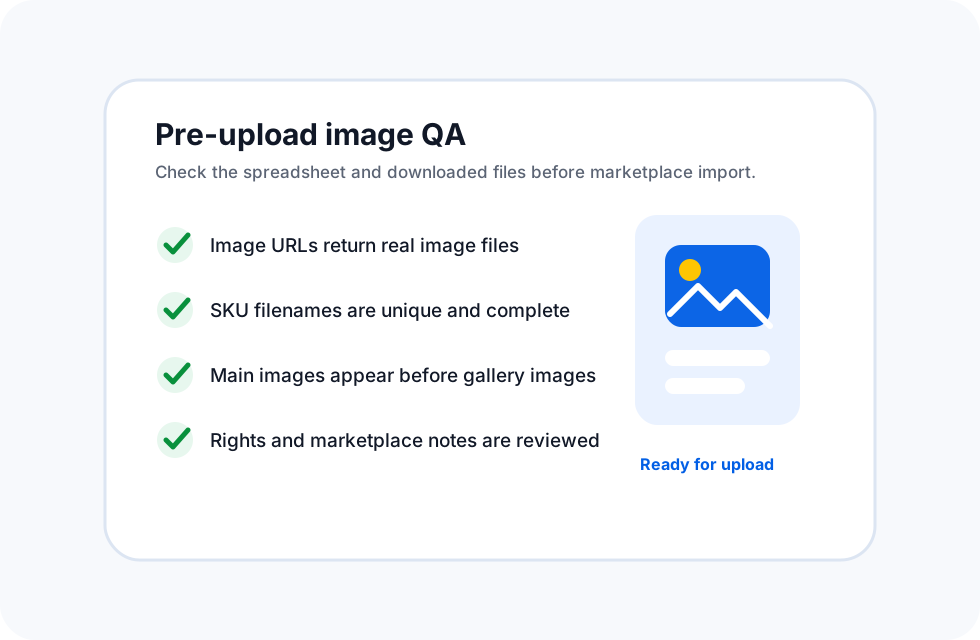
QA checklist before marketplace upload
Use the spreadsheet as your QA control sheet. Add or update a status column after each check so the final upload package has a visible review trail.
- Sort downloaded files by size to catch zero-byte files, tiny thumbnails, or placeholder images.
- Compare the count of downloaded files against the count of spreadsheet image rows marked ready.
- Review products with multiple variants so the correct image is matched to the right color, material, or size.
- Keep a copy of the original spreadsheet and the cleaned upload-prep spreadsheet for audit history.
- Only mark rows as
readyafter rights, quality, filename, and product match checks are complete.
Platform import notes
Different marketplaces and ecommerce systems handle image import differently. Some accept remote URLs in a CSV. Others require uploaded files, hosted image links, or platform-specific media handling. WooCommerce, for example, documents product CSV import and export in its official product CSV importer and exporter guide. Google also publishes image SEO best practices that are useful after images are published.
Common spreadsheet mistakes to fix before upload
- Multiple image URLs in one cell. Split them into one row per image so retries and filenames stay clean.
- No main image marker. Add an image role or position column so gallery order is not guessed later.
- Random CDN filenames. Generate SKU-based filenames before downloading the files.
- Missing extensions. Include
.jpg,.webp, or.pngin the desired filename. - No review status. Add a column such as
ready,retry,rights-check, orblocked.
FAQ
What columns should a product image spreadsheet include for marketplace upload?
Include SKU or product ID, product title, image URL or local image filename, image position, marketplace image role, desired filename, folder or category, rights/status notes, and a validation status column. The minimum is SKU, image URL, image position, and filename.
Should marketplace product images be named by SKU?
Yes. SKU-based filenames make downloaded files easier to audit, match back to product records, and upload consistently. A practical pattern is SKU-main.jpg for the primary image and SKU-02.jpg, SKU-03.jpg, or SKU-variant-color.jpg for additional images.
Can I upload spreadsheet-downloaded images directly to a marketplace?
Only after checking marketplace requirements, image rights, file quality, and import format. Use the spreadsheet to prepare clean filenames and image order, then follow the upload rules for your marketplace or ecommerce platform.
How do I check image URLs before upload?
Run a small sample download first, review failed URLs, check file sizes, open a few images from each category, and confirm that main images, variant images, and filenames match the product rows before importing the full catalog.
Prepare your marketplace image upload from one clean spreadsheet.
Use Sheet Image Downloader to download product image URLs locally, apply SKU-based filenames, organize folders, and review failures before your marketplace import. For support or edge cases, use the contact page.