
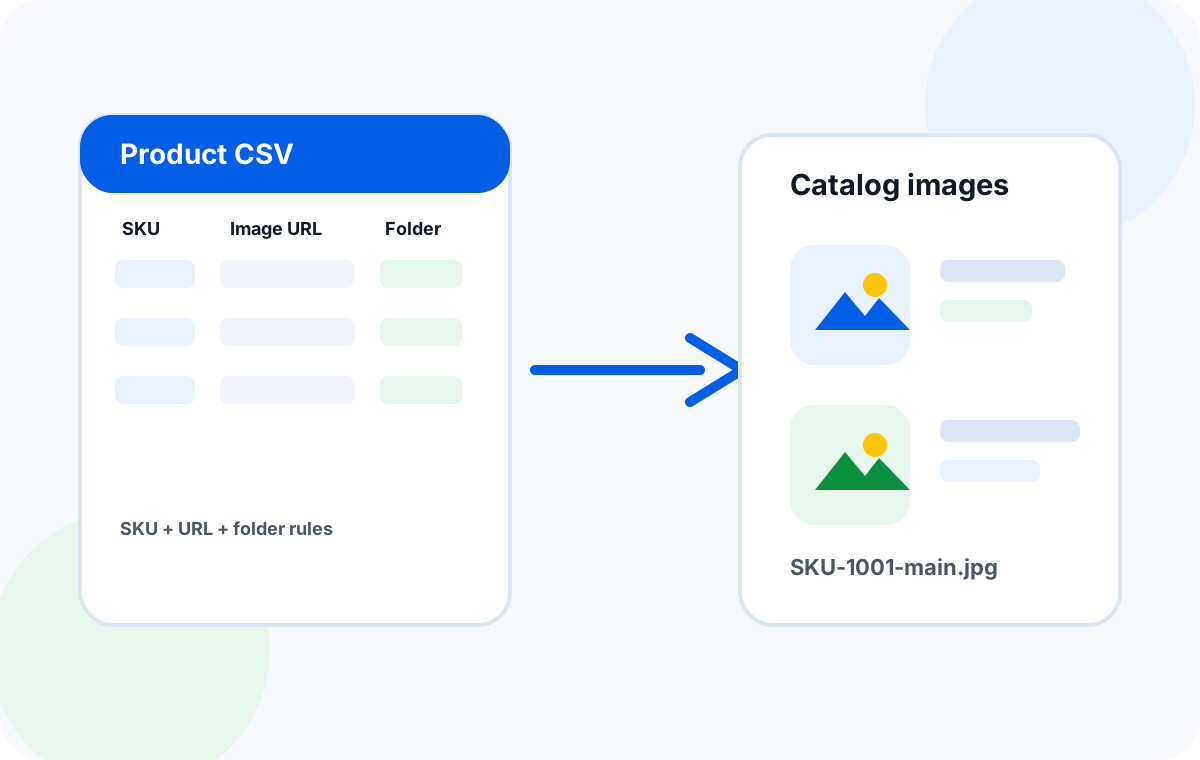
To bulk download product images from a spreadsheet, prepare columns for SKU, product title, image URL, image position, filename, and folder. Export the file as Excel or CSV, run it through a spreadsheet image downloader, then review failed rows and check file sizes before uploading the images to your ecommerce catalog or asset library.
Product image work becomes expensive when it turns into manual clicking. A supplier sends a spreadsheet with hundreds of image links. A marketplace export contains old product photos. A catalog migration needs every image stored locally before the next import. In all of these cases, the fastest path is not a browser-by-browser download—it is a structured spreadsheet workflow.
This guide is written for ecommerce teams that already live in spreadsheets. It applies to Excel workbooks, CSV files, Google Sheets exports, supplier catalog files, and product import templates. The goal is to download the images while preserving the business context: SKU, product title, image order, category, and source row.
The best spreadsheet columns for product image downloads
A product-image spreadsheet should do more than hold URLs. It should explain how every image should be named, where it should be saved, and how it connects back to the product catalog. If you only keep a URL column, you can download files—but you may still spend hours sorting and renaming them afterward.
| Column | Example | Purpose |
|---|---|---|
| SKU or product ID | SKU-1001 | Creates a stable connection between the image file and the product record. |
| Product title | Blue Running Shoe | Useful for human review, but usually not ideal as the only filename field. |
| Image URL | https://cdn.example.com/sku-1001-main.jpg | The direct source link the downloader will fetch. |
| Image position | main, 02, variant-red | Preserves product image order and variant relationships. |
| Desired filename | SKU-1001-main.jpg | Prevents messy CDN names and duplicate image.jpg files. |
| Folder/category | shoes/running | Keeps local output organized for review, upload, and archiving. |
| Status/notes | retry, supplier missing | Helps track failed or questionable links after the first batch. |
A repeatable workflow for bulk downloading product images
The best workflow has two phases: prepare the spreadsheet, then download and verify. Do not skip the small test run. It catches wrong URL columns, bad filename formulas, and folder naming problems before they affect the full catalog.
Clean the source sheet
Remove blank rows, normalize SKU values, and confirm that each row has a direct product image URL.
Create filename rules
Use SKU plus image position, such as SKU-1001-main.jpg or SKU-1001-02.webp.
Run a sample batch
Download 5–10 rows first. Check file names, folder paths, image quality, and failed-link behavior.
Download the full catalog
Run the complete spreadsheet and save everything into a local output folder for review.
Sheet Image Downloader is designed for this spreadsheet-first process. If you need the more general setup workflow, start with How to Download Images from an Excel URL List in Bulk. If you are deciding between a desktop workflow and a browser add-on, see Excel Image Downloader vs Browser Extensions.
SKU-based filename rules that work well
Product image filenames should be predictable, short, and tied to product data. A good rule works across thousands of rows without manual edits. Avoid filenames based only on product titles, because titles can be long, duplicated, or contain characters that are awkward in file systems.
| Image type | Filename pattern | Example |
|---|---|---|
| Main product image | {sku}-main | SKU-1001-main.jpg |
| Gallery image | {sku}-{position} | SKU-1001-02.jpg |
| Variant image | {sku}-{variant} | SKU-1001-red.webp |
| Supplier backup | {supplier}-{sku}-{position} | ACME-SKU-1001-01.png |
Google’s image SEO guidance recommends useful context such as descriptive filenames and alt text for images. That advice applies after upload, but it is easier to follow if your local files are already named clearly. See Google Search Central’s image SEO best practices for the official overview.
Quality checks after the bulk download
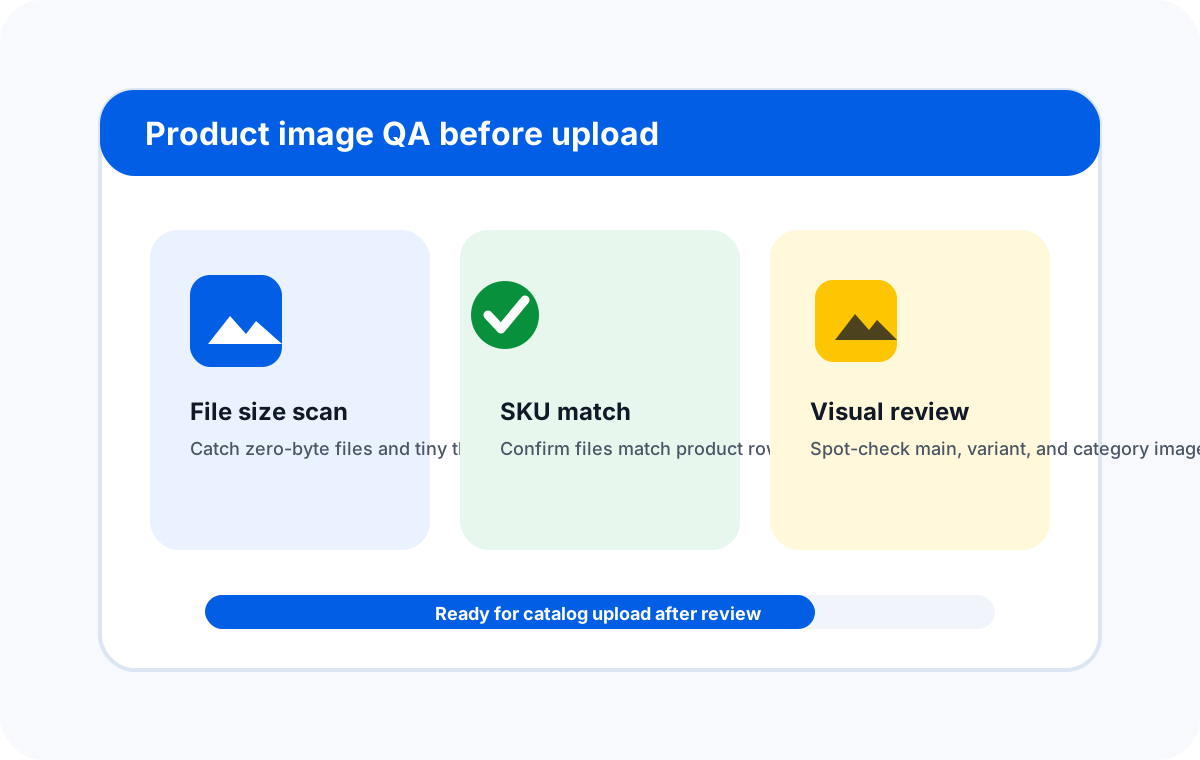
A completed batch is not automatically a clean catalog. Product image URLs can point to placeholders, thumbnails, old supplier files, expired CDN resources, or images that are technically valid but wrong for the product. Add a short review step before upload.
- Check whether the main image is actually the main product image, not a lifestyle or variant image.
- Confirm that category folders match your catalog or upload workflow.
- Keep the original spreadsheet and failed-link report for audit history.
- Rerun only failed or corrected rows instead of repeating the full batch.
Using downloaded images with ecommerce platforms
Many ecommerce workflows use CSV files for product imports and exports. WooCommerce, for example, provides official documentation for product CSV import and export. If your next step is WooCommerce import, review the platform’s current requirements in the official WooCommerce product CSV importer and exporter documentation.
For WooCommerce, marketplaces, internal PIM systems, and custom stores, the principle is similar: keep a clean mapping between product records and image files. Your local filename rule should make it obvious which image belongs to which product, even before upload.
When this workflow is especially useful
This topic converts well because the pain is immediate. Users searching for product image spreadsheet downloads often already have a file, a deadline, and a catalog problem. A spreadsheet image downloader is especially useful for:
- Supplier catalog cleanup before a store launch.
- Marketplace migration where old image URLs need local backup.
- Shopify, WooCommerce, or custom ecommerce catalog preparation.
- Large product audits where missing images must be identified quickly.
- Agency or virtual assistant workflows that repeat for multiple clients.
FAQ
Can I bulk download product images from Google Sheets?
Yes. Prepare the image URL list in Google Sheets, then export it as Excel or CSV before running the desktop download workflow.
Should product images be named by SKU?
Usually yes. SKU-based filenames are easier to audit, upload, search, and match back to product rows than random CDN filenames.
What if some product image URLs fail?
Keep a failed-row report, fix only those URLs, and rerun the corrected subset. Failures are common with expired, private, redirected, or removed source URLs.
Can I use downloaded images directly in my store?
Only if you have the right to use them and they meet your platform’s image requirements. Always verify permissions, quality, format, and upload rules before publishing.
Download product images from spreadsheet URLs without manual clicking.
Use Sheet Image Downloader to turn Excel, CSV, or Google Sheets product image URL lists into organized local files. For support or feature questions, use the contact page.