
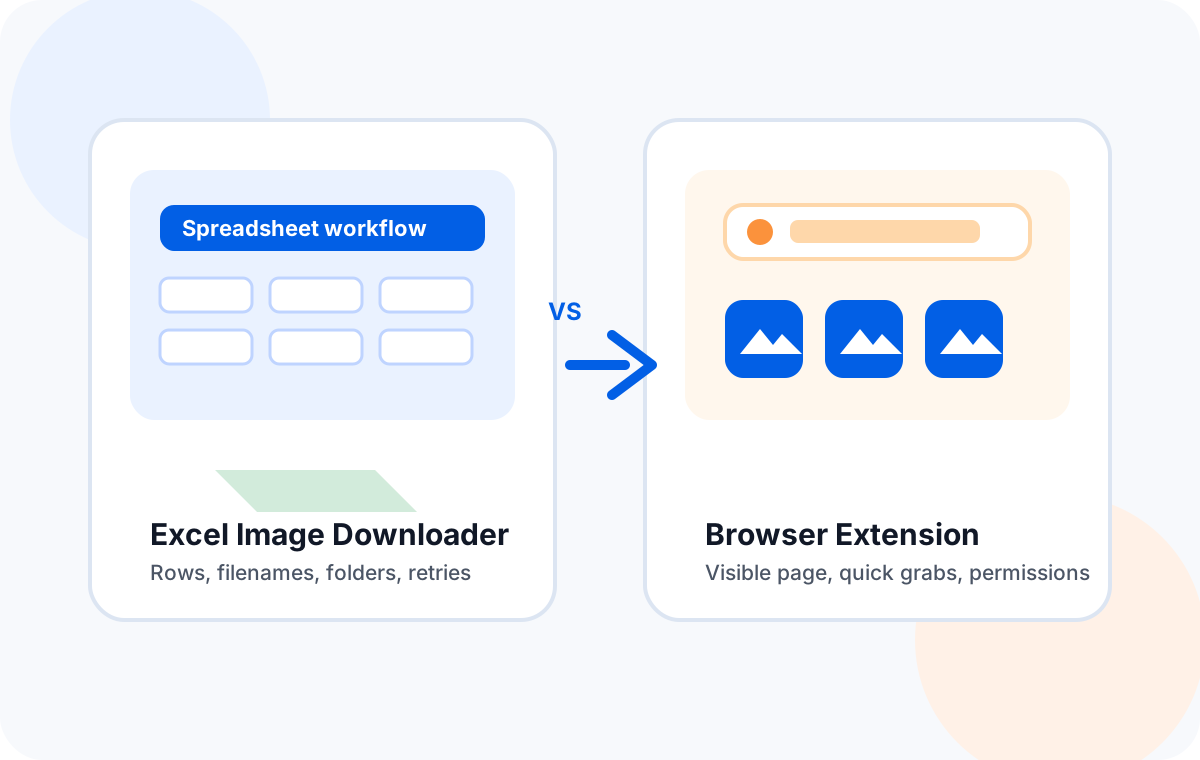
Use an Excel image downloader when your image sources are organized in a spreadsheet and you need filenames, folders, retry lists, and repeatable batch runs. Use a browser extension when you only need to save images from one visible webpage. For catalog and supplier-image work, a desktop spreadsheet workflow is usually more predictable than a browser extension.
“Image downloader” can mean two very different workflows. One workflow starts with a spreadsheet: SKUs, product IDs, image URLs, filenames, folder rules, and a local output directory. The other starts with a browser tab: images are visible on a page, and an extension tries to detect and save them. Both can be useful. They are not interchangeable.
If your work starts in Excel, CSV, or Google Sheets, the better question is not “which tool can download images?” It is “which tool preserves the structure of my job?” A spreadsheet-based image downloader can use row data to control output. A browser extension usually sees a webpage, not your full catalog logic.
The core difference: spreadsheet workflow vs page workflow
An Excel image downloader is designed around a list. It expects rows and columns. That means you can define a source URL column, a filename column, a folder/category column, and a status column. The tool can then process the list as a batch and preserve the relationship between the downloaded file and the original row.
A browser extension is designed around a page. It scans the current tab or site, detects image resources, and lets you save some or all of them. That is excellent for quick visual collection, but less ideal when the images are part of a spreadsheet-driven business process.
Choose an Excel image downloader when...
- You already have image URLs in a sheet.
- You need file names based on SKU or product ID.
- You want local output folders and retry reports.
- You repeat the workflow weekly or monthly.
Choose a browser extension when...
- You are saving images from one visible page.
- You do not need spreadsheet-based naming.
- You are doing a quick, non-repeatable task.
- The page images are public and easy to detect.
Excel Image Downloader vs Browser Extensions: practical comparison
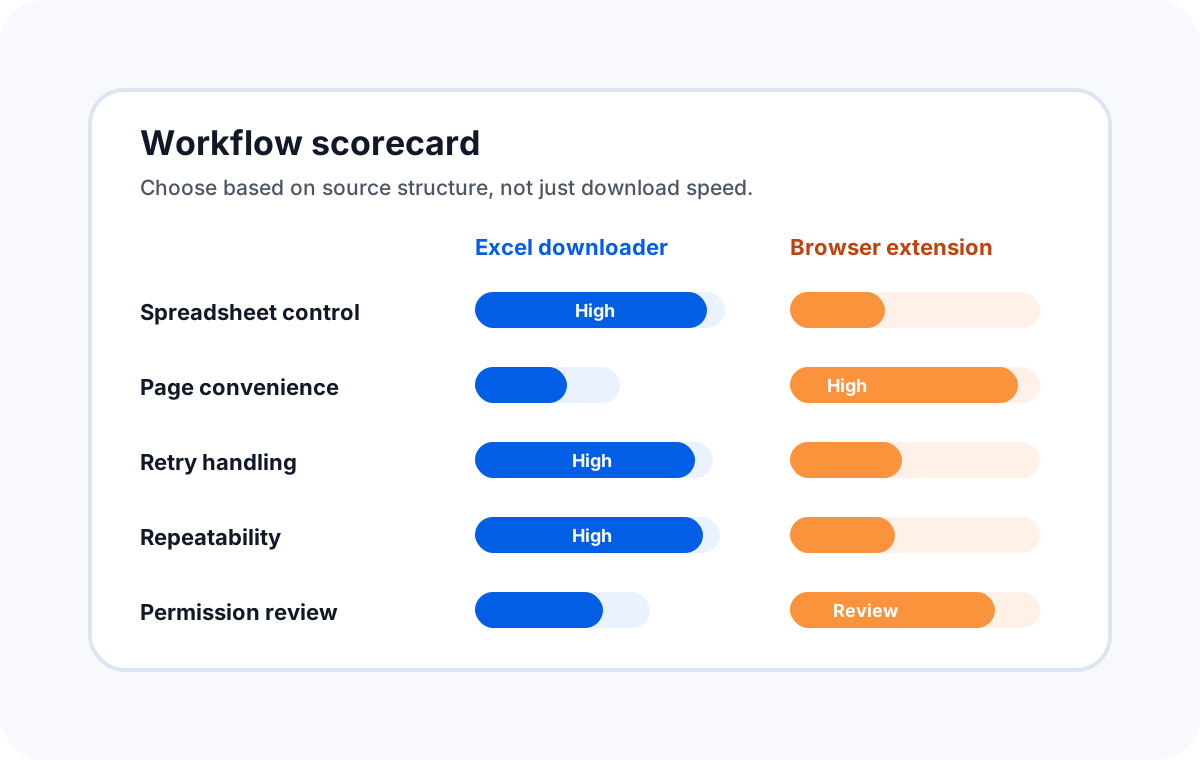
The table below compares the two approaches for bulk image work. The goal is not to say extensions are bad; it is to make the trade-offs clear before you build your workflow around the wrong tool.
| Factor | Excel image downloader | Browser extension | Best choice |
|---|---|---|---|
| Input source | Excel, CSV, or Google Sheets export with URL columns. | Images detected from the current webpage or site. | Spreadsheet tool for URL lists; extension for pages. |
| Bulk naming | Can use SKU, product ID, row number, category, or custom filename columns. | Often depends on original image filenames or manual renaming. | Excel image downloader. |
| Folder organization | Can use spreadsheet columns to create predictable local folders. | Usually downloads into browser/default folders unless manually changed. | Excel image downloader. |
| Retry handling | Failed rows can be reviewed and rerun from the sheet. | Failures may be harder to map back to catalog rows. | Excel image downloader. |
| One-page convenience | Requires a list or export first. | Fast when images are already visible in the browser. | Browser extension. |
| Permissions surface | Desktop app works with local files and URLs you provide. | Extension may request browser/site permissions depending on features. | Depends on privacy requirements. |
| Repeatability | Strong: same sheet format can be reused for future batches. | Weaker: page layout and detection behavior can change. | Excel image downloader. |
Privacy and permissions: what to check before using extensions
Browser extensions can be powerful because they run close to your browser activity. That power is exactly why permissions matter. Google’s Chrome Web Store documentation explains that its review process helps protect users from scams, data harvesting, malware, and malicious actors. Microsoft also advises users to carefully review permissions before adding Edge extensions.
Before relying on any extension for business image work, read the requested permissions, site access, publisher information, update history, and privacy policy. Official resources from Google and Microsoft are useful starting points: see the Chrome Web Store review process and Microsoft’s guide to adding and reviewing Edge extension permissions.
Where desktop spreadsheet tools are stronger
A desktop Excel image downloader is strongest when the spreadsheet is the source of truth. In that case, downloading is only one part of the job. The real job is keeping downloaded assets aligned with business data.
Use row data as rules
URL, filename, folder, category, and notes can all come from columns. This reduces manual cleanup after the download.
Save into predictable folders
For catalog work, organized folders are easier to upload, review, zip, share, or archive.
Fix only failed rows
When some URLs fail, you can correct those rows and run a focused retry instead of starting from scratch.
Reuse the same template
If the task repeats weekly, a stable spreadsheet template becomes much faster than repeated browser clicking.
Sheet Image Downloader is built for this type of spreadsheet-first workflow. If you need a step-by-step preparation guide, read How to Download Images from an Excel URL List in Bulk, which covers URL columns, naming rules, folder structure, and failed-link review.
Where browser extensions are stronger
Browser extensions win on immediate convenience. If you are looking at a single page and want to grab visible images quickly, an extension may be faster than building a spreadsheet. They can also be useful for research collection when naming and folder structure are not critical.
The limitation appears when the job needs traceability. A browser extension may not know that the third image on a page belongs to SKU-1001, should be named SKU-1001-main.jpg, and should go into /shoes/running/. A spreadsheet tool can know that because the row contains the business context.
Decision checklist: which tool should you use?
Use this checklist before choosing your workflow. If you answer “yes” to three or more spreadsheet-side questions, use an Excel image downloader instead of a browser extension.
| Question | If yes, it points to... | Why |
|---|---|---|
| Do you already have image URLs in Excel, CSV, or Google Sheets? | Excel image downloader | The URL list is already structured for batch processing. |
| Do files need SKU/product-based names? | Excel image downloader | Spreadsheet columns can drive naming rules. |
| Do images need category or supplier folders? | Excel image downloader | Folder paths can be generated from row data. |
| Are you saving images from one public page only? | Browser extension | A page-based grabber may be faster for one-off work. |
| Do you need to audit failed downloads? | Excel image downloader | Failed rows are easier to identify and retry. |
| Will this task repeat in the future? | Excel image downloader | A template-driven workflow compounds over time. |
Recommended workflow for catalog teams
- Keep image URLs, SKU/product IDs, filenames, and folder categories in separate spreadsheet columns.
- Run a 5–10 row sample before processing the full list.
- Download into a local output folder, not a browser default folder mixed with unrelated files.
- Sort the output by file size to catch broken or tiny placeholder images.
- Review failed rows, fix the source URLs, and run a focused retry.
FAQ
Can browser extensions download images from Excel?
Usually not directly. Browser extensions work inside a browser page. If your image URLs are in Excel, you would normally need to open or convert the links first, while a spreadsheet downloader can read the list directly.
Are browser extensions unsafe?
Not automatically. Many extensions are legitimate, but permissions and publisher trust matter. Review requested site access and privacy details before installing any extension, especially for business workflows.
Why is retry handling important?
Large image batches often include broken, redirected, private, or expired URLs. A retry workflow lets you fix only the failed rows instead of manually checking the entire folder.
What is the best tool for supplier image lists?
If the supplier provides a spreadsheet or CSV of image URLs, an Excel image downloader is usually better because it can preserve SKU, filename, and category information during download.
Need a spreadsheet-first image download workflow?
Use Sheet Image Downloader to turn Excel, CSV, or Google Sheets image URL lists into organized local files. For support or feature questions, visit the contact page.