
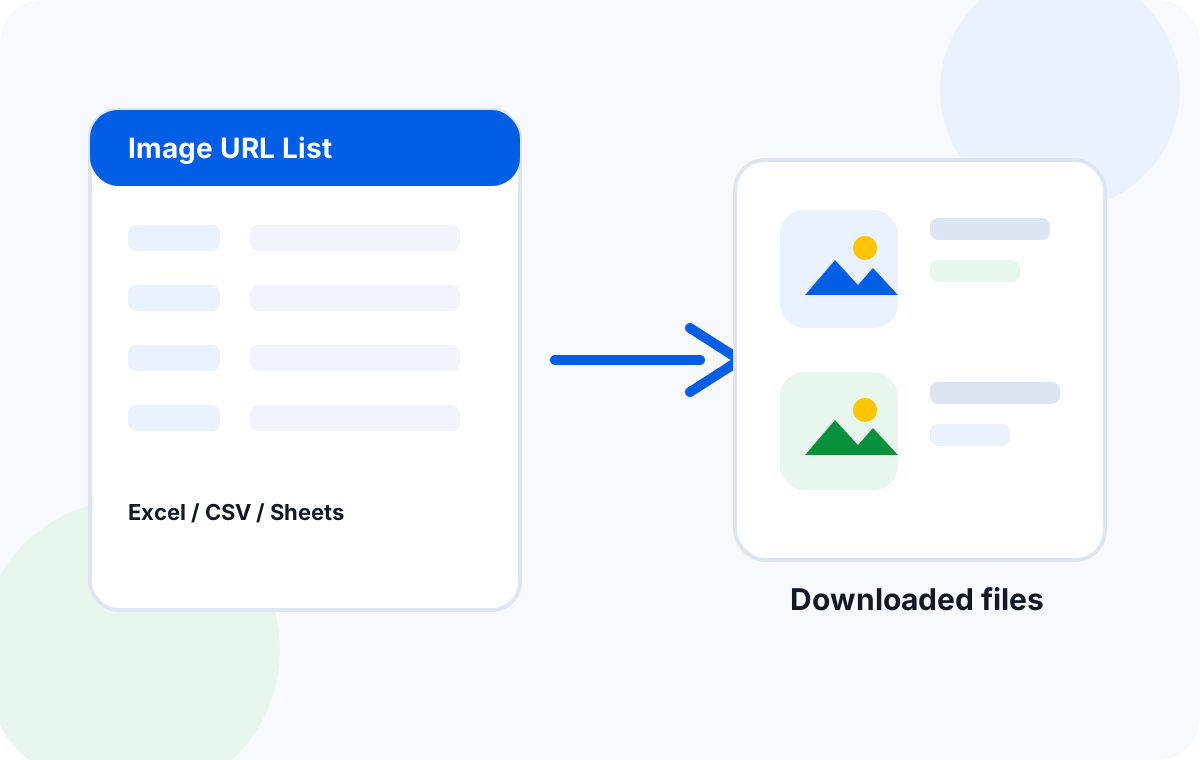
To download images from an Excel URL list in bulk, put one direct image URL per row, add optional columns for file name and folder, save the spreadsheet as Excel or CSV, then use a desktop batch downloader such as Sheet Image Downloader to fetch each image and save it into local folders. Keep a failed-link report so you only fix rows that need attention.
Manual image downloading works when you have five links. It breaks down when you have 500 supplier images, 2,000 product photos, or a weekly catalog update that must be repeated without mistakes. A spreadsheet is still the easiest place to review URLs, product SKUs, image order, filenames, and folder rules. The trick is to make the sheet structured enough that a batch tool can do the repetitive work safely.
This article focuses on direct image URL lists: links that point to image files or image resources you have permission to download. It applies to Microsoft Excel workbooks, exported CSV files, and Google Sheets that you export before running a desktop workflow. If you are still building your spreadsheet, Google’s official Google Sheets IMAGE function documentation is useful for understanding how image URLs behave inside Sheets, and Microsoft’s Excel import data from the web guide explains how Excel handles web-based data sources.
Prepare your spreadsheet before the batch run
A clean input sheet prevents most downstream problems. Before you download anything, standardize the columns, remove obvious duplicates, and decide how files should be named. You do not need a complex template; you need predictable data.
| Column | Example | Why it matters |
|---|---|---|
| Image URL | https://example.com/images/sku-1001.jpg | The required source link. Each row should contain one direct image URL whenever possible. |
| File name | SKU-1001-main.jpg | Keeps the downloaded file tied to your catalog, product ID, or internal asset name. |
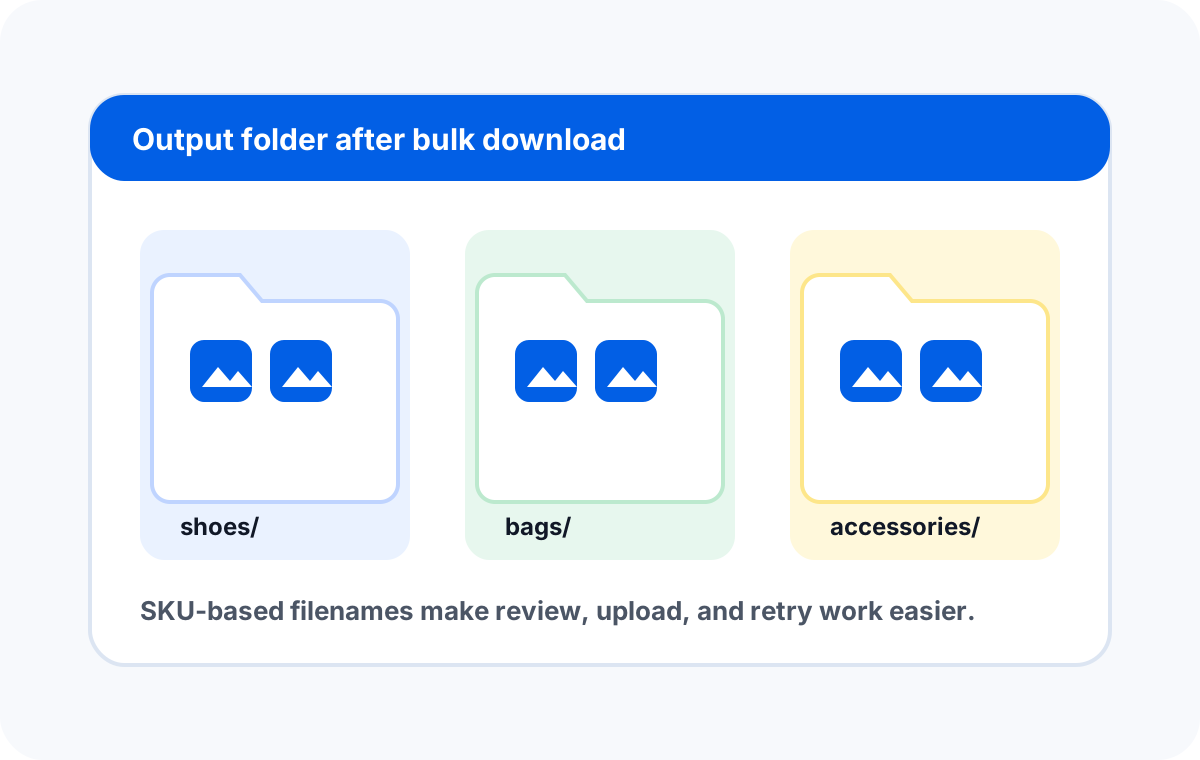
| Folder or category | summer-catalog/shoes | Helps organize large batches into local folders instead of one messy download directory. |
| Notes or status | main image, variant 2, retry | Gives your team a place to review special cases and failed rows after the run. |
What counts as a good image URL?
A good image URL usually opens the image itself, not a product page containing the image. URLs ending in common extensions such as .jpg, .jpeg, .png, or .webp are often easier to process, but extension alone is not a guarantee. Some websites use dynamic image URLs without visible extensions, and some links redirect through a CDN before returning the file.
- Open a few sample URLs in a browser to confirm they return images.
- Remove blank rows and obvious duplicate links before running the batch.
- Avoid using private dashboard URLs that require your browser login session.
- Keep filenames short, descriptive, and safe for Windows and macOS.
- Use a separate folder/category column for large catalogs.
A simple workflow to bulk download spreadsheet images
The safest process is not “paste URLs and hope.” Treat bulk image downloading as a repeatable workflow: prepare, test, run, review, and retry. This is the same operating pattern used by ecommerce teams, catalog managers, researchers, and virtual assistants who process image lists every week.
Prepare the sheet
Put image URLs in a dedicated column. Add filename and folder columns if you want organized output.
Run a small test
Test 5–10 rows first. Confirm the files open correctly and the naming rule produces the expected result.
Download the full batch
Load the workbook or CSV into the downloader and save images into your chosen local output folder.
Review failures
Check failed rows, fix broken links, and rerun only the rows that still need images.
Sheet Image Downloader is built around this spreadsheet-first pattern. It is a desktop utility for turning spreadsheet image URLs into local files, which is especially useful when you want the download work to stay on your own machine instead of uploading a catalog sheet to a browser extension or unknown service.
File naming and folder structure recommendations
File naming is where bulk downloads either become organized assets or turn into a second cleanup project. If you are downloading product images, use identifiers that already exist in your operations: SKU, product ID, supplier code, image position, color, variant, or catalog season.
| Scenario | Recommended naming pattern | Example |
|---|---|---|
| Main product image | {sku}-main | SKU-1001-main.jpg |
| Multiple product images | {sku}-{position} | SKU-1001-01.jpg, SKU-1001-02.jpg |
| Supplier catalog | {supplier}-{sku} | ACME-SKU-1001.webp |
| Research or archive images | {project}-{row-id} | market-scan-0042.png |
image.jpg. A spreadsheet-based naming rule is easier to audit.Why some image links fail and how to handle them
Even a well-prepared URL list can contain failures. That does not mean the workflow is broken. It usually means a subset of URLs need a different source, a login, a corrected direct image link, or a manual review.
- The URL points to a webpage, not an image. Product pages may contain images, but the URL itself returns HTML.
- The source blocks automated downloading. Some servers reject repeated requests or require headers/cookies.
- The image was removed or renamed. Supplier catalogs and marketplaces change image paths over time.
- The link requires authentication. Private storage, dashboards, and signed URLs may expire.
- The URL redirects too many times. Tracking links and temporary CDN links can become unreliable.
The practical solution is to keep failed rows visible. Export a retry list, fix only those rows, and run a second pass. This is faster than restarting the whole project or manually checking every downloaded file.
Common use cases for Excel image URL downloading
Bulk image downloading is not just a technical convenience. It removes repetitive work from real business processes where spreadsheets are already the source of truth.
| Use case | What the spreadsheet contains | Desired output |
|---|---|---|
| Ecommerce catalog setup | SKU, product title, main image URL, variant image URLs | Local product image folders ready for upload or review |
| Supplier image cleanup | Supplier codes, remote image links, category labels | Renamed files that match internal catalog conventions |
| Marketplace migration | Exported listings with old image URLs | A local backup before moving assets to a new platform |
| Research collection | Source URLs, row IDs, notes, tags | Organized visual references with traceable row names |
Quality checklist before you publish or upload downloaded images
After the batch finishes, do a short quality pass. Large downloads can look successful while still containing wrong formats, placeholder images, tiny thumbnails, or duplicate files. A five-minute review prevents those mistakes from entering your catalog or asset library.
- Open several files from the beginning, middle, and end of the output folder.
- Sort by file size to catch zero-byte files or suspiciously tiny thumbnails.
- Check duplicate filenames and overwritten files.
- Confirm that folder categories match the spreadsheet categories.
- Keep the original spreadsheet and a failed-link report for audit history.
When should you not use a bulk downloader?
Do not use a bulk downloader to copy images you do not have the right to download or reuse. Also avoid batch downloading from private systems unless you have permission and understand the site’s terms. For internal business workflows, the cleanest approach is to use URLs from suppliers, partners, or systems where your team is authorized to retrieve the images.
FAQ
Can I use a CSV file instead of an Excel workbook?
Yes. CSV is often the simplest format for a clean URL list. Use one row per image URL and keep filename or folder fields in separate columns.
Can Google Sheets be part of the workflow?
Yes. Prepare or collaborate on the list in Google Sheets, then export the finished sheet as Excel or CSV before running the desktop download workflow.
Should I download every image into one folder?
Only for small batches. For large catalogs, use folder rules based on category, supplier, SKU prefix, or project name so the output remains reviewable.
What is the best first test?
Run a 5–10 row sample. Confirm URLs, filenames, folders, image quality, and failed-link reporting before processing the full sheet.
Turn your spreadsheet URLs into organized image files.
Try the desktop workflow built for Excel, CSV, and Google Sheets image URL lists. For questions or edge cases, use the contact page.