
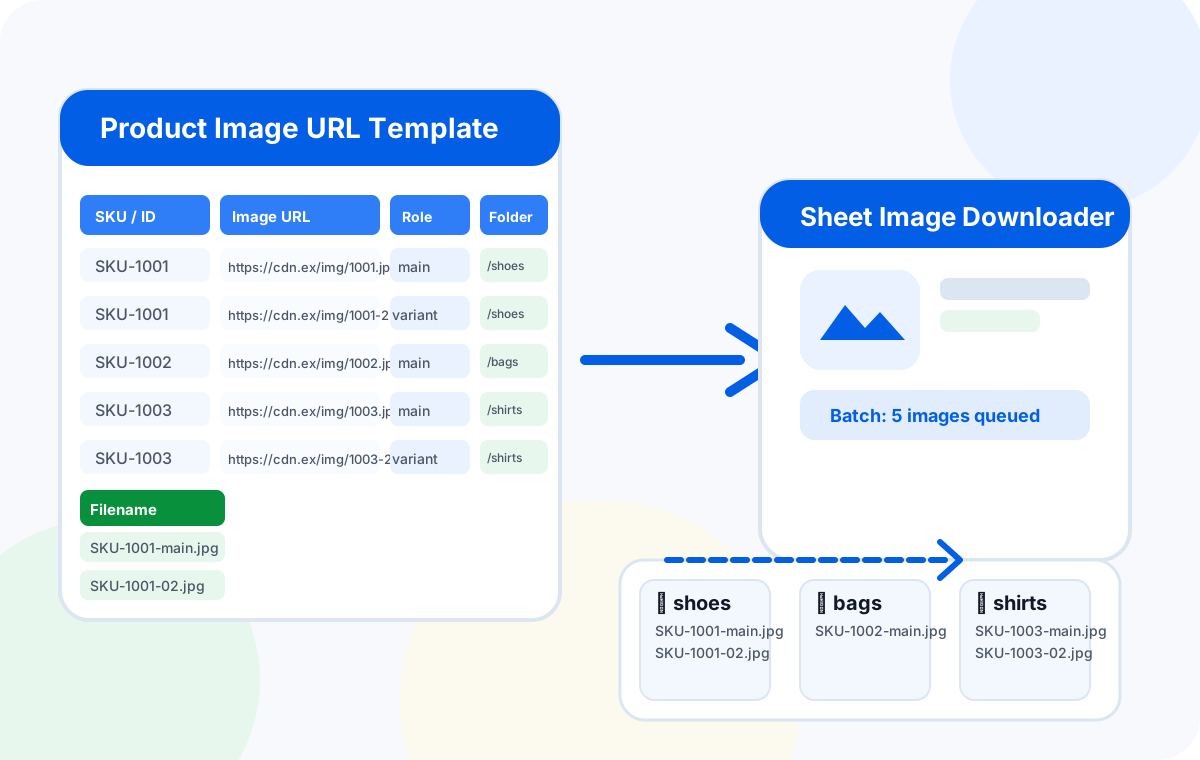
A product image URL spreadsheet template needs at minimum four columns: SKU / Product ID, Image URL, Image Role / Position, and Desired Filename. Add optional columns for folder, format, and notes depending on your catalog size. Export the finished sheet as Excel or CSV, load it into Sheet Image Downloader, and the batch tool saves each image with the filename and folder structure defined in the template.
If you have worked with image URLs in a spreadsheet before, you already know the pain: a CDN gives every image the same meaningless name, a supplier sends a list where one product row has five image links, or the batch run finishes with files scattered across one messy folder with no link back to the original catalog. The fix is not a smarter download tool — it is a better template.
This guide walks through the column design, naming patterns, folder strategy, and common mistakes for a product image URL spreadsheet that is ready for a bulk download run. It assumes you are working with Excel, CSV, or Google Sheets and that you have the right to download the image URLs in your list.
Why spreadsheet structure matters
A batch downloader reads rows and applies rules. If the source spreadsheet is ambiguous — one row with five URLs, no filename rules, no folder logic — the output reflects that chaos. A well-structured template makes the batch tool predictable: each row produces exactly one named file in one defined folder.
Good structure also helps your team audit the catalog before and after the run. Operations teams, catalog managers, and suppliers can review the same spreadsheet to confirm coverage, catch missing images, or flag image URLs that have moved.
Required columns
These four columns are the minimum foundation for any product image URL template. Skip or merge them only if your use case is very small and one-off.
| Column | Example value | Why it matters |
|---|---|---|
| SKU / Product ID | SKU-1001 | The stable identifier that ties the downloaded file back to your catalog, purchase order, or internal system. |
| Image URL | https://cdn.example.com/products/sku-1001-main.jpg | The direct link to the image file. Each row should contain one image URL only. |
| Image Role / Position | main, 01, variant | Distinguishes the main image from angle shots, swatches, or alternate views within the same SKU. |
| Desired Filename | SKU-1001-main.jpg | The name the file gets when saved locally. Set this column so the batch tool does not rely on the CDN filename. |
Use the SKU column as the primary key throughout your workflow. If you receive a supplier list with internal codes rather than your own SKUs, map those to your SKU system first — before the bulk download run.
Optional columns for ecommerce teams
If you are managing a catalog with more than 50 products or multiple categories, these columns add useful structure without creating unnecessary complexity for small batches.
| Column | Example value | When to use it |
|---|---|---|
| Folder / Category | shoes/running or /summer-catalog/bags | Large catalogs where you want output organized into subfolders rather than one flat directory. |
| Image Format | jpg, webp, png | When the source URLs return mixed formats and you want to confirm or normalize the output format. |
| Notes / Status | pending, checked, retry, supplier updated | For team review of edge cases, failed links, or changes made after the original batch run. |
| Product Title | Trail Runner Pro — Women's Size 8 | When the catalog team needs human-readable context alongside the SKU and URL. |
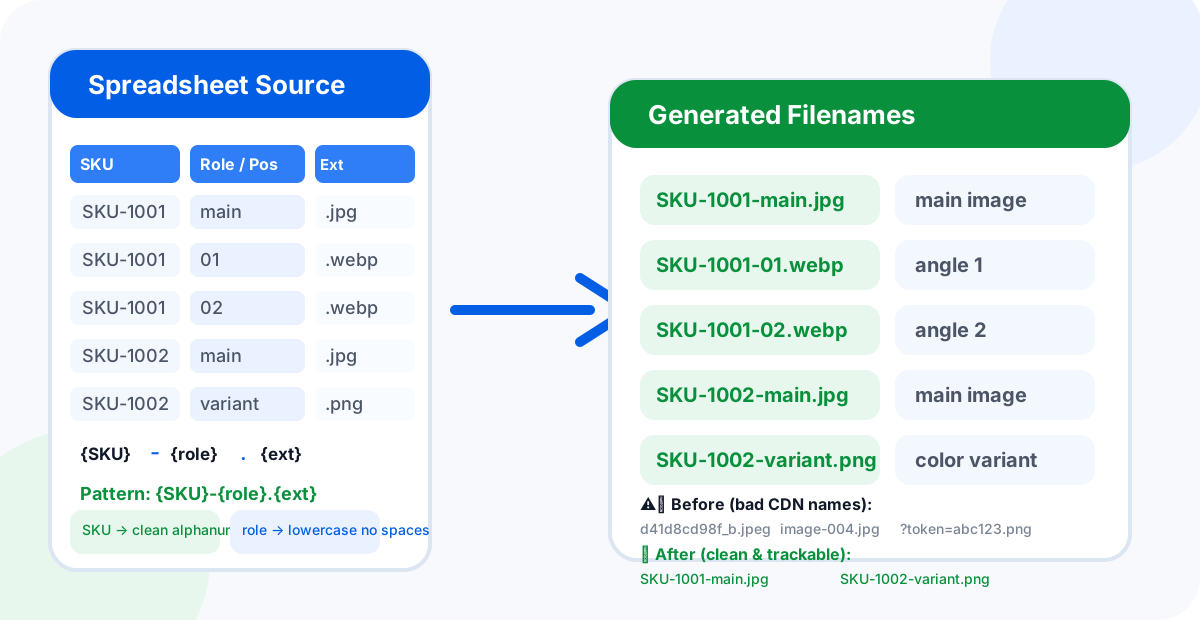
{SKU}-{role}.{ext} turns confusing CDN hashes into trackable local filenames.One-row-per-image vs one-row-per-product
The most common structural question is whether to put one image per row or one product per row with multiple URLs in a single cell. Here is a direct comparison:
| Approach | How it works | Best for |
|---|---|---|
| One row per image | SKU-1001 appears once per image URL: row 1 = main, row 2 = variant, row 3 = swatch. | Bulk download workflows where each row must map to one file and one filename rule. |
| One row per product | SKU-1001 appears once with multiple URLs concatenated or in separate columns. | Catalog viewing and review where the focus is on product completeness, not file naming. |
For a bulk image download, one row per image is the safer choice. It removes ambiguity about which file came from which URL, makes the retry report straightforward (one row per failed link), and works reliably with spreadsheet-first batch tools like Sheet Image Downloader.
SKU filename patterns
A filename pattern does two things: it makes the output auditable (you can tell what an image represents without opening it) and it prevents filename collisions when the same product has multiple images.
The most reliable pattern for product images is:
{SKU}-{role}.{ext} → Example: SKU-1001-main.jpg, SKU-1001-02.webp, SKU-1002-variant.pngKeep these rules in mind when building the filename column:
- Use the SKU value exactly as it appears in your catalog system — no spaces, no special characters beyond hyphens and underscores.
- Use lowercase without spaces for the role/position field:
main,01,02,variant,swatch. - Always include the file extension so the batch tool saves the correct format:
.jpg,.webp,.png. - Avoid writing the filename column by hand for large catalogs — use a formula like
=A2&"-"&B2&"."&C2in Excel or Google Sheets to derive it from SKU, role, and format columns. - If two images share the same SKU and role, add a numeric suffix to prevent overwrites:
SKU-1001-01.webpandSKU-1001-02.webp.
image.jpg. Relying on those as the output filename creates audit chaos. Always override with a SKU-based filename derived from your spreadsheet columns.Folder structure recommendations
For small batches under 50 images, a single output folder is fine. For larger catalogs, organize output into subfolders so the downloaded files mirror your internal catalog structure.
| Strategy | Example structure | Best for |
|---|---|---|
| By category | /shoes, /bags, /shirts | Broad product types with many SKUs each. |
| By supplier | /ACME-corp, /GlobalSupply | Multiple supplier catalogs where you need to trace the source of each image. |
| By season / campaign | /SS2026-running, /FW2026-boots | Time-bounded catalogs that are refreshed each season. |
| Flat (single folder) | /downloads — all files in one directory | Small batches, one-off pulls, or quick QA checks. |
Sheet Image Downloader respects the folder column from your template when it saves each file. Set the folder path in the spreadsheet cell (for example shoes/running) and the tool creates the directory structure automatically on the download run.
Common template mistakes to avoid
These five mistakes appear regularly in real catalog workflows. Catching them in the template before the batch run saves significant cleanup time.
- One cell with multiple URLs. A cell containing
https://cdn.example.com/a.jpg, https://cdn.example.com/b.jpgis read by the batch tool as a single broken link. Always put one URL per row. - Using the CDN filename as the output name. Files like
d41d8cd98f_b.jpegfrom a CDN are impossible to audit. Always provide a filename column derived from SKU and role. - No extension in the filename column. Without
.jpgor.webp, the batch tool may not save the correct format, or may omit the extension entirely. - Spaces in folder paths. Use hyphens or underscores:
summer-catalog/shoesnotsummer catalog/shoes. Spaces in paths can cause issues on some filesystem configurations. - Editing the Image URL column after the batch run. If you need to fix a filename or folder, create a separate column for that rule. Editing the source URL column breaks the link and makes retry tracking impossible.
How to run the template in Sheet Image Downloader
Sheet Image Downloader is a desktop utility that reads a spreadsheet and downloads each image URL row-by-row, applying the filename and folder rules from the template. The workflow is:
Prepare the template
Fill in the SKU, Image URL, Role, and Filename columns. Add a Folder column if you want organized subfolders. Export as .xlsx or .csv.
Test with 5–10 rows
Run the batch tool on a small sample first. Confirm the filenames, folder structure, and image quality before processing the full catalog.
Run the full batch
Load the complete workbook or CSV, choose your output folder, and start the run. The tool saves each image with the filename from your template.
Review failures
Export the failed-link report, fix only the rows that need attention, and run a second pass for those items alone.
Sheet Image Downloader keeps all processing on your local machine — it does not upload the catalog sheet to a cloud service. This makes it practical for sensitive supplier catalogs, internal operations data, and private ecommerce catalogs where data privacy matters.
FAQ
What columns should a product image URL spreadsheet include?
A practical template has at minimum four columns: SKU or Product ID, Image URL, Image Role or Position, and Desired Filename. Optional columns like Folder/Category, Notes, and Image Format add flexibility for larger catalogs.
Should each product image have its own row?
Yes, for most bulk download workflows. One row per image keeps the URL list unambiguous and lets a batch tool apply the correct filename and folder rule to each row independently. One row per product works when every product has exactly one image and the filename rule is purely derived from the product ID.
Can I use Google Sheets instead of Excel?
Yes. Google Sheets is a practical collaborative environment for building and reviewing the template. Export the finished sheet as .xlsx or .csv before running the desktop download workflow — Sheet Image Downloader accepts both formats.
How should I name product images by SKU?
A reliable pattern is {SKU}-{role}.{ext}, for example SKU-1001-main.jpg or SKU-1001-02.webp. Keep SKU values clean (alphanumeric, hyphens only), role values lowercase without spaces, and always include the correct file extension so the batch tool saves the right format.
What should I do with failed image URLs?
Keep the failed rows visible in a retry report. Common fixes: find the direct image URL manually, check whether the source requires login, or replace the link with a working URL from the same supplier. Then run a second batch pass for only the corrected rows.
Turn your spreadsheet template into organized image files.
Sheet Image Downloader reads your template and applies SKU-based filenames and folder rules automatically. For questions or edge cases, use the contact page.