
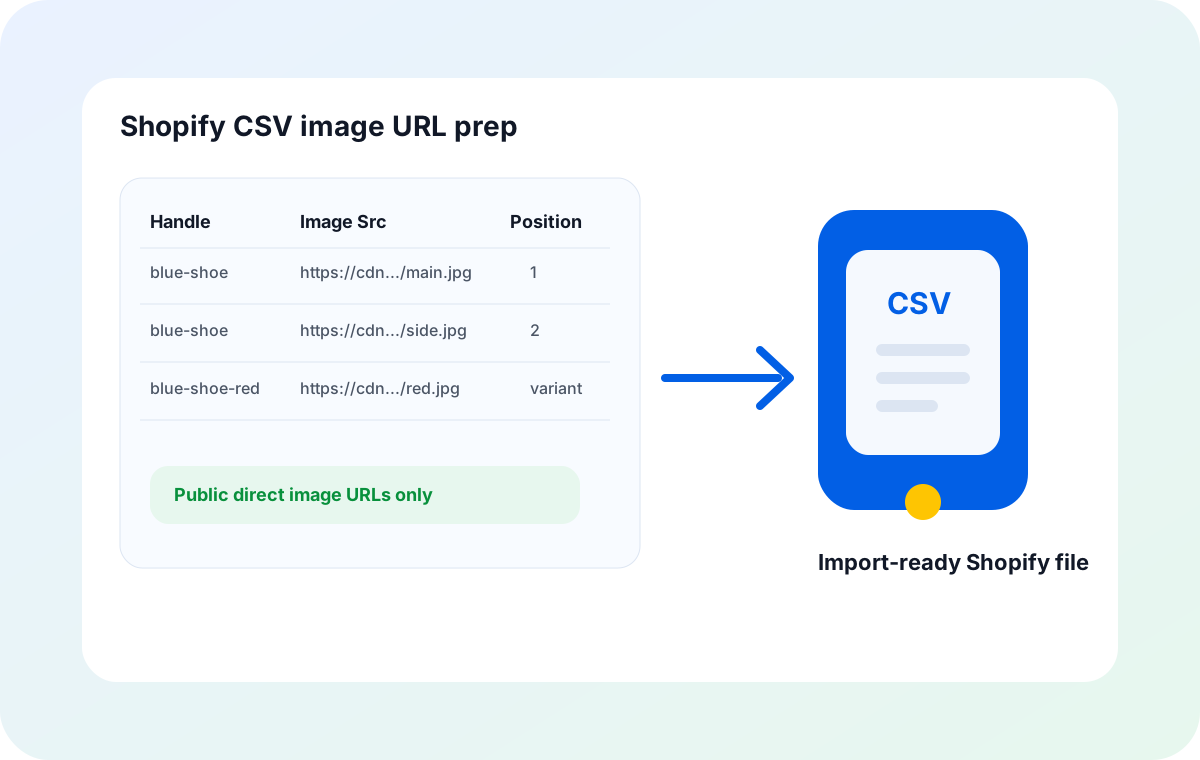
To prepare image URLs for Shopify product CSV imports, use public direct image links in the correct image columns, keep each URL tied to the right product handle or variant row, set image order clearly, add meaningful alt text, and test a small CSV import first. Before uploading the full file, validate that each URL loads without login, redirects, expired tokens, or HTML landing pages.
Shopify product CSV imports are convenient when you are migrating products, editing many listings, or preparing a new catalog. The image part is where many imports become messy: supplier URLs expire, URLs point to webpages instead of image files, main images appear in the wrong order, and variant images are difficult to audit after the upload starts.
The safest approach is to treat image URLs as their own preparation layer before the Shopify import. Build a clean spreadsheet, test links, download or sample-check images locally, then upload a CSV that Shopify can interpret without guessing. If you need to collect and review image files first, Sheet Image Downloader can turn spreadsheet image URLs into organized local folders before the final import.
Shopify image URL requirements to check before import
Shopify documentation says product CSV files must use the correct headers and formatting, and common image import errors happen when Shopify cannot download the image. For image URLs, the practical rule is simple: Shopify needs a direct, public URL that it can reach during import.
| Requirement | Good example | Risky example | Why it matters |
|---|---|---|---|
| Full URL scheme | https://cdn.example.com/sku-1001-main.jpg | cdn.example.com/sku-1001-main.jpg | Shopify needs a complete URL, not a partial path copied from a supplier sheet. |
| Public access | Loads in a private/incognito browser | Requires supplier login or cookies | Private URLs usually fail because Shopify cannot authenticate as your browser. |
| Direct image response | URL opens the image file itself | URL opens a product page or preview page | Shopify is trying to download media, not scrape images from a webpage. |
| Stable link | Permanent CDN or store-hosted file | Temporary signed URL with short expiry | Expired tokens can fail during or after a delayed import workflow. |
| Correct product match | Main image URL belongs to the same handle/SKU | Supplier row copied into the wrong product | A technically valid image can still damage the listing if it shows the wrong item. |
CSV columns to prepare for Shopify image imports
Use Shopify’s current product CSV template or an export from your own store as the source of truth for column names. Older and newer templates can vary, especially around media and variant fields. Still, most Shopify image preparation work centers on a small set of image-related fields.
| CSV field | Prepare this value | Operational note |
|---|---|---|
| Handle | Stable product handle such as blue-running-shoe | Multiple image rows for one product usually need the same handle so Shopify associates them with the same listing. |
| Image Src | Public direct image URL | This is the core value Shopify downloads during import. Test every domain pattern before using it at scale. |
| Image Position | 1, 2, 3 | Use position 1 for the main product image, then order gallery images intentionally. |
| Image Alt Text | Short product-specific description | Alt text should describe the product image for accessibility and search context, not repeat keyword spam. |
| Variant image field | Variant-specific image URL or media reference if your template includes it | Keep variant image data aligned with the option values and SKU rows that Shopify expects. |
| Variant SKU / options | SKU, color, size, material, or other option fields | Variant image prep is safer when image rows can be checked against the exact option combination. |
How to handle multiple images and variant images
Multiple product images need a predictable structure. The main image should be first, secondary gallery images should follow in the intended storefront order, and variant images should be clearly connected to color, size, or other option values.
Keep the product handle stable
Rows that belong to the same product should use the same handle so images are associated with the intended listing instead of becoming separate products.
Put the main image first
Use image position 1 or the first image row for the image customers should see first on the product page.
Separate gallery from variant images
Gallery images show the product generally; variant images should map to a specific color, material, or option combination when your CSV template supports that.
Do not sort blindly
Sorting by SKU, inventory, or vendor after preparing images can break row relationships. Re-check image positions and variant rows before import.
Validate image URLs before Shopify downloads them
A link that looks correct in a spreadsheet can still fail during import. Before uploading a large Shopify CSV, test the source URLs as if you were Shopify: without your logged-in browser session, without supplier cookies, and without manually clicking through redirects.
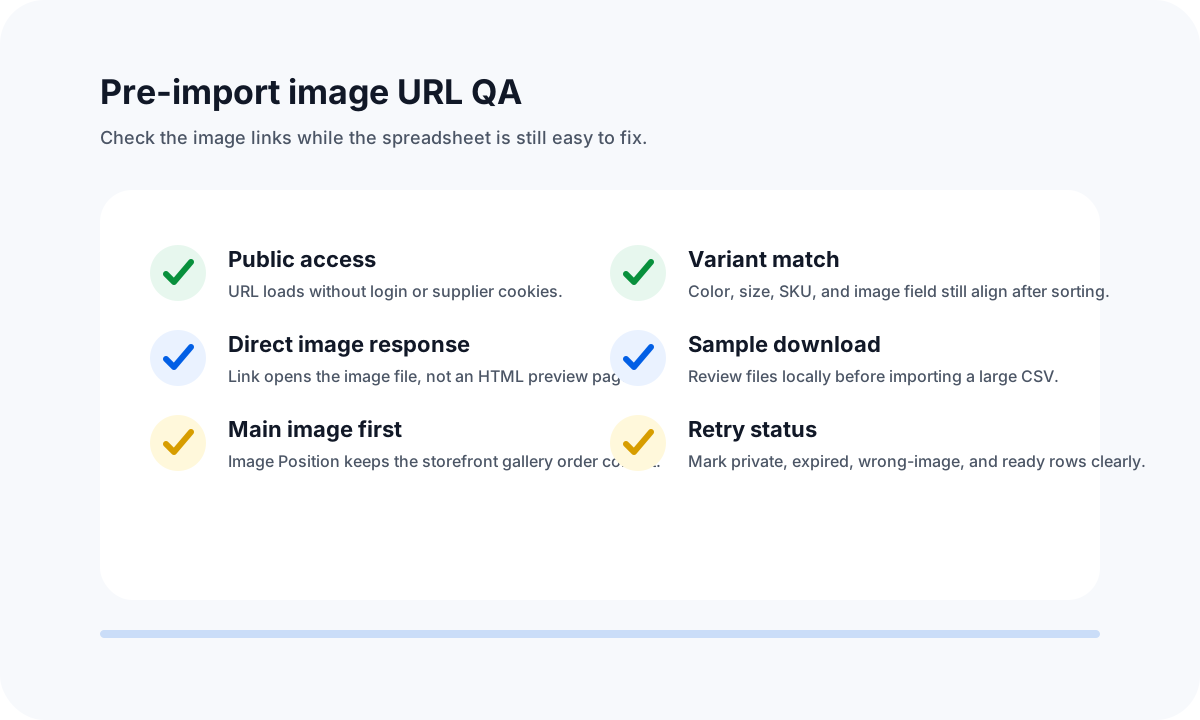
For a local review pass, use a spreadsheet-first tool to download image URLs into folders before import. A workflow such as bulk downloading product images from a spreadsheet helps catch broken links and mismatched catalog rows before they reach Shopify.
Recommended workflow for a Shopify-ready image URL CSV
- Start from Shopify’s template or a store export. Keep the header row exactly aligned with Shopify’s expected CSV format.
- Normalize handles and SKUs. Confirm every image row belongs to the intended product and variant.
- Put one image URL per image field or row. Avoid stuffing several URLs into one cell unless Shopify’s documented format for that column expects it.
- Set image order intentionally. Mark the main image first, then gallery images in storefront order.
- Add alt text while context is visible. Use readable product descriptions such as “Black leather tote bag front view,” not file names or generic “image.”
- Run a small download or import test. Validate source domains, image sizes, redirects, and variant matching before using the full CSV.
- Keep a retry column. Use values such as
ready,retry-url,private-link,wrong-image, orneeds-rights-check.
If your image spreadsheet is still being built, the companion guide How to Build a Product Image URL Spreadsheet Template for Bulk Downloads explains columns for SKU, image URL, file name, folder, and validation status.
Common mistakes that break Shopify image imports
| Mistake | What happens | Fix before import |
|---|---|---|
URLs without https:// | Shopify may treat the value as invalid or fail to resolve the host. | Normalize every image URL to a complete public URL. |
| Private supplier image links | Links work for your logged-in browser but fail for Shopify. | Host images on a public CDN or use direct links that do not require authentication. |
| Temporary signed URLs | Images work during preparation but expire before import or future retries. | Replace short-lived URLs with stable hosted image URLs. |
| Wrong image order | A lifestyle or detail image becomes the product’s main image. | Review Image Position and main-image rows before upload. |
| Variant image mismatch | The red variant shows the blue product, or option rows lose image association. | Check variant image fields against option values and SKU rows after every sort/filter operation. |
When to download images before importing to Shopify
You do not always need to download every image before a Shopify CSV import. For a small, trusted catalog with stable CDN links, a sample test may be enough. For supplier migrations, marketplace cleanup, dropship catalogs, or hundreds of image URLs from mixed domains, local review is usually worth the extra step.
Shopify’s official references are useful during final review: see Shopify’s Product Image developer documentation and Shopify’s product media management guide. Shopify Help Center CSV pages are also useful in a browser, but they can block automated server-side probes, so validate the current CSV template from your own Shopify admin before a production import.
FAQ
What image URL columns does a Shopify product CSV use?
Shopify product CSV files commonly use image-related columns such as Image Src, Image Position, Image Alt Text, and variant image fields depending on the exported template. Use the current Shopify sample CSV or export from your store as the source of truth, then keep image links public, direct, and matched to the correct product handle or variant row.
Do Shopify image URLs need to be public before import?
Yes. Shopify must be able to download the image during CSV import, so the URL should include http:// or https://, be publicly accessible without login, and point directly to an image file rather than a webpage, redirect wall, or private supplier portal.
How do I add multiple images to one Shopify product with a CSV?
Use separate image rows or repeated product handle rows according to Shopify’s CSV format, and use image position values to control gallery order. Keep the product handle consistent, put the main image first, and test a small import before processing the full catalog.
Should I download Shopify CSV images before importing?
For large catalogs, downloading a sample or full set first helps catch broken links, tiny placeholders, wrong products, duplicate images, and filename problems before Shopify attempts the import. A local review pass is safer than discovering failures after a large CSV upload.
Clean up Shopify image URLs before the import starts.
Use Sheet Image Downloader to download image URLs from your spreadsheet, review failures, organize product photos by SKU or folder, and prepare a cleaner Shopify CSV workflow. For support or unusual import cases, use the contact page.