
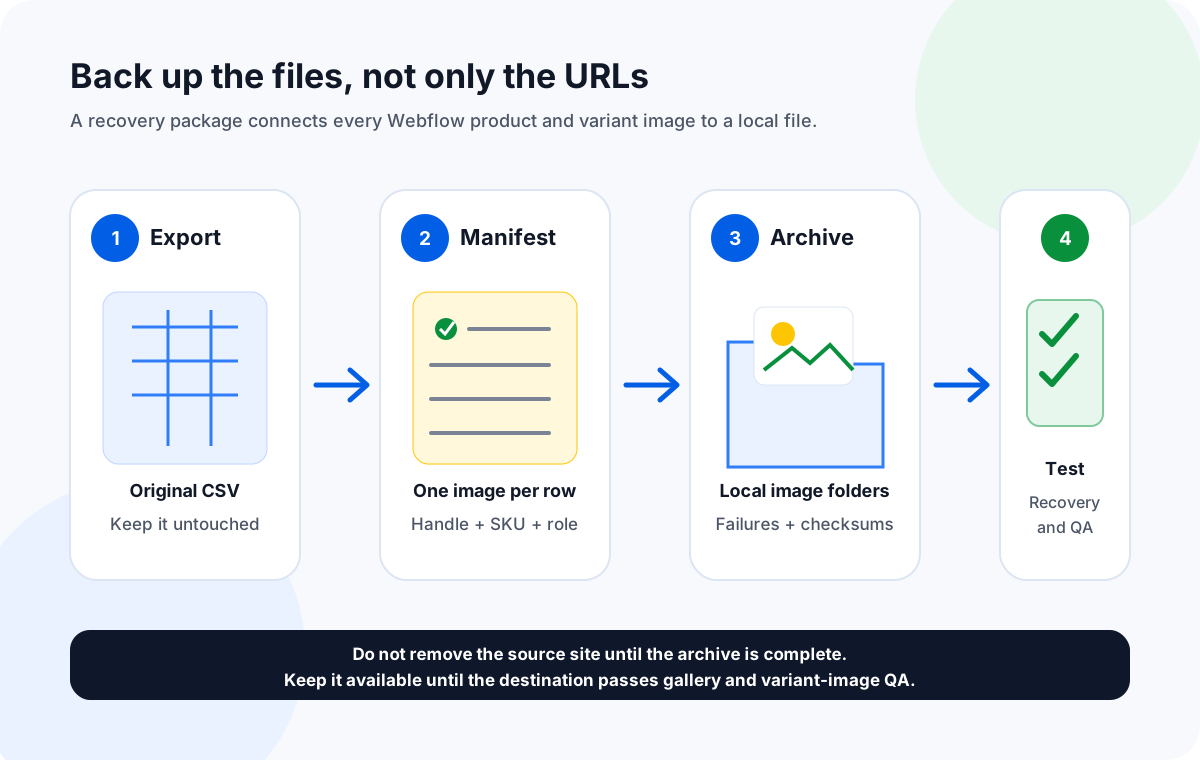
Export the Webflow Ecommerce products-and-variants CSV, leave the original export untouched, and build a separate download manifest from every product image and variant image URL. Name files with a stable handle or SKU, download them to local folders, export failed URLs, and test a recovery sample. Do this before deleting the source Webflow site or changing the asset host.
A Webflow Ecommerce migration needs two different backups: the catalog data and the image files. The exported CSV preserves product, variant, and category records, but image cells are references to hosted assets rather than copies of those assets. Downloading those URLs into a local, traceable folder gives your team a recovery path if a source link expires, an asset is removed, or the destination import skips a product.
The safest workflow keeps the official Ecommerce export unchanged, uses a smaller working manifest for the download job, and retains a clear relationship between each local file and its product handle, SKU, variant, and gallery position. The archive is useful whether the destination is another Webflow site, a different ecommerce platform, or a long-term offline catalog backup.
Why a Webflow CSV alone is not an image backup
Webflow's official Ecommerce import/export guide explains that products, variants, categories, and archived items can be exported and that the resulting CSV uses the schema required for migration to another Webflow site. That makes the export essential, but it does not turn hosted image references into self-contained files.
Webflow states in its CMS import guide that exported images and files are represented as Webflow-hosted URLs. The same guide warns that image and file URLs are associated with the source site: deleting that original site deletes those assets and breaks the links in the CSV. Webflow recommends keeping the original site as a backup or downloading the images and files before deletion.
That warning is documented for Collection exports, so apply it to Ecommerce conservatively: if your Ecommerce export contains Webflow-hosted image URLs, do not treat those URLs as permanent storage. Preserve the actual files while the source site and its assets are still available.
Catalog backup
The untouched Webflow Ecommerce CSV preserves handles, names, variants, categories, pricing fields, and image URL references.
Image archive
The local folder preserves the source image binaries, organized so a reviewer can reconnect each file to a product or variant.
Failure evidence
The failed-URL report identifies assets that were already unavailable, blocked, or temporary before migration day.
Recovery evidence
A tested sample proves that another person can find a product in the manifest, open its local files, and restore them without guessing.
What to preserve from a Webflow Ecommerce export
Webflow automatically maps supported Ecommerce fields during import, so its column names and row structure matter. Keep the original CSV intact. Create a separate working manifest that extracts image URLs and repeats enough product context to make each downloaded file identifiable.
| Data to preserve | Why it matters | Backup treatment |
|---|---|---|
| Product handle | Webflow uses the handle as the product slug and a unique import identifier. | Use it in the folder path or filename. Keep the exact original value in the manifest. |
| Product name | Gives reviewers a human-readable identity when handles or SKUs are unfamiliar. | Keep as a reference column; sanitize only the local folder name if the operating system requires it. |
| SKU or variant identity | Connects color, material, size, or other variants to their intended images. | Include it in each variant-image filename and in a manifest column. |
| Product image URLs | Represent the general product gallery or product-level images. | Split every image reference into one download row and preserve gallery order where available. |
| Variant image URLs | Webflow documents a specific variant-image field or column for variant-specific images. | Include every nonblank value; do not assume the product gallery covers variants. |
| Image order or role | Distinguishes main, gallery, detail, and variant assets during restoration. | Add a numeric position or role label to the filename and manifest. |
| Original source URL | Provides traceability when a file fails, redirects, or needs to be re-hosted. | Never discard it after downloading; retain it beside the local relative path. |
Webflow notes that supported product images are hosted by Webflow and that general product images are not variant-specific. Variant images belong in their specific variant image field or column. A useful archive therefore covers both classes instead of downloading only the first product thumbnail.
Build a recovery manifest without altering the import CSV
Duplicate the export first, then leave the original file read-only. The working manifest should have one image per row even if the export stores several URLs in one cell. A one-row-per-image structure gives each request its own status, local path, and retry decision.
| Manifest column | Example | Purpose |
|---|---|---|
Image URL | https://uploads-ssl.webflow.com/.../linen-chair.jpg | The direct URL Sheet Image Downloader requests. |
File Name | linen-chair_main_01 | A stable, readable name that does not depend on the CDN filename. |
Folder Path | webflow-products/linen-chair | Groups a product's gallery and variant files together. |
Product Handle | linen-chair | Connects the archive to the Ecommerce import record. |
SKU / Variant | CHAIR-LINEN-SAGE | Preserves variant ownership when one product has several choices. |
Image Role | variant-sage | Distinguishes main, gallery, detail, swatch, or variant images. |
Original Order | 03 | Helps rebuild a gallery in the intended sequence. |
Local Relative Path | webflow-products/linen-chair/linen-chair_main_01.jpg | Becomes the handoff pointer after the run. |
If an image cell contains several URLs, split them into separate rows while carrying forward the handle, SKU, role, and order. Webflow's CMS documentation uses semicolons for multi-image CSV values, but your Ecommerce export is the authority for the actual column and delimiter in your file. Do not rebuild the official import structure from this simplified manifest.
Use clean local filenames. Webflow warns that uploaded filenames cannot be changed afterward and advises against names ending in _thumb, _small, or _medium. Those suffixes can be confused with generated derivatives. Prefer descriptive role-and-position names such as oak-desk_main_01 and DESK-OAK-BLACK_variant.
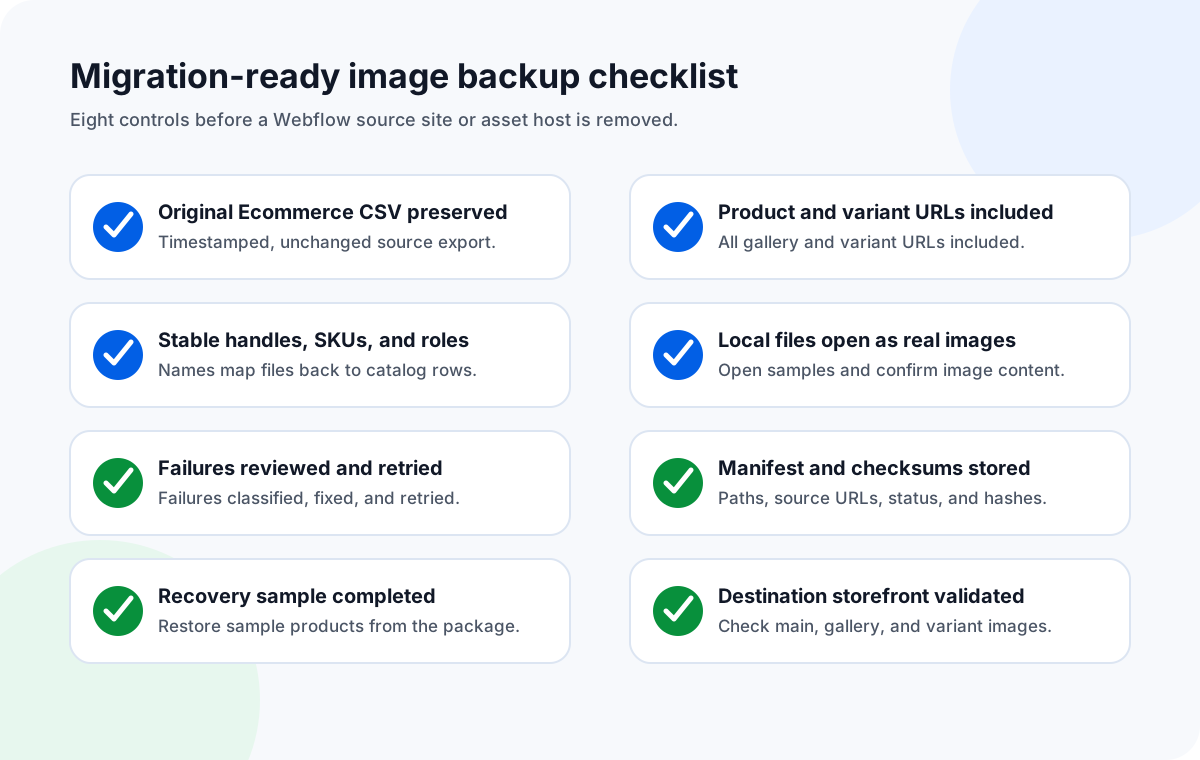
A 10-step Webflow product image backup workflow
- Export products and variants from Webflow Designer. Use Webflow's Ecommerce export rather than a manually reconstructed sheet. Save the CSV with a timestamp and a source-site identifier.
- Protect the original export. Store one untouched copy. Webflow's import automatically maps supported fields, so casual header changes can make a future re-import less reliable.
- Identify every image-bearing field. Include general product images and the specific variant image field. Check any custom Collection fields used for secondary galleries, lifestyle images, or product storytelling separately.
- Normalize one image per row. Build a working manifest with
Image URL,File Name, andFolder Path. Carry product handle, SKU, role, and order as review columns. - Run a representative sample. Include a main image, a gallery image, two variant images, a multi-image product, a URL with query parameters, and one known bad URL. Confirm the folder and filename design before the full run.
- Download the full archive locally. Use a dedicated destination that is outside temporary folders and synchronized services that may rename files. The app processes the local spreadsheet and writes files to the chosen local destination.
- Export the failed-URL list. Separate 404s, permissions, expired links, HTML responses, and temporary network errors. Correct durable problems at the source where possible.
- Retry only corrected or temporary failures. Use the failed-only retry workflow instead of repeating successful downloads. Keep both the first-run and final reports for audit history.
- Open and compare a QA sample. Verify the first and last product, every high-value product, each variant family, and at least one file from every source host. A successful request does not prove that the response is the correct image.
- Freeze the recovery package. Store the original CSV, working manifest, local image folder, failed-URL reports, source notes, and checksum list together. Make a second copy before deleting the source site or its assets.
A backup is most useful when you can still resolve an ambiguous row, re-download a missing file, or inspect the original storefront. Deleting the source before the destination passes QA turns a recoverable mismatch into an asset-reconstruction project.
Source images and Webflow responsive variants are different assets
Webflow's responsive images documentation distinguishes between directly uploaded images and images imported through CSV or API. Direct uploads can generate responsive variants and the browser-facing srcset and sizes instructions. Images imported through CSV or API do not generate those responsive variants.
For migration planning, prioritize the best available source image in the product or variant image field. Do not attempt to archive every URL you see in a published page's srcset as if each derivative were a separate catalog original. Generated delivery sizes are useful for the current site, but the source image is the asset you can optimize, re-upload, and use to create new responsive derivatives at the destination.
| Asset type | Backup priority | Migration note |
|---|---|---|
| Original product or variant image | Highest | Preserve the source file and its catalog identity. |
| Webflow-generated responsive variant | Context dependent | Useful in an exported static-site ZIP, but not a substitute for the source catalog image. |
Published-page srcset URL | Low for catalog recovery | Represents a delivery derivative selected by the browser. |
| Locally optimized migration image | High | Keep the optimized derivative and document how it was generated from the source. |
If the destination is another Webflow site and responsive behavior matters, optimize files before a CSV import or upload them directly in Webflow where appropriate. The local archive gives you a stable source set; Webflow remains responsible for what its current upload and import workflows generate.
Test the archive before calling it complete
A folder that merely contains many files is not yet a migration backup. A second person should be able to use the manifest to find a product, identify its main and variant images, and prepare a small restoration without opening the old store.
File-level checks
- Every successful manifest row has a local file.
- The file opens as an image, not an HTML response.
- Extensions and detected formats are sensible.
- No two unrelated rows silently overwrote the same filename.
- Product and variant identities remain visible.
- Gallery positions sort in the intended order.
Recovery checks
- Select five products across different categories.
- Include one product with several variants.
- Locate all expected files using only the manifest.
- Prepare a small destination import or manual upload.
- Inspect main, gallery, and variant behavior.
- Record any mapping rule needed for the full migration.
Hashing the finished archive provides another useful control. A checksum list will not prove that an image is correct, but it will reveal later corruption or accidental replacement. Keep the checksum file outside the image folders as part of the migration package.
For a general folder design, see how to organize downloaded images by SKU. For troubleshooting, use the guide to retry failed image downloads from Excel. If you need the broader extraction pattern, review bulk downloading product images from a spreadsheet.
What to hand to the migration team
The final handoff should separate source evidence, working files, and destination decisions. That prevents someone from accidentally uploading the download manifest as if it were the official Webflow Ecommerce import file.
| Package item | Purpose | Do not confuse it with |
|---|---|---|
| Original Webflow Ecommerce CSV | Authoritative exported catalog data and original schema. | The simplified image-download manifest. |
| Image backup manifest | One row per image with identifiers, source URL, status, and local relative path. | A platform-ready product import. |
| Local image folders | Recoverable source files organized by handle, SKU, or migration batch. | Proof that every destination product is correct. |
| Failed-URL reports | Documents missing, blocked, expired, or temporary failures and the retry outcome. | A list that can be ignored after most files succeed. |
| Recovery test notes | Records how handles, products, variants, galleries, and responsive-image choices map at the destination. | An assumption that Webflow fields map automatically to another platform. |
| Checksums and backup date | Detects later file changes and identifies the archive snapshot. | Visual or merchandising QA. |
Do not delete the original Webflow site because a destination import reports “complete.” Inspect products from the start, middle, and end of the batch, product galleries with different lengths, and every variant family with image changes. Webflow also warns that a row error can cause the related product and its variants to be skipped, which makes import reports and storefront QA essential.
Related migration preparation: audit a product image spreadsheet before bulk download and compare a URL diagnostic pass with a full re-download. This page's clean self-reference is Webflow Ecommerce product image backup.
FAQ
Does a Webflow Ecommerce CSV contain the image files themselves?
No. Image fields in a CSV are URL references, not embedded image binaries. Keep the exported CSV, but also download the referenced product and variant images to local storage before migration or source-site deletion.
Should I back up both product images and variant images?
Yes. Webflow separates general product images from variant-specific images in the Ecommerce schema. Include every nonblank product image URL and variant image URL in the backup manifest so color, material, or size variants are not missed.
Can Sheet Image Downloader migrate a Webflow store?
No. Sheet Image Downloader does not connect to Webflow, edit its schema, upload images, or import products. It reads direct image URLs from a local spreadsheet, saves reachable files locally, and records failed URLs for review and retry.
Will images re-imported through CSV have Webflow responsive variants?
Webflow states that images imported through CSV or API do not generate responsive image variants. Optimize source files before import or upload them directly in Webflow when responsive variants are required.
When is it safe to delete the original Webflow site?
Only after the local image archive, original CSV, backup manifest, and failed-URL report are complete, a recovery sample has been tested, and the destination store has passed product, gallery, and variant-image QA. Webflow documents that exported Collection image and file URLs can break when the original site and its assets are deleted.
Turn Webflow image URLs into a recoverable local archive.
Download direct URLs, preserve handle- and SKU-based names, export failures, and give the migration team files they can restore without depending on the old asset host.
Checked August 11, 2026: Webflow's official Ecommerce import/export, CMS import, responsive images, and multi-image field documentation were reviewed for this guide. The source-site deletion warning is documented for Collection image and file URLs and is applied conservatively here to Ecommerce exports that contain Webflow-hosted asset URLs. Confirm the current Webflow CSV schema before a production migration.