
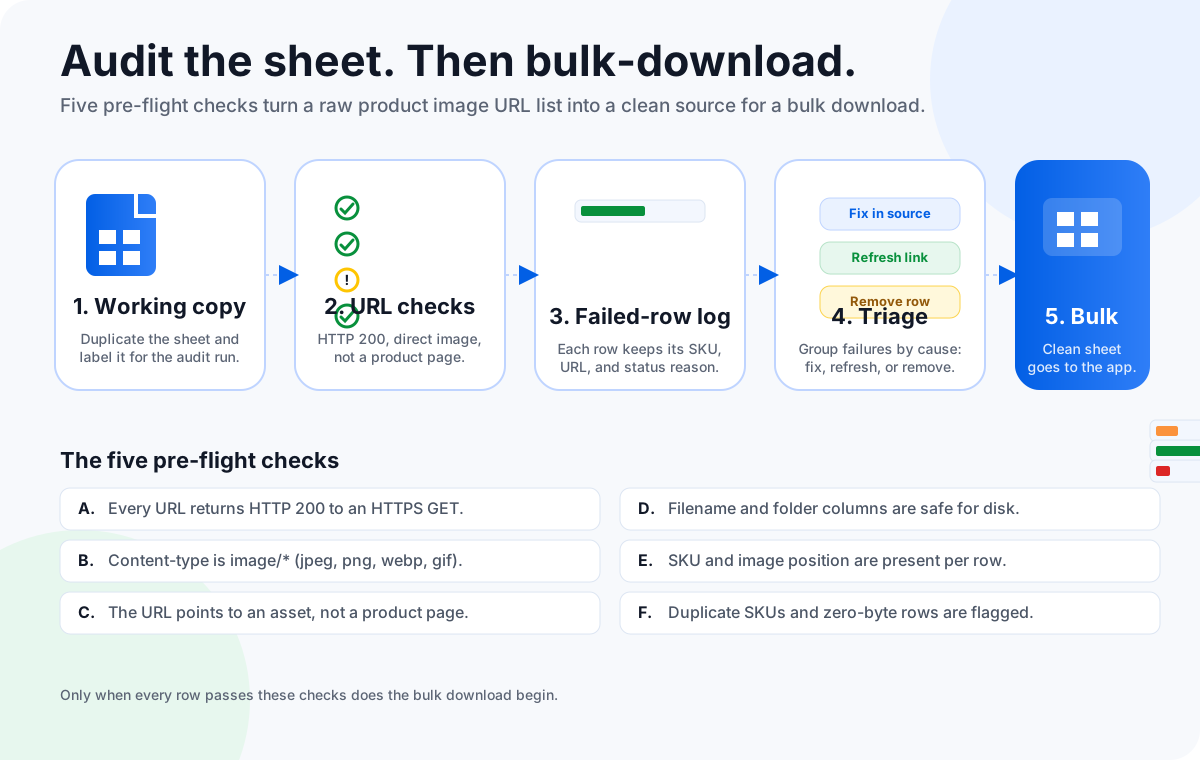
An audit is a deliberate inspection of every row in a product image spreadsheet before a bulk download. It checks that each URL is reachable, returns an image, names a real asset, and carries the identifiers your output folder needs. The audit output is a triaged list of fixable failures and a small set of readiness signals, not the downloaded images themselves.
A product image spreadsheet is the input your bulk downloader will trust most. If a row is wrong, the wrong file lands in your folder. If two rows point to the same SKU with conflicting image positions, the wrong file silently overwrites the right one. If a URL is a category page rather than an asset, your desktop tool dutifully downloads an HTML file named like an image and your downstream catalog tool then silently rejects it. The whole pipeline quietly degrades. Auditing the spreadsheet up front is the difference between a clean folder and a folder full of exceptions you have to explain a week later.
The instinct is often to skip the audit and let the bulk downloader surface problems through its failed-row report. That instinct is reasonable, but it has a hidden cost: the failed report tells you which URLs failed, not why they failed in your source data, not whether your SKU mapping is consistent, and not whether your output folder will survive a re-import. Those are pre-bulk questions. An audit answers them. Spreadsheet Image URL Audit vs Full Re-Download covers the broader comparison of audit and full re-download strategies; this guide focuses on the audit itself as a repeatable procedure.
What a pre-bulk spreadsheet audit actually covers
An audit is not a re-download in disguise. The two share an input (the spreadsheet) but they differ in scope, output, and the cost of getting them wrong. A pre-bulk audit is a row-by-row quality gate. Its job is to surface every URL, identifier, and filename problem that would otherwise become a folder-level problem. A re-download is a production run whose job is to deliver files.
The audit covers three layers. The first layer is URL quality: every URL must be reachable, point at a real image, and not be blocked by hotlink protection or an expired signature. The second layer is identifier quality: every row must carry enough information to name the output file and place it in the right folder. The third layer is structural quality: duplicates, stray whitespace, broken delimiters, and quoted paste artifacts all cause silent download failures. Each layer catches a different failure mode, and skipping any one of them tends to push the failure downstream into the catalog or marketplace stage.
| Audit layer | What it checks | What it prevents |
|---|---|---|
| URL quality | Reachability, content-type, asset versus page link. | 404 downloads, HTML files renamed to .jpg, blocked hotlink responses. |
| Identifier quality | SKU, image position, optional folder or category. | Generic filenames, ambiguous folder placement, impossible dedup. |
| Structural quality | Duplicates, whitespace, delimiters, encoding. | Silent overwrites, mismatched gallery order, broken CSV imports. |
If your team is inheriting a spreadsheet from a supplier, a previous catalog export, or an internal PIM dump, treat the audit as a free verification step before you pay the time cost of a bulk download. Most failed downloads have their origin in a row the audit could have caught in a fraction of the time.
The five pre-flight URL and identifier checks
A practical audit has exactly five checks, in this order. Each check has a single decision per row: pass, fail with a fix in source, fail with a refresh, or fail with a remove. Do not skip a check because the spreadsheet looks clean; clean-looking sheets still carry expired signed links and pasted page URLs.
Check 1 — HTTPS reachability
Every URL must respond with a 200 status over HTTPS. A 200 over plain HTTP is increasingly rejected by modern browsers and marketplaces. A 301 or 302 redirect is acceptable as long as it terminates at a 200 image URL.
Check 2 — Content-type is image
The response must carry a content-type of image/jpeg, image/png, image/webp, or image/gif. A URL that ends in .jpg but returns text/html is a misconfigured CDN and will break every downstream consumer.
Check 3 — Asset, not page
The URL must point to the asset itself, not a product or category page that happens to embed an image. Page URLs change layout over time; asset URLs are stable.
Check 4 — Safe filename and folder characters
Filename and folder columns must avoid path separators (/, \), control characters, and the Windows-reserved set (<, >, :, ", |, ?, *). One bad character can collapse an entire folder structure.
Check 5 — SKU and image position present
Every row must carry a SKU or product ID and an image position or gallery index. Without them, you cannot dedup, cannot order galleries, and cannot trace a download back to a business record.
Check 6 — No duplicate SKU and position pairs
The combination of SKU plus image position must be unique. A duplicate pair silently overwrites whichever file is written second. Flag any duplicates for triage, even when the URLs look identical.
The order matters. Reachability first, because there is no point in validating content-type on a URL that does not respond. Content-type second, because a 200 HTML response is a common silent failure mode. Asset-versus-page third, because a category page can pass checks one and two while still being wrong. Filename and folder fourth, because those columns are local to your workflow and easy to fix. SKU and position fifth, because you only know what is missing once the rest of the row is sound. Duplicates sixth, because duplicates only become meaningful after identifier checks have passed.
Build the working copy before any check runs
Do not run the audit on the original spreadsheet. Always work on a copy that is named with the audit date and the source it came from. The working copy is what you fix, triage, and version. The original stays as the system-of-record artifact so that any decision can be traced back to the source export.
The working copy should preserve the original column order, add a small set of audit columns, and never touch the actual image URLs. A minimal audit header looks like this:
| Column | Purpose | Example |
|---|---|---|
| audit_id | Unique identifier for the audit run. | audit-2026-07-30 |
| audit_run_at | ISO timestamp the row was last checked. | 2026-07-30T14:12:00Z |
| audit_status | pass, fix, refresh, remove, retry. | pass |
| audit_reason | Short tag describing the failure cause. | expired-signed-url |
| audit_notes | Optional free-text for human reviewers. | Asked supplier for fresh export. |
Adding audit columns keeps every fix and decision tied to the row that needed it. Six months later, when someone asks why image 17 of SKU-2247 is missing, the audit_id and audit_reason fields answer the question without anyone having to remember. The Product Image URL Spreadsheet Template guide covers the broader column structure this template assumes.
Run the audit pass against a temporary output folder
The audit pass is a controlled run of the bulk downloader against a temporary output folder. The pass is the cheapest realistic simulation of the production run. It uses the same row mapping, the same URL and filename columns, the same identifier logic. The only difference is that the destination is a folder you will delete.
- Open the working copy in Sheet Image Downloader. Pick the same URL column, filename column, and folder column you intend to use in production. Audit-time realism is the point.
- Point the output to a temporary folder. Name it with the audit ID and the word temp, for example
audit-2026-07-30-temp. The folder name itself is the reminder that nothing in here is part of the production library. - Set max connections to 1. The audit is not a throughput run. Slow concurrency makes the failure log easier to read, easier to triage, and easier to reason about when you reach the readiness checklist.
- Start the batch and let it run to completion. Successful URLs will be downloaded into the temp folder. Failed rows will be captured in the failed-row report with the row identifier, source URL, and the HTTP status or timeout error.
- Save the failed-row report beside the working copy. The report is the artifact. The temporary folder of successful downloads is incidental. The report is what travels with the working copy into triage and into the eventual production run.
- Delete the temporary successful downloads. The temporary folder is a simulation, not a backup. Once the report is saved, the only thing the audit pass adds to your system is the failed-row list.
This boundary is the reason the temporary folder and the failed-row report together carry the audit signal, not the temporary folder alone. If you only look at the temp folder, you will conclude the audit “worked.” If you look at the failed-row report alongside it, you will conclude whether the source sheet is actually ready for production.
Triage the failed rows by cause, not by row number
Triage is the step most teams skip, and it is the step that prevents the audit from turning into a disguised re-download. Group every failed row by cause, then assign each group one of four actions: fix in source, refresh link, remove row, or retry only. Grouping by cause makes the next step obvious; sorting by row number only makes the report look tidy.
Fix in source
Typos, stray quotes, leading whitespace, page URLs pasted where asset URLs should live, mismatched column mappings. These rows need a human in the source spreadsheet; no automated tool can guess intent.
Refresh link
Expired signed URLs, CDN references that returned 403, supplier assets that 404’d after the original export. These need a fresh export from the source system or a direct refresh from the supplier.
Remove row
Intentional product deletions, discontinued SKUs, image positions that no longer apply. Audit-time is the cheapest place to confirm these rows should not be in the next batch.
Retry only
Transient timeouts, server-side throttling during the audit pass, single-host rate limits. These rows do not need source changes; they need a second pass during the production run.
For a focused retry workflow, see Retry Failed Image Downloads from Excel. Retry-only rows are normal; treating them as a triage category, rather than a global re-download trigger, is what keeps the production run predictable. The broader production setup is covered in Bulk Download Product Images from a Spreadsheet; the supplier-side variant is in Download Supplier Product Images from a CSV.
Keep the audit_id and audit_reason fields on every row throughout triage. When the next bulk download is scheduled three weeks later, the audit log answers why image 17 of SKU-2247 was removed instead of refreshed, and which row was the one that triggered a supplier follow-up.
The readiness checklist before you start the bulk download
Stop auditing when every row has been triaged and every readiness signal is green. Do not stop when the spreadsheet “looks fine” — that is the moment most failed folders are created. The readiness checklist is short on purpose. It exists to give a small team an honest green light, not to add bureaucracy.
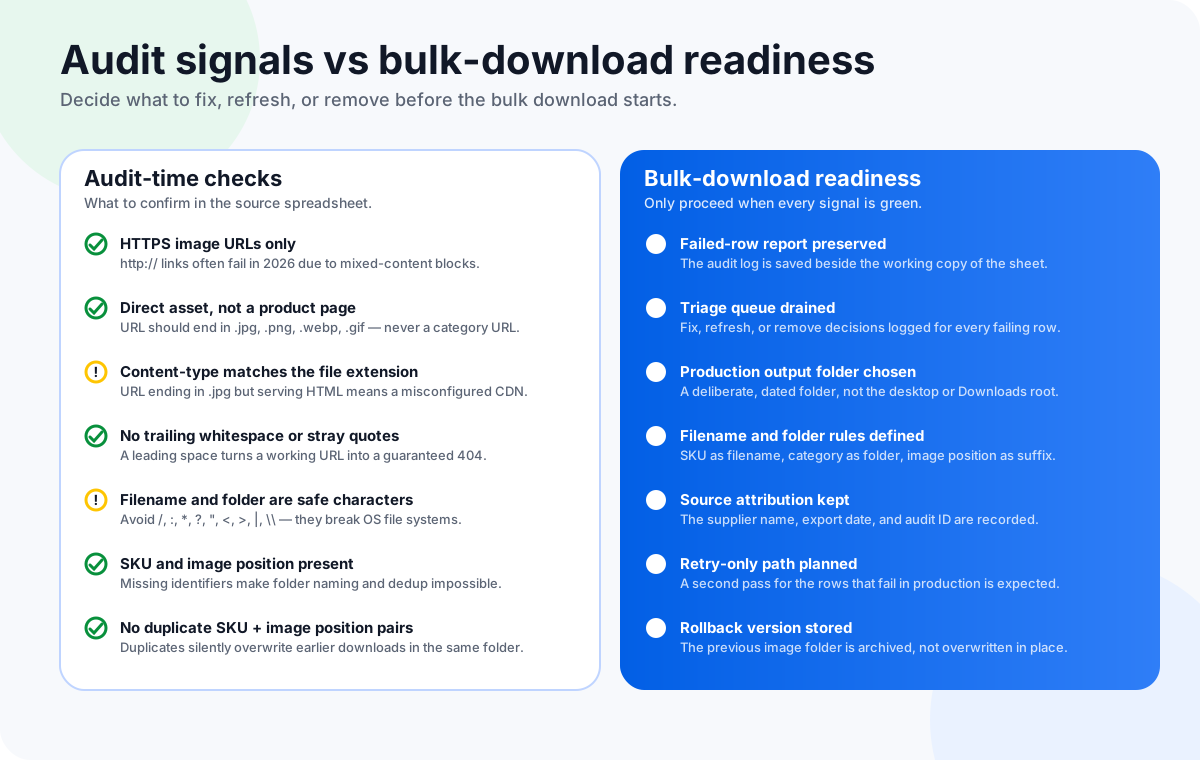
Every readiness signal is something the audit log or the working copy must surface as a pass or fail. If any signal is amber, the bulk download can still run, but the audit is incomplete and the next round will repeat the same triage. The green-light list is small enough that no team should treat it as optional.
- The failed-row report is saved beside the working copy. It is named, dated, and referenced from the audit_id column.
- The triage queue is drained. Every failed row has an action: fix, refresh, remove, or retry-only.
- The production output folder is deliberately named and versioned. A dated folder such as
catalog-2026-07-30-v1beats a generic one calledimages. - Filename and folder rules are defined and tested on a 10-row sample. SKU as filename, category as folder, image position as suffix. The sample must come from different suppliers to expose naming collisions.
- The source attribution is preserved. Supplier name, export date, and audit ID are recorded in a single readme or audit log entry next to the output folder.
- A retry-only path is expected. The team has agreed that a second pass for transient failures is part of the normal workflow, not an emergency.
- The previous image folder is archived, not overwritten. A rollback point costs almost nothing to keep; it saves hours when a naming rule turns out to be wrong.
Once the readiness checklist passes, the bulk download itself is straightforward. Load the cleaned working copy into Sheet Image Downloader, point the output at the deliberate folder, run the batch, and keep the new failure report as part of the run history. If you treat the audit and the bulk download as two separate operational stages, the production folder ends up aligned with the source sheet rather than a pile of unexplained exceptions.
FAQ
What does it mean to audit a product image spreadsheet before a bulk download?
It means inspecting each row of the spreadsheet for URL reachability, content-type, safety, identifier completeness, and duplicates before any bulk download starts. The output is a list of fixable failures and a small set of readiness signals, not yet any downloaded images.
Does Sheet Image Downloader have an audit-only mode that downloads nothing?
No. The current product does not have a native audit-only, HEAD-only, or no-download mode. When the app is run against a sheet, successful image URLs are downloaded. To get audit-only evidence today, use a temporary output folder, keep the failed-row report, and delete the temporary successful files after review.
How many checks should a pre-bulk audit cover?
A practical pre-bulk audit covers five checks: HTTPS 200 response, image content-type, direct asset versus product page, safe filename and folder characters, and presence of SKU and image position. Add a duplicate-row check if the same SKU appears twice with the same image position.
What is the right way to group failed rows after the audit?
Group failed rows by cause, not by row number. Typical groups are: fix in source (typos, page links, wrong columns), refresh link (expired or signed URLs that need a fresh export), remove row (intentional deletes), and retry only (transient network or timeout rows). This is what makes the next bulk run predictable.
When should a team stop auditing and just run the bulk download?
Run the bulk download only after every row has been triaged, the failed-row report is saved beside the working copy, and the production output folder is deliberately named and versioned. Stop the audit and start the download when the readiness checklist passes, not when the spreadsheet looks fine by eye.
Run the bulk download on the cleaned working copy, locally.
Sheet Image Downloader reads direct image URLs from Excel, CSV, and spreadsheet exports, applies filename and folder rules from the same columns you audited, saves images locally, and keeps failed rows visible for the retry-only pass. No cloud upload, no signup, no browser extension.
Checked July 30, 2026: This draft intentionally avoids claiming a native audit-only mode, HEAD-only validation, configurable short timeouts, or a download-free pre-flight. The audit pass is presented as a controlled temporary-folder simulation, not a separate product feature. The only external link is to the GOV.UK service manual for general guidance on spot-testing critical inputs before scaling them; product behavior should be rechecked against the active release before publication.