
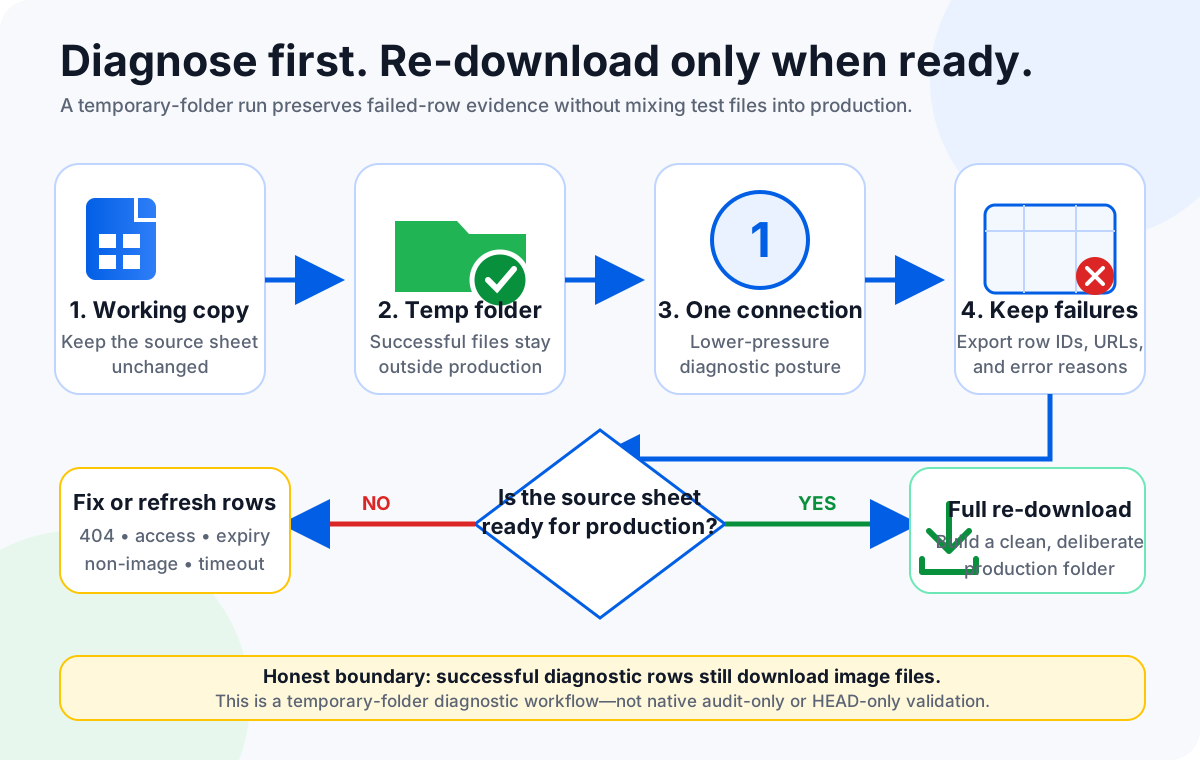
If you only need to identify broken image URLs in a spreadsheet, run a controlled diagnostic pass instead of immediately replacing your production image folder. In Sheet Image Downloader, that means using a temporary output folder, setting max connections to 1, saving the failed URL report, then deleting any successful temporary downloads. This is not a true audit-only mode: successful images are still downloaded.
Image URL problems rarely appear at a convenient time. A supplier export changes, a product feed starts returning 404 errors, a CDN blocks automated requests, or a signed image link expires before your catalog team can finish a migration. The instinct is often to run the entire spreadsheet again and overwrite the local folder. Sometimes that is appropriate. Other times, it creates duplicate work, hides the real source problem, and makes it harder to tell which rows were actually broken.
The better first question is not “Can I download this sheet again?” It is “Do I need a URL quality check, or do I need a complete replacement image set?” Those are different operational goals. A URL quality check tries to answer whether each spreadsheet row still points to a reachable image. A full re-download tries to rebuild the output folder from scratch. Confusing the two can waste time and create avoidable risk, especially when filenames, folders, or product identifiers have changed since the last successful run.
This guide explains how to think about spreadsheet image URL auditing versus full re-downloads in a practical, local workflow. It is written for teams that already have image URLs in Excel, CSV, Google Sheets exports, supplier files, product feeds, or marketplace reports. It does not describe website crawling, JavaScript rendering, or image discovery from product pages. For that broader boundary, see Local CSV Image Downloader vs Apify, Octoparse, and PromptCloud.
Spreadsheet image URL audit and full re-download solve different problems
A spreadsheet image URL audit is a quality-control step. The purpose is to find rows that are no longer usable before you make a larger operational decision. A failed row might return 404 Not Found, require authentication, respond too slowly, return HTML instead of an image, block hotlink-style access, or point to a product page instead of a direct image asset. The output you care about is the failure list, not the successful files.
A full re-download is a production step. The purpose is to create or replace a real folder of image files. In that workflow, successful downloads are the main deliverable. You may still care about failures, but you also care about final filenames, folder organization, overwrite behavior, duplicate handling, and whether the resulting image folder matches the spreadsheet’s current product structure. If SKU-based naming matters, review how to name and organize downloaded images by SKU before rebuilding the folder.
| Decision factor | URL audit goal | Full re-download goal |
|---|---|---|
| Main question | Which spreadsheet URLs are broken, blocked, expired, or not direct images? | Can we rebuild the complete local image folder from this sheet? |
| Output you preserve | Failed URL report, row identifiers, source notes, and status reasons. | Downloaded image files, folder layout, filenames, and failed rows. |
| Output folder | Temporary folder that can be deleted after review. | Production folder, replacement folder, or versioned archive folder. |
| Concurrency posture | Use the lowest available pressure when investigating failures. | Use a setting appropriate to the source, permission, and reliability needs. |
| Risk if misused | Calling it audit-only when successful files are actually downloaded. | Overwriting or mixing production files before URL quality is understood. |
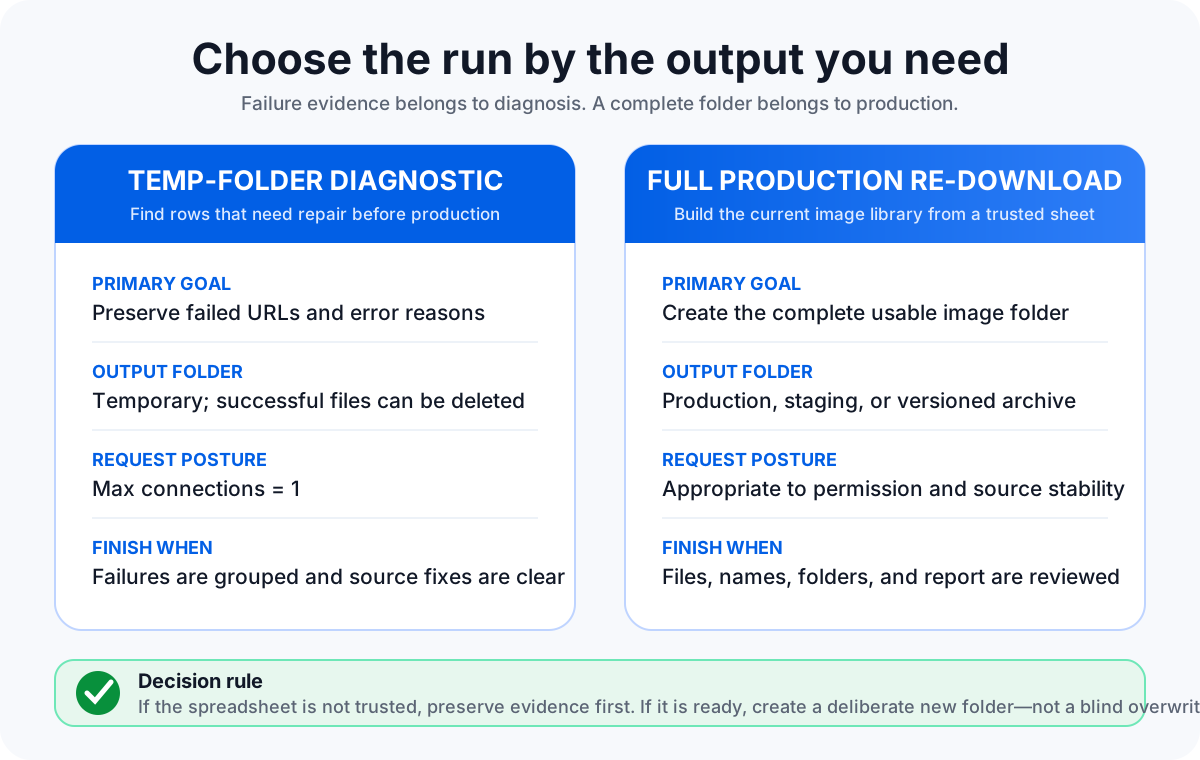
The distinction matters most when a sheet contains a mix of stable URLs and suspect URLs. A full re-download may succeed for many rows and still leave you uncertain about the failures. A diagnostic run puts the failed rows first. It also gives you a smaller, clearer next step: fix the source data, refresh expired links, remove invalid rows, or ask the supplier for a corrected export.
Important product boundary: Sheet Image Downloader is not audit-only today
This boundary is important for accuracy and for user expectations. A true audit-only tool might send lightweight validation requests, avoid writing image files, and produce a status report only. Sheet Image Downloader’s current workflow is different: it requests the image URL and writes successful responses to disk. The practical workaround is to isolate those successful files so they do not become part of your production library.
There is another limit to state plainly: the current source uses a fixed 30-second network timeout for image requests. The user can control max connections, but not a shorter timeout setting inside the app. That means a diagnostic pass against slow or unresponsive hosts can still wait for the fixed timeout on problematic rows. If you need a specialized high-speed HEAD checker, a custom script or dedicated URL monitoring tool is a different category of workflow.
The value of Sheet Image Downloader in this scenario is not that it becomes a pure auditor. The value is that it already understands the spreadsheet-driven download workflow: URL column, filename column, folder column, local output, failed URL reporting, and retry of failed rows. If your final step is still a spreadsheet-based image download, a careful diagnostic run can use the same row mapping that the production run will use.
A practical diagnostic workflow before a full re-download
Use this workflow when you want to check a spreadsheet before deciding whether to rebuild the real image folder. It is designed to keep successful diagnostic files away from production output while preserving the failure report you actually need.
- Duplicate or export the spreadsheet. Keep the original source untouched. Add a date or run label to the working copy so later fixes can be traced.
- Choose the same URL, filename, and folder columns you would use in production. The point is to test the real mapping, not a simplified copy that hides filename or folder problems.
- Create a temporary output folder. Name it clearly, such as
url-diagnostic-temp, so no one mistakes it for the final image library. - Set max connections to 1. This reduces request pressure and makes the diagnostic pass easier to reason about. It does not make the run audit-only; it only serializes the work.
- Run the spreadsheet against the temporary folder. Successful URLs will download into that folder. Failed rows should be captured in the run report.
- Export or preserve the failed URL report. This report is the main artifact of the diagnostic pass. Store it beside the working spreadsheet.
- Review failures by reason. Separate missing files, access blocks, expired links, non-image responses, and timeout-style failures.
- Delete the temporary successful files after the report is preserved. Do not merge diagnostic output into production unless you intentionally decide to keep it.
This workflow is especially useful when your team has inherited a spreadsheet and does not trust the image URLs yet. It is also useful before a migration, catalog refresh, marketplace upload, or supplier data cleanup. If the diagnostic report shows only a small set of fixable problems, you can correct those rows and continue. If the report shows widespread access or URL structure problems, a full re-download may be premature.
If your real issue is that a previous run failed and you only need to process the rows that did not complete, use the focused recovery workflow in Retry Failed Image Downloads from Excel. A diagnostic pass is for deciding what is wrong. A retry pass is for recovering from known failures after you have already run a batch.
How to read the failed URL report
The failed URL report should become your working checklist. Do not treat every failed row the same way. A missing file, blocked request, expired signed URL, non-image response, and slow server each imply a different fix. The fastest path is usually to group the report by error reason and source domain, then decide which failures are worth repairing.
Failures to fix in the source sheet
- URLs with obvious typos, spaces, or pasted page links.
- Rows where the image field contains a product page instead of a direct image asset.
- Duplicate product IDs that point to inconsistent image URLs.
- Filename or folder values that would create confusing local output.
Failures to escalate or refresh
- 404 responses where the supplier may have moved or removed the asset.
- 403 responses where the image host blocks direct automated access.
- Expired signed links that need a fresh export from the source system.
- Timeout-style failures where the host may be slow or unreliable.
For ecommerce teams, image URL failures may surface again in feed and marketplace workflows. GoDataFeed’s Merchant Center troubleshooting guidance discusses common Google Shopping feed issues, including image-related problems that can affect product visibility and approval workflows. Their article on common Merchant Center errors is useful background when spreadsheet image URL quality is part of a broader feed cleanup project: Google Shopping: how to fix common Merchant Center errors.
A 404 deserves particular attention because it can mean the asset is gone, the URL changed, or the export contains an outdated reference. GoDataFeed’s image optimization guidance advises merchants to confirm that image URLs are correct, crawlable, and not returning 404 responses: How to Optimize Your Google Shopping Images. In a spreadsheet download workflow, a 404 row usually belongs in the fix-or-remove queue, not in repeated blind retries.
Keep row identifiers in the report. A failed URL without SKU, product ID, supplier, or source row number is harder to repair. If your current spreadsheet lacks those fields, add them before the next diagnostic run. The goal is not only to know that a URL failed; it is to know which business record needs attention.
When a full re-download is the right choice
A full re-download is appropriate when the spreadsheet has been corrected, the source URLs are trusted, and the desired output folder should represent the current sheet from top to bottom. It is also appropriate when the old image folder is incomplete, disorganized, or tied to outdated naming rules. In that case, a clean new folder is often safer than trying to patch scattered files in place.
Before running the production download, decide whether the folder is a replacement, a versioned archive, or a staging folder for review. Replacement is simple, but it can erase useful history if handled carelessly. A versioned archive gives you a rollback point. A staging folder lets reviewers inspect samples before the files move into a PIM, DAM, marketplace upload process, or internal catalog system.
Also decide whether the spreadsheet should become the source of truth for filenames and folders. If it should, normalize the relevant columns before downloading. Clean SKU values, remove unsafe path characters, standardize category names, and decide how to handle multiple images per product. The guide to bulk downloading product images from a spreadsheet covers the broader production setup.
After the production run, preserve the failed URL report even if the failure count looks manageable. The report is part of your audit trail. It tells future users which product images were unavailable at the time of the run and which rows may need supplier follow-up. If you later run Retry Failed Only, archive the previous report before creating a new one.
How URL quality connects to feed quality
Spreadsheet image URL checks are not only a file-management task. They often reveal feed quality issues before those issues reach a marketplace, shopping feed, or catalog syndication channel. Broken image links, non-image URLs, access-restricted assets, and stale CDN references can create downstream errors even if the rest of the product record looks correct.
That is why a diagnostic run should be paired with source cleanup rather than treated as a one-time technical chore. When a supplier export contains bad image URLs, fixing only the local folder does not repair the next export. When a PIM stores expired signed URLs, the spreadsheet is only exposing a deeper data freshness problem. When a marketplace rejects image URLs, the local downloader is not the final authority; the source system and feed rules need review.
The cleanest operating model is simple: use the spreadsheet to expose row-level problems, use the failed URL report to drive fixes, and run the full download only when the source data is ready. This keeps the local image folder aligned with the catalog rather than turning it into a pile of unexplained exceptions.
FAQ
Does Sheet Image Downloader have an audit-only mode?
No. The current product does not have a native audit-only mode, independent audit UI, or mode that checks URLs without downloading successful images. For diagnostics, use a temporary output folder, set max connections to 1, preserve the failed URL report, and delete temporary successful files afterward.
Does Sheet Image Downloader support HEAD-only checks?
No. Do not describe the current workflow as HEAD-only. A HEAD-only checker would validate URLs without downloading the full image body. Sheet Image Downloader currently performs download-style requests for successful image URLs, so a diagnostic run still writes successful images to disk.
Can I set a shorter timeout for a quick URL audit?
Not in the current app. The network timeout in the current source is fixed at 30 seconds. Users can lower max connections, including setting max connections to 1 for a controlled diagnostic pass, but they cannot configure a shorter timeout inside the product.
When should I run a diagnostic pass instead of a full re-download?
Run a diagnostic pass when you do not trust the spreadsheet yet, when a supplier export has changed, when many rows may contain expired or broken links, or when you only need a failed URL report before deciding what to fix. Use a full re-download after the source sheet is corrected and the output folder is meant to become the real deliverable.
What should I do after the diagnostic run?
Save the failed URL report, group failures by reason and source, fix or remove invalid rows, refresh expired links, and delete temporary successful downloads. After the spreadsheet is clean, run a production download into a deliberate output folder and keep the new failure report as part of the run history.
Ready to process a clean URL list locally?
Sheet Image Downloader reads direct image URLs from Excel, CSV, and spreadsheet exports, applies filename and folder rules, saves images locally, and keeps failed rows visible for follow-up. For URL diagnostics, use a temporary-folder workflow and keep the product boundaries in mind.
Checked July 19, 2026: This draft intentionally avoids claiming a native audit-only mode, HEAD-only validation, configurable short timeouts, or completely download-free checks. External context is limited to the verified GoDataFeed pages linked above. Product behavior should be rechecked against the active release before publication.