
Why Download WooCommerce's docs Images From the CSV First
WooCommerce’s CSV importer is powerful, but image imports are one of the easiest parts of a catalog job to break. A product row can be valid while its image URL is private, redirected, blocked by the server, mismatched to a new file extension, or hidden behind a Google Drive preview page. When the importer fails, the error often appears at the end of the job, after you have already waited for the upload.
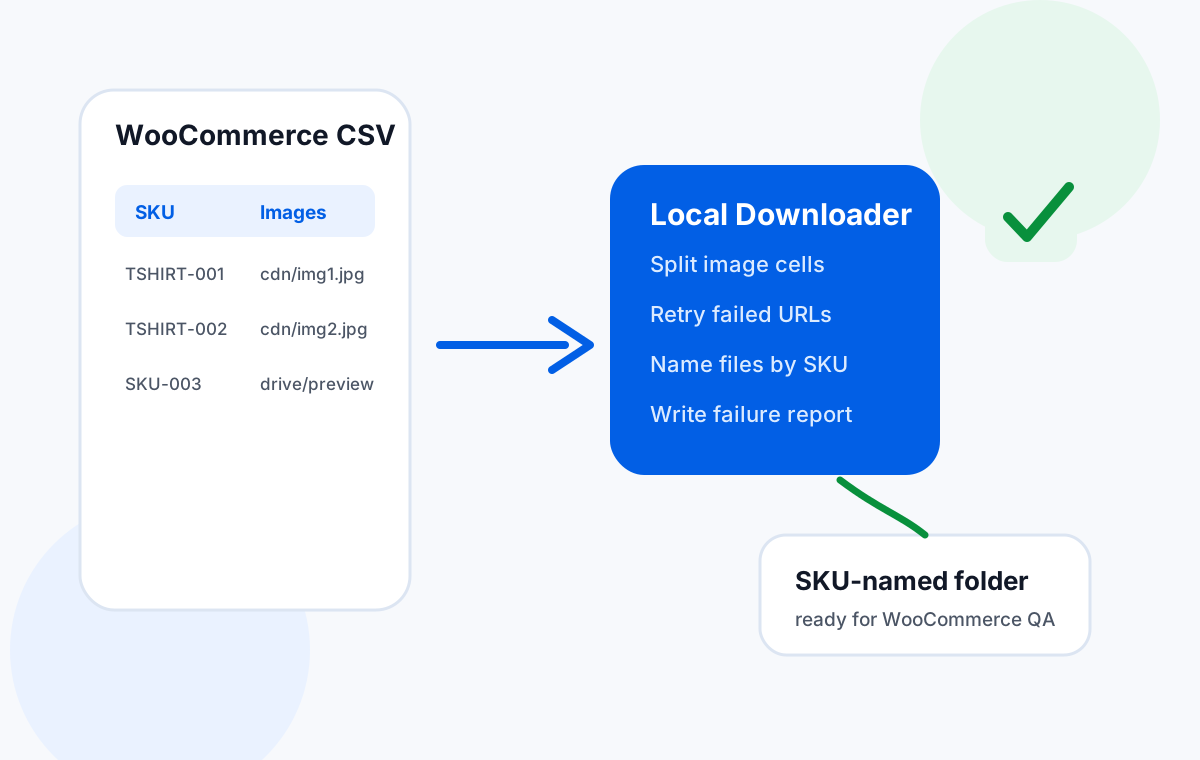
A safer workflow is to treat the CSV or spreadsheet as an image download plan. Pull every value from the Images column (or your supplier image columns), save the files locally with SKU-based names, and create a failed-rows report before you run the WooCommerce import. That gives you a clean folder, a visible QA checklist, and a much shorter troubleshooting loop.
WooCommerce CSV Image Rules to Respect
WooCommerce’s official CSV documentation gives three practical rules that matter for image downloads: images must already be uploaded or available online, external URLs must be directly accessible, and the CSV should follow WooCommerce’s expected schema when you import or update products.
| Rule | What WooCommerce expects | What to do before downloading |
|---|---|---|
| Images column | Direct image URLs or Media Library filenames mapped to the product image field. | Extract each URL or filename into a working spreadsheet and keep the original CSV untouched. |
| Multiple images | The built-in importer commonly uses multiple values in one Images field; some WooCommerce import extensions use pipe-separated image/gallery mappings. | Confirm whether your importer expects commas, pipes, or separate mapped columns before rewriting the CSV. |
| External URLs | URLs must be publicly reachable and should return the actual image file, not a redirect script or cloud preview page. | Open sample URLs and run a local download pass. Flag Google Drive, Dropbox, CDN hotlink, and signed URL patterns. |
| Existing images | If an image already exists in the Media Library, WooCommerce can use its filename. | Do not assume FTP upload is enough. Verify the file is registered or importable through the Media Library/importer path. |
| Alt text | The core CSV importer does not handle every image metadata update the way specialized import plugins do. | Keep alt text in the spreadsheet for review, but do not rely on the image download step to rewrite metadata. |
Real Import Pain Points Seen in WooCommerce Workflows
Public support threads and WooCommerce community discussions show the same problems repeatedly. A user can have image URLs that open in a browser, files that exist on the server, or a CSV that looks correct — and still hit an “unable to use image” import error. Other users migrating from Shopify discover that image URLs in a CSV are not enough if the server cannot fetch them reliably.
“Unable to use image” after import
The CSV row imports, but WooCommerce refuses the image. Causes include server access, MIME/type problems, redirects, stale extensions, or filenames that are not actually registered in WordPress.
Cloud links that are previews, not files
Google Drive, Dropbox, and some CDN links may show an image in a browser while failing as direct download links. A local downloader exposes those rows before the WooCommerce import starts.
Migration URLs that do not pull
Shopify-to-WooCommerce migrations often include remote image URLs. If PHP, hosting, or remote access blocks the fetch, the import can succeed for product data but fail for images.
Image-to-product matching anxiety
Large catalogs need deterministic matching by SKU or ID. A local folder named by SKU makes it obvious which product owns each image before you touch the import button.
Columns to Prepare in the Spreadsheet
Start from the exported WooCommerce CSV if possible. If you are building a new CSV from supplier data, keep a simple working copy with the columns below. This keeps the download workflow independent from your final import mapping.
| Column | Purpose | Example |
|---|---|---|
| SKU | Best filename base and product matching key. | TSHIRT-BLK-001 |
| ID | Useful when updating existing products by WooCommerce product ID. | id:2451 |
| Images | The WooCommerce image field, usually one or more URLs or filenames. | https://cdn.example.com/p/001.jpg |
| Gallery position | Optional helper column for ordering multiple images. | 1, 2, 3 |
| Folder | Optional output path for review by collection, brand, or category. | hoodies/ |
| Notes | Track expected skips, known missing images, or replacement webp/jpg decisions. | supplier image pending |
Download WooCommerce Product Images from the CSV
Once your working spreadsheet is ready, run the image download as a separate QA step before import. The exact UI can vary, but the process should stay the same.
Export or open the CSV
Use WooCommerce’s product export, a supplier CSV, or a spreadsheet with image URL columns. Save a copy before editing.
Select the image column
Point the downloader at Images, Image URL, or whichever column contains direct image links.
Use SKU as filename
Map SKU, ID, or slug to the filename base so every file can be traced back to a product row.
Split multi-image cells
If one cell contains multiple images, split according to the separator your source uses, then save the files with position suffixes.
Enable retry and timeout
Retry 429, 5xx, and timeout errors. Skip hard 404s into a failed-rows report for review.
Save into folders
Use category, brand, or SKU subfolders if the catalog is large enough to need review batches.
Review failures
Open the failed-rows report. Fix broken, preview-only, webp/jpg mismatch, and private links before import.
Prepare the final import CSV
Once files are verified, update the WooCommerce Images field with the exact URLs or filenames your importer expects.
Filename and Gallery Rules for WooCommerce
For WooCommerce work, filenames should make product matching obvious. Even if your final import uses URLs, a SKU-named local folder makes it easier to catch missing gallery images, duplicate URLs, and variant images that point to the wrong product.
| Pattern | Example | Use case |
|---|---|---|
sku.jpg | TSHIRT-BLK-001.jpg | Single featured image per product. |
sku-1.jpg, sku-2.jpg | TSHIRT-BLK-001-1.jpg | Featured image plus gallery images in a known order. |
sku-color-1.jpg | TSHIRT-BLK-001-black-1.jpg | Variant or color-specific review. |
category/sku.jpg | shirts/TSHIRT-BLK-001.jpg | Large catalogs where teams review by category. |
If the CSV still references .jpg while the files were optimized to .webp, fix that before import. A folder-level QA pass makes extension mismatches obvious instead of letting them become importer errors.
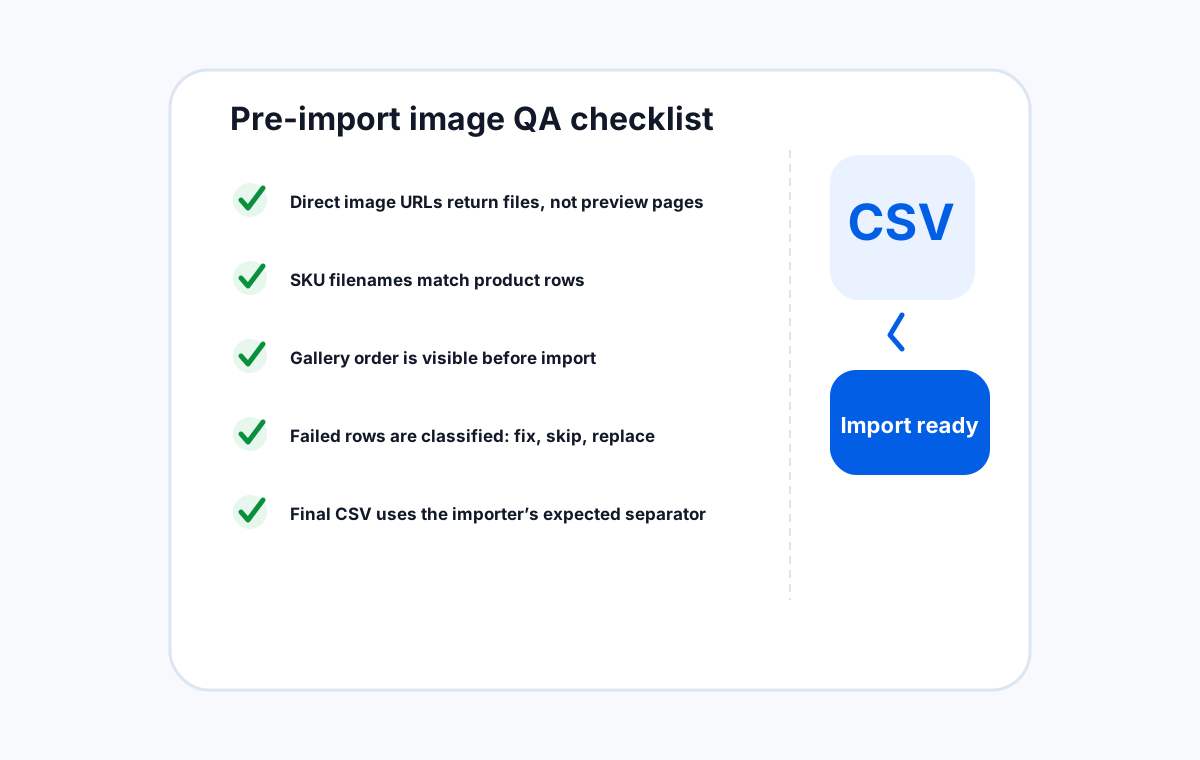
QA Before WooCommerce Import
Before clicking Run the Importer, verify the folder and the final CSV together:
- Open 10 random downloaded files and confirm they are product images, not placeholders or HTML pages.
- Confirm there are no zero-byte files and no unexpected file extensions.
- Compare the image count against the number of image values in the spreadsheet.
- Check the first image for each product is the intended featured image.
- Review gallery ordering for products with multiple images.
- Open every failed-row URL in a browser and classify it as fix, skip, or replace.
Only after this pass should you update the WooCommerce CSV and run the importer. The difference is simple: instead of debugging inside WordPress after a failed import, you fix image problems while they are still just spreadsheet rows and local files.
Frequently Asked Questions
Download WooCommerce product images from a CSV, locally.
Sheet Image Downloader reads a WooCommerce CSV or spreadsheet, downloads product image URLs by SKU, retries failed rows, and saves an organized folder ready for import QA. Try it locally — no cloud, no sign-up required. For support, use the contact page.