
Why Wix Support CSV imports fail mid-catalog
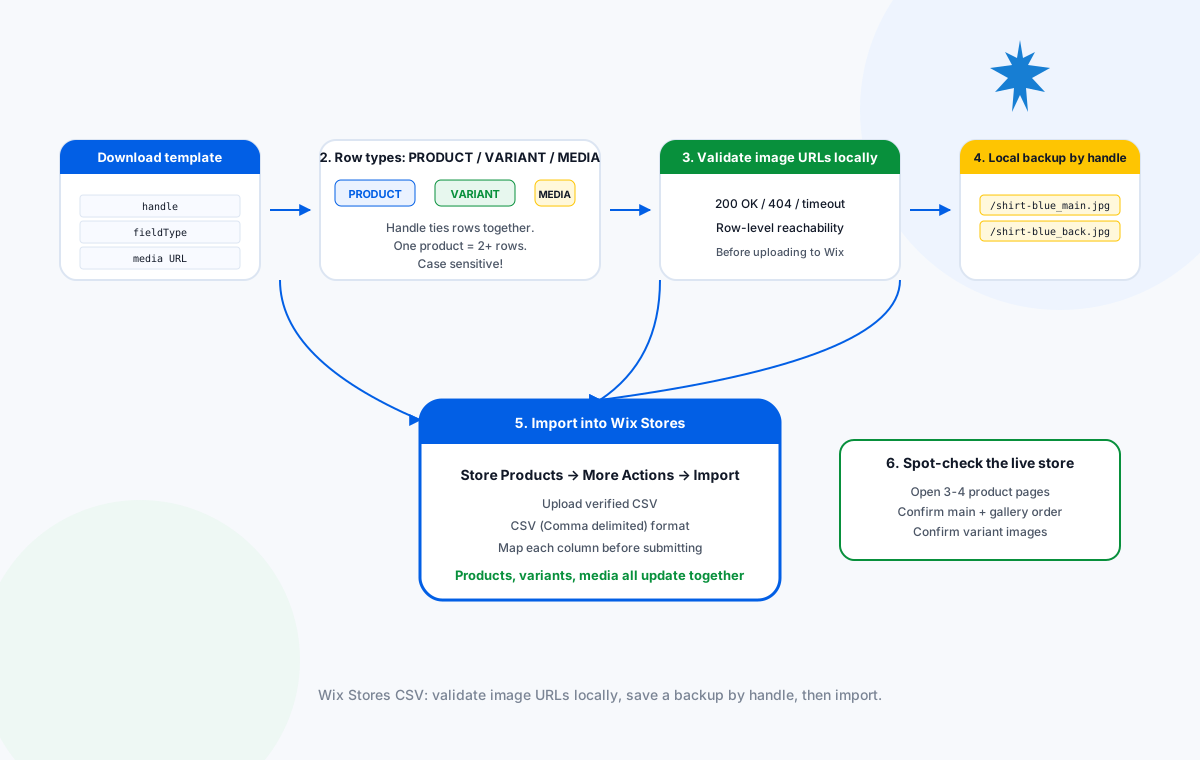
Wix Stores ships with a CSV import tool under Store Products → More Actions → Import. The first thing that surprises anyone migrating from a different platform is that Wix does not use one row per product. A single product with one image is two rows: one PRODUCT row plus one MEDIA row. A product with three variants and four images is eight rows. The only thing tying those rows together is the handle column, and the row's role is declared by the fieldType column, which must be one of three exact strings: PRODUCT, VARIANT, or MEDIA.
Most migration problems come from the same handful of causes:
- Wrong
fieldTypecase. Wix reads the column case sensitively.productorProductis silently skipped, leaving the catalog half-updated with no error message. - Missing
handleon the MEDIA rows. Without the same handle on the MEDIA row as on the PRODUCT row, Wix cannot attach the image to the product. The image uploads into the media library but never appears on the product page. - Image URLs that are not directly reachable. CDN hot-link protection, expiring presigned URLs, and login-walled product pages all return 200 to a casual click but fail inside Wix's import worker.
- Wrong CSV delimiter. Mac Numbers sometimes exports as tab-delimited even when the user asked for CSV. Wix expects comma, and silently truncates fields it cannot parse.
What Sheet Image Downloader can and cannot do for Wix. The tool reads your spreadsheet column of image URLs, downloads each file to a local folder named by handle, and writes a failure report for any URL that returns a non-200 response or times out. It does not push files into Wix, validate Wix's product option syntax, or check image dimensions. After preflight, you run the Wix importer yourself with the verified CSV.
PRODUCT, VARIANT, and MEDIA row model
Wix's CSV format is row-type-based. Every row declares what it represents using fieldType, and every row of the same product shares the same handle. The Wix template ships with three sample products — two with variants — to illustrate the structure. The reference table below covers the columns most likely to break an image-only update.
| Column | Applies to | Rules |
|---|---|---|
handle | All rows | Unique product identifier. Same across PRODUCT, VARIANT, and MEDIA rows of one product. Auto-added if blank. |
fieldType | All rows | Exactly PRODUCT, VARIANT, or MEDIA. Case sensitive. |
name | PRODUCT only | Mandatory. Max 80 characters. Leave blank on VARIANT and MEDIA rows. |
visible | PRODUCT | TRUE or FALSE. Case sensitive. Blank = TRUE. |
plainDescription | PRODUCT | Max 16,000 characters. |
categorySlugs | PRODUCT | Separate multiple with ;. New categories allowed; nesting not supported. |
media | MEDIA | 1 URL or media ID per row. Row order = display order on product page. |
mediaAltText | MEDIA | Alt text for accessibility and SEO. |
price | PRODUCT | Mandatory. Variants can override. |
sku | PRODUCT / VARIANT | Max 40 characters. Variant SKUs should be unique. |
weight | PRODUCT | Max 9 digits, max 3 digits after decimal. |
Row order is display order. The first MEDIA row with a given handle becomes the product's main image. The second MEDIA row is the first gallery image, and so on. If your CSV accidentally lists the back of the shirt before the front, that becomes the main image on the live store.
Naming your local backup by handle
The backup is the part of preflight most teams skip and most regret skipping later. Saving each image locally under its Wix handle keeps the file path self-explanatory and lets you re-upload by hand if a CDN goes down, a supplier removes a hosted URL, or Wix's importer silently drops a row.
A simple convention works in nearly every case: one folder per handle, with files numbered in the same order as the MEDIA rows. That way the local backup maps 1:1 to the live store's image gallery.
Eight-step preflight workflow
The workflow assumes you have already exported your catalog or another platform's catalog to a CSV, edited the rows whose images you want to update, and saved the file as CSV (Comma delimited) with UTF-8 encoding. The preflight itself runs locally: no data leaves your machine.
Download the Wix template
Open Store Products → More Actions → Import → Download Template. The template ships with three sample products and the exact column order Wix expects. Do not add or rename columns.
Verify every row's fieldType
Open the CSV in a text editor. Confirm fieldType is exactly PRODUCT, VARIANT, or MEDIA on every row. Mixed-case values are silently skipped.
Build the URL list
Copy the media column into a single column. Group URLs by handle in display order so the file naming later reflects the same order.
Open Sheet Image Downloader
Launch the desktop app and paste the URL list. Choose a destination folder named after the import run, for example /Wix-Preflight-2026-06-24.
Set handle-based naming
Set the file naming to include the handle and row index. The default template {handle}_{index}.jpg produces files like shirt-blue_001.jpg.
Run the download
Start the batch. Every URL is fetched over HTTPS with a short timeout. 200 OK responses are saved to disk; everything else is added to the failure log.
Review the failure log
Open the failure report. Each non-200 URL is listed with its row number, handle, and the HTTP status or timeout error. Re-host or replace those URLs before continuing.
Import into Wix Stores
Go back to Store Products → More Actions → Import, upload the verified CSV, confirm the column mapping, and submit. Spot-check three or four product pages afterward.
Why this order matters. Downloading before importing gives you a backup you control. If Wix's importer drops a row, or if a CDN hot-link policy blocks the URL during import, you already have the file locally and can re-upload by hand or write a small follow-up CSV with just the failed handles.
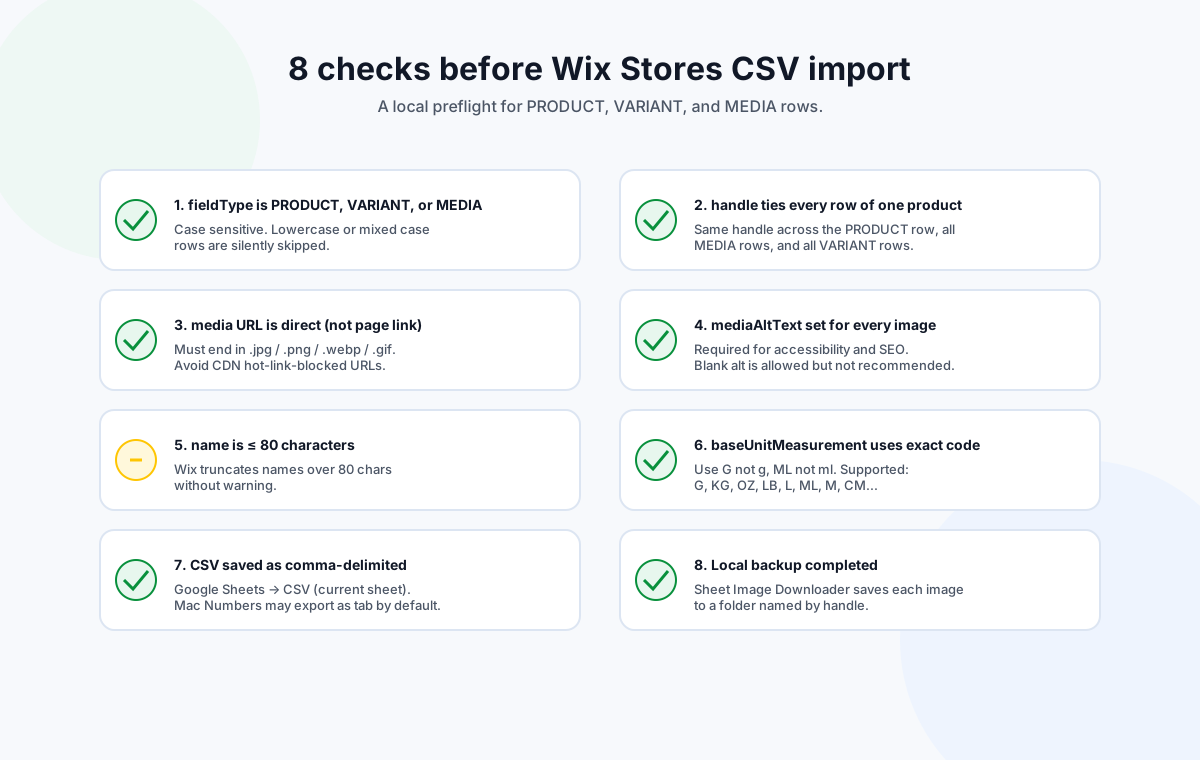
Eight checks before uploading the CSV
These checks are derived directly from Wix Stores' product CSV documentation and from the failure patterns we have seen in repeated runs. Run them in order and the importer will catch fewer surprises.
- fieldType is exactly PRODUCT, VARIANT, or MEDIA. Wix is case sensitive. Lowercase or mixed-case rows are silently dropped.
- handle is shared across the PRODUCT row and every MEDIA row of one product. Without it, the image uploads to the media library but never appears on the product page.
- media URL is a direct image. The path should end in
.jpg,.png,.webp, or.gif. A URL that points to an HTML product page will fail. - mediaAltText is set for every image. Required for accessibility and SEO. Blank alt is allowed but not recommended.
- name is at most 80 characters. Wix truncates names over 80 characters without warning. Long names also break search and product card layouts.
- baseUnitMeasurement uses exact codes.
Gnotg,MLnotml. Supported codes include G, KG, OZ, LB, L, ML, M, CM, MM, SQFT, and a handful of others. - CSV saved as comma-delimited. Google Sheets → File → Download → CSV (current sheet). Mac Numbers sometimes exports as tab; verify in a text editor before importing.
- Local backup completed. Save the files to disk before importing. If Wix's importer partially fails, you have a fallback.
Common import problems and how to spot them
Half the catalog updated, half did not
Most likely cause is mixed fieldType case. Wix's importer is case sensitive. Search the CSV for lowercase variants of product, variant, or media and fix them in a text editor.
Images appear in the media library but not on product pages
The handle on the MEDIA rows does not match the PRODUCT row's handle. Whitespace, capitalisation, and trailing characters are the usual culprits.
Main image is the wrong photo
Row order. The first MEDIA row for a handle becomes the main image. Reorder the MEDIA rows so the intended main image is first.
Variant images all disappeared
The variant rows have empty media entries. Each variant that needs an image must have its own MEDIA row with the same handle and a variantSelection value matching the option choice.
Verify every image URL locally before any Wix import.
Try Sheet Image Downloader — paste your URL list, get a local folder named by handle plus a failure log you can re-run. For questions or edge cases, use the contact page.
Frequently asked questions
fieldType tells the Wix importer what each row represents. It must be exactly PRODUCT, VARIANT, or MEDIA, in uppercase. Lowercase or mixed-case rows are silently skipped.
Yes, but every row must share the same handle as the existing product. The MEDIA row holds the image URL, and the PRODUCT row must be present so Wix can attach the media to the right product.
Use the media column. One URL or media ID per row. Each image, GIF, or video gets its own MEDIA row. Display order on the product page follows the row order in the file.
No. Sheet Image Downloader downloads your image URLs to a local folder named by handle, logs which URLs failed, and gives you the local backup and failure report. You then run the Wix Stores importer yourself with the verified CSV.
Save as CSV (Comma delimited). Wix does not accept tab-separated files. Mac Numbers sometimes exports as tab by default; double-check the delimiter in a text editor before importing.
Editorial note: This preflight is based on Wix Stores' current product CSV import documentation, verified June 2026. Wix occasionally updates column names, supported baseUnitMeasurement codes, and the row-type rules. Sellers should confirm the latest column list inside the Wix dashboard before running a production import. No import outcome is guaranteed by Sheet Image Downloader.