
Why Pinterest's Business help Catalog feeds fail silently
Pinterest Catalog pulls product data from a hosted feed file you point it at, then re-fetches that file on a recurring schedule (usually every 24 hours) to keep Product Pins in sync with your catalog. Unlike marketplace CSV imports where one bad URL fails a single row in front of you, a dead image_link in a Pinterest Catalog feed is harder to spot: the row stays in the feed, the Product Pin simply does not render, and the catalog status quietly changes to "needs attention" in Pinterest Business Hub without surfacing a row-level error.
Most preflight mistakes come from the same handful of causes:
- Column names that don't match the spec. Pinterest reads the header row exactly: lowercase with underscores.
Image Link,imagelink, orimage-linkare silently ignored, and the entire feed fails becauseimage_linkis required. - image_link URLs that are not directly reachable. CDN hot-link protection, expiring presigned URLs, and login-walled product pages all return 200 to a casual click but fail inside Pinterest's image worker.
- Feed file behind a login or rate-limited host. Pinterest re-fetches the file on a schedule. If the host returns 401, 403, or 429 mid-fetch, the catalog is marked failed until the URL is reachable again.
- id collisions. Pinterest treats
idas the unique key. Two products with the sameidoverwrite each other on the next fetch, and the loser's image_link is dropped.
What Sheet Image Downloader can and cannot do for Pinterest Catalog. The tool reads the image_link column from your feed (or any other spreadsheet), downloads every file to a local folder named by product id, and writes a failure report for any URL that returns a non-200 response or times out. It does not host the feed file, connect the data source in Pinterest Business Hub, or validate Pinterest's image spec. After preflight, you upload the feed file to your own hosting (or the host Pinterest recommends) and connect the URL yourself.
The seven required feed fields
Pinterest Catalog's feed spec lists seven required fields and a long list of optional ones. Every row must include all seven required fields, and the column header row must use the exact lowercase-with-underscores names below. The reference table covers the fields most likely to break an image-focused feed update.
| Field | Required? | Notes |
|---|---|---|
id | Yes | Unique product identifier. Your choice (SKU, product slug, internal ID). Max 127 chars. |
title | Yes | Product name. Max 500 characters. The Pin title is auto-derived from this. |
description | Yes | Product description. Max 10,000 characters. Plain text preferred; HTML is stripped. |
link | Yes | The product page URL on your site. Must be reachable without login. |
image_link | Yes | Direct image URL. JPEG, PNG, or WebP. Recommended 1000x1500 px (2:3 aspect). |
price | Yes | Number + ISO 4217 currency code. Format: 19.99 USD. Sale price goes in sale_price. |
availability | Yes | One of: in stock, out of stock, preorder, backorder. Lowercase. |
brand | No | Recommended. Free text. Empty is allowed but reduces Pin quality score. |
condition | No | One of: new, refurbished, used. Lowercase. Defaults to new. |
sale_price | No | Number + currency. Same format as price. Must be lower than price when set. |
additional_image_link | No | Comma-separated list of up to 10 additional image URLs. Same rules as image_link. |
Column names are case-sensitive and underscore-sensitive. Pinterest reads the header row exactly. image_link works; imageLink, image link, imagelink, and Image_Link all fail. The fastest way to spot a malformed header is to open the file in a plain text editor and confirm the first row matches the spec verbatim.
Naming the local backup by product id
The local backup is the part of preflight most teams skip and most regret skipping later. Saving each image locally under its Pinterest id keeps the file path self-explanatory and lets you re-host the image elsewhere if a CDN goes down, a Shopify removes a hosted URL, or Pinterest's image worker silently drops a row during a scheduled re-fetch.
A simple convention works in nearly every case: one folder per id, with files numbered to match the image_link / additional_image_link column order. That way the local backup maps 1:1 to the live Pinterest Pin gallery.
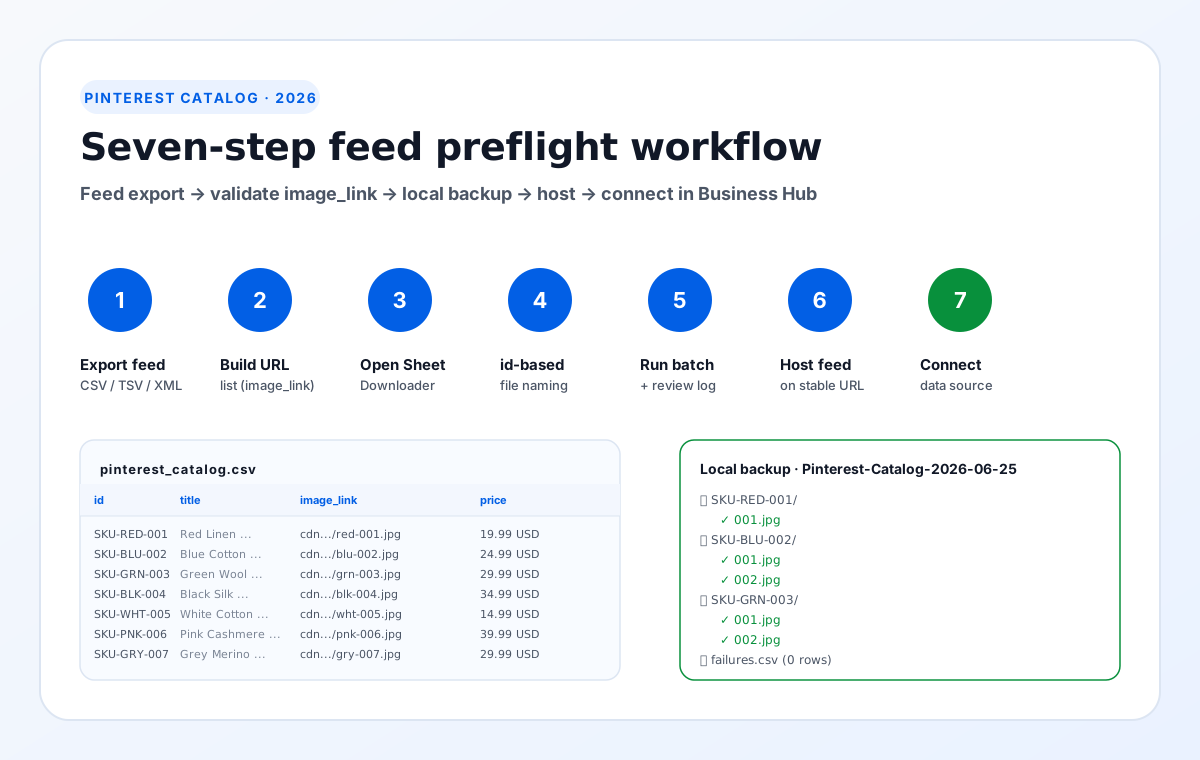
Seven-step preflight workflow
The workflow assumes you have already exported your product catalog to a CSV, TSV, or XML feed, edited the rows whose images you want to update, and saved the file with UTF-8 encoding. The preflight itself runs locally: no data leaves your machine, no sign-up is required, and no browser extension is involved.
Export the feed file
From your e-commerce platform or PIM, export the product catalog to CSV, TSV, or XML. Confirm the header row uses Pinterest's exact column names (id, title, description, link, image_link, price, availability).
Build a clean image_link list
Copy the image_link column into a single column, paired with the id for each row. If you also use additional_image_link, split those on the comma and add them as separate rows in the same order.
Open Sheet Image Downloader
Launch the desktop app and paste the URL list. Choose a destination folder named after the feed run, for example /Pinterest-Catalog-2026-06-25.
Set id-based naming
Set the file naming to include the id and the image index. The default template {id}_{index}.jpg produces files like SKU-RED-001_001.jpg for the main image and _002.jpg through _011.jpg for the gallery (1 main + 10 additional).
Run the download and review failures
Start the batch. Every URL is fetched over HTTPS with a short timeout. 200 OK responses are saved to disk; everything else is added to the failure log with the product id, the URL, and the HTTP status or timeout reason.
Host the feed file
Upload the verified feed file to a stable URL. The host should return 200 to anonymous fetches on a recurring schedule (Pinterest re-fetches every ~24 hours). Avoid hosts that rate-limit or require authentication.
Connect the data source
Open Pinterest Business Hub, go to Catalogs → Data sources → Add data source, paste the hosted feed URL, choose the file format, and submit. Pinterest fetches the file and shows the first row count within a few minutes. Spot-check three or four Product Pins in the next 24 hours.
Why this order matters. Downloading before hosting gives you a backup you control. If the CDN where your image_links live goes down between now and Pinterest's next scheduled fetch, you already have the files locally and can swap to a different host, regenerate the feed, and re-point Pinterest at the new file URL.
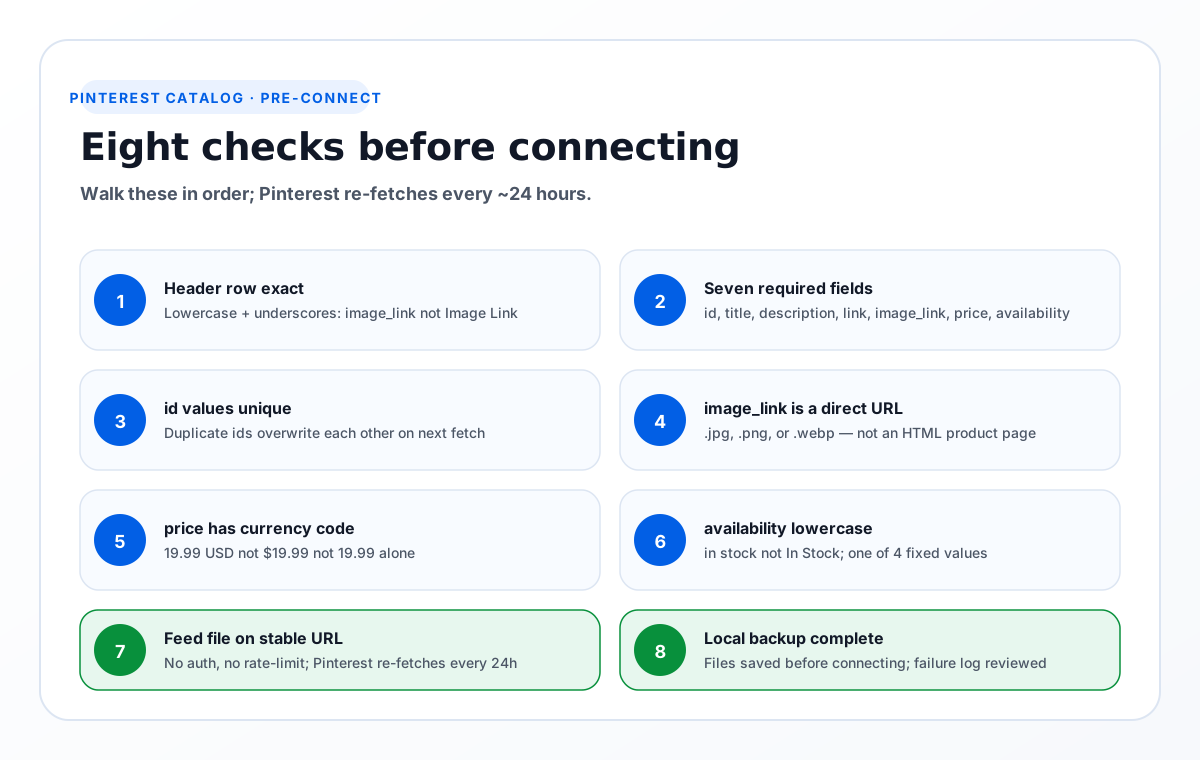
Eight checks before connecting the data source
These checks are derived directly from Pinterest Catalog's product data spec and from the failure patterns we have seen in repeated runs. Run them in order and Pinterest will surface fewer surprises on the next scheduled fetch.
- Header row matches the spec exactly. Lowercase, underscores, no spaces.
image_linknotImage Link,imagelink, orimage-link. - Every row has all seven required fields.
id,title,description,link,image_link,price,availability. A single blank in any one fails the whole row. - id values are unique across the feed. Pinterest treats
idas the unique key. Two products with the sameidoverwrite each other on the next fetch. - image_link is a direct image. The path should end in
.jpg,.png, or.webp. A URL that points to an HTML product page will fail. - price has the currency code.
19.99 USDnot$19.99not19.99. Currency code is required. - availability is lowercase.
in stocknotIn StocknotIN_STOCK. Pinterest normalizes on the lowercase form. - Feed file is hosted on a stable URL. The host should return 200 to anonymous fetches on a recurring schedule, with no auth or rate-limit. Pinterest re-fetches every ~24 hours.
- Local backup completed. Save the files to disk before connecting. If Pinterest's image worker fails on a URL, you have a fallback you can re-host.
Common feed problems and how to spot them
Catalog status shows "needs attention" with no row-level error
Most likely cause is a header row mismatch. Pinterest silently skips the whole feed if a required column header is missing or misspelled. Open the feed file in a plain text editor and confirm every header matches the spec exactly.
Some Product Pins render, others show a broken image icon
The image_link URLs for those rows returned 200 to a casual browser check but failed inside Pinterest's image worker. The most common cause is a CDN that only serves the right bytes to a referer-locked request, or a presigned URL that has since expired.
Catalog keeps flipping back to "failed" every few days
The feed file's host is not stable. Pinterest re-fetches every ~24 hours; if the host returns 401, 403, or 429 on a scheduled fetch, the catalog is marked failed. Move the file to a static host with anonymous access.
Product Pins show the right image but the wrong product page
The id on the image_link row does not match the id on the row holding the link. Whitespace, capitalisation, and trailing characters are the usual culprits. Pin the row order to a single sort key.
Validate every image_link locally before connecting the feed.
Try Sheet Image Downloader — paste your image_link list, get a local folder named by product id plus a failure log you can re-run. For questions or edge cases, use the contact page.
Frequently asked questions
Pinterest Catalog accepts CSV, TSV, and XML product data sources. The format is chosen when you connect the data source in Pinterest Business Hub, and the column names must match the Pinterest spec exactly (lowercase with underscores, e.g. image_link not Image Link or imagelink).
Seven fields are required: id, title, description, link, image_link, price, and availability. Every row must include all seven. Optional but recommended fields include brand, condition, sale_price, and additional_image_link.
Pinterest re-fetches the data source file from the URL you provide on a recurring schedule, usually every 24 hours. If the URL is unreachable on a scheduled fetch, the catalog status changes to "failed" and Product Pins stop showing until the source is reachable again.
No. Sheet Image Downloader downloads every image_link URL to a local folder named by product id, writes a failure report for any URL that returns a non-200 response, and gives you the local backup and failure log. You then upload the feed file to your own hosting and connect the URL inside Pinterest Business Hub yourself.
Pinterest Catalog recommends 1000x1500 pixels (2:3 aspect ratio) for product images. Square and 1:1 also work but get less screen real estate in the home feed. Files under 600 pixels on the long side are usually rejected, and JPEG, PNG, and WebP are all supported.
Editorial note: This preflight is based on Pinterest Catalog's product data spec as documented across Pinterest's help center and seller community, verified June 2026. Pinterest occasionally updates the required field list, accepted availability values, and re-fetch cadence. Sellers should confirm the latest spec inside Pinterest Business Hub before connecting a production data source. No feed outcome is guaranteed by Sheet Image Downloader.