
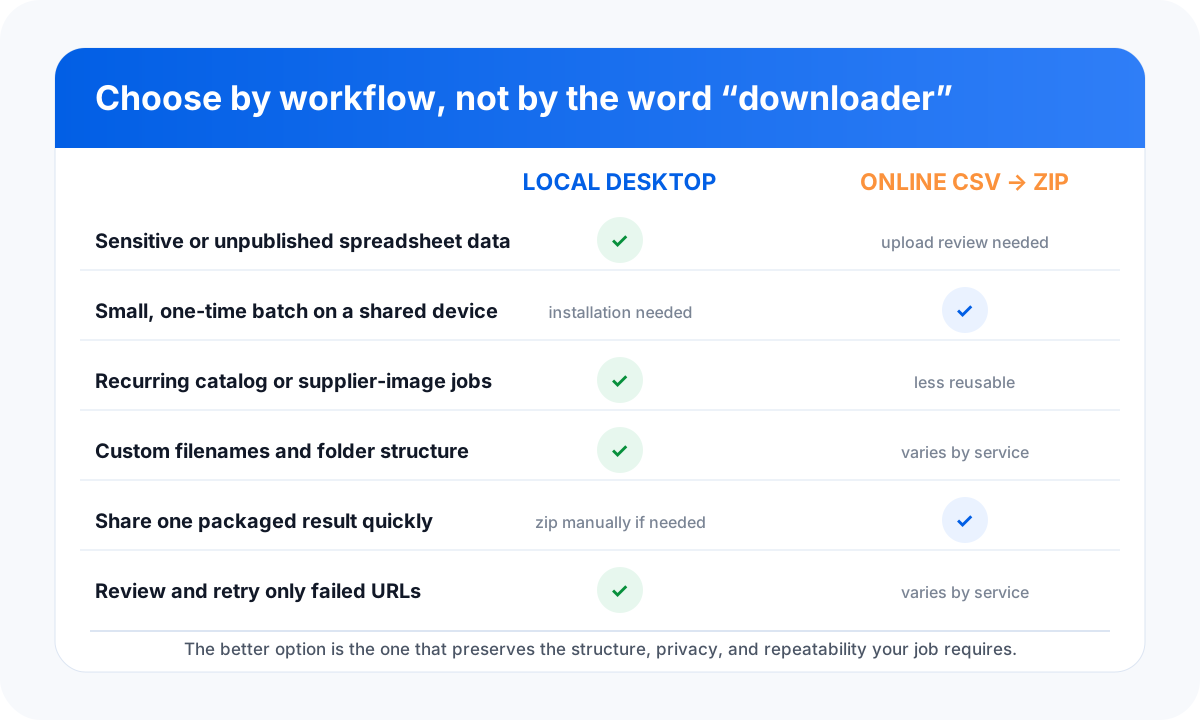
Choose an online CSV-to-ZIP image downloader for a small, non-sensitive, one-time job when you want no installation and a single archive. Choose a local desktop image downloader when the spreadsheet contains private catalog data, the batch is large or recurring, filenames and folders matter, or you need to review and retry failed URLs without uploading the sheet to a processing service.
A spreadsheet with image URLs looks simple until the download becomes part of a real operating process. A marketing assistant may need 40 reference images once. A catalog team may need 18,000 supplier images every month, named by SKU, sorted into category folders, checked for failures, and reused for marketplace uploads. Those are different jobs even though both begin with a CSV or Excel file.
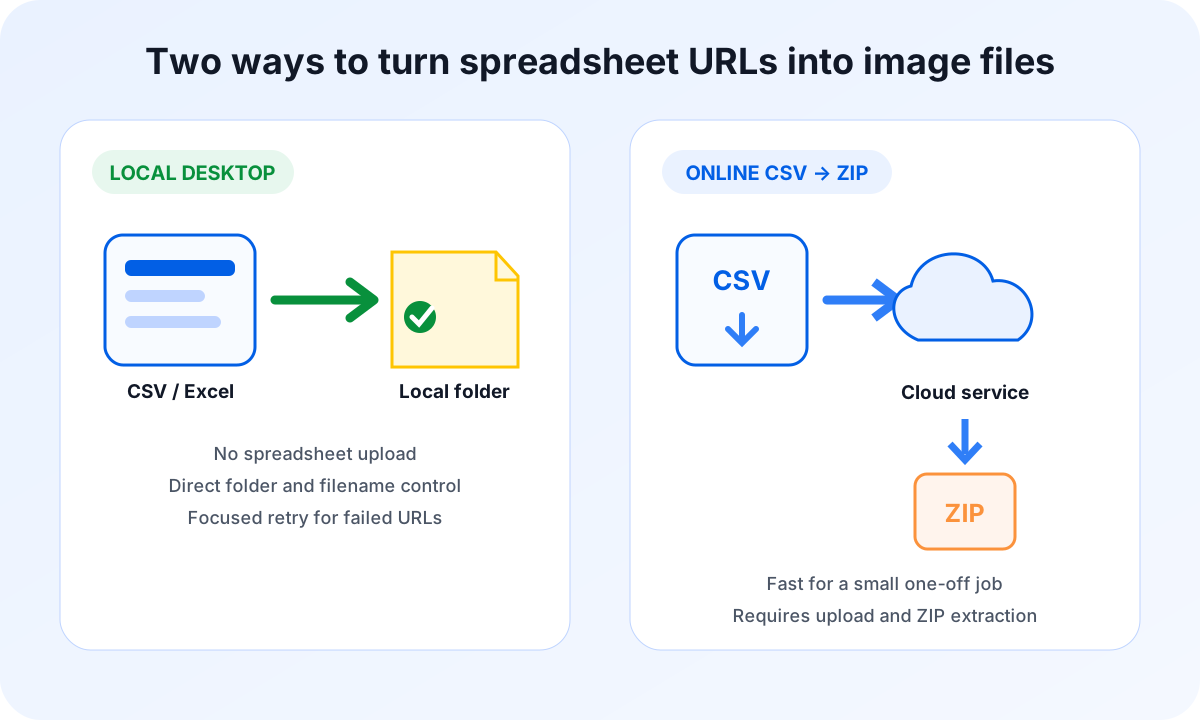
This guide compares two common models. The first is an online CSV image downloader: upload a sheet, wait while a remote service fetches the image URLs, then download a ZIP. The second is a local desktop workflow: open the spreadsheet on your computer and save the fetched images directly into a chosen local folder.
How the two CSV image downloader workflows work
Online CSV-to-ZIP workflow
An online downloader normally asks you to upload a CSV or spreadsheet that contains image URLs. The service reads the file on its server, requests each URL, packages the successful downloads, and provides a ZIP archive. You then download and extract that archive.
- Prepare the CSV or Excel file.
- Upload it to the online service.
- Select or confirm the image URL column.
- Wait for the remote batch to finish.
- Download the ZIP and extract it locally.
- Compare the archive with the source sheet and investigate missing images.
This model is attractive because it can work from a borrowed or managed computer without installing an application. It also gives you a single file that is easy to send to a coworker. However, the sheet and its URLs leave your device, and the archive becomes an additional output layer you must unpack and inspect.
Local desktop spreadsheet workflow
A local desktop image downloader reads the spreadsheet on your computer. It fetches the URLs and writes the resulting images directly into the output folder you select. A spreadsheet-aware tool may also use filename and folder columns to preserve the business context in each row.
- Open the CSV or Excel file locally.
- Map the URL, filename, and optional folder columns.
- Choose a local output directory.
- Run a small sample and confirm the output.
- Process the full batch.
- Review failed items and retry only the rows that need attention.
Sheet Image Downloader follows this local-first model for Windows and macOS. Its active release workflow supports spreadsheet-driven batches, direct-to-folder output, filename and folder rules, progress tracking, Retry Failed Only, and Export Failed URLs. Your spreadsheet is not uploaded to a Sheet Image Downloader processing server.
If the list is small, disposable, and contains no sensitive catalog information, an online CSV-to-ZIP workflow may remove the installation step and produce a shareable result quickly.
Local desktop vs online CSV-to-ZIP: detailed comparison
| Decision factor | Local desktop downloader | Online CSV-to-ZIP downloader | Practical takeaway |
|---|---|---|---|
| Spreadsheet handling | Sheet stays on the computer while the app reads it. | Sheet is transferred to a remote service for processing. | Local is preferable when the list contains private or unpublished business data. |
| Output | Images can be written directly into a selected directory and folder structure. | Images are commonly returned as one ZIP archive. | ZIP is convenient for transfer; direct folders reduce extraction and reorganization. |
| Setup | Requires installing and updating a desktop application. | Usually runs in a browser with no installation. | Online wins for a one-time task on a temporary device. |
| Batch scale | Constrained by the computer, network, source servers, and app settings. | Constrained by service limits, timeouts, capacity, and the source servers. | Do not assume either model is unlimited. Test representative data. |
| Filename control | Can use SKU, product ID, row data, or a dedicated name column when supported. | Varies. Some services preserve or generate names; others use source filenames. | Confirm naming behavior before a production batch. |
| Folder control | Can organize output while downloading when folder columns are supported. | Often produces a flat or service-defined archive structure. | Local is stronger for catalog-ready folders. |
| Failure review | Failed items can remain tied to spreadsheet rows and be retried selectively. | Failure reports and retry behavior vary by service. | Repeat jobs benefit from row-level traceability. |
| Collaboration | Output folder must be zipped, synced, or shared separately. | A single ZIP is easy to hand off after the run. | Online may be simpler when packaged delivery is the only goal. |
| Offline availability | The interface and sheet remain local, but fetching remote images still requires network access. | Both the interface and fetching process require an internet connection. | Neither workflow can download remote images without network access. |
Privacy, data transfer, and output control
The clearest privacy difference is the spreadsheet transfer. In an online workflow, the service must receive enough information to process the image URLs. Depending on your sheet, that may expose supplier domains, unpublished product paths, internal identifiers, planned assortment data, or signed URLs. A public image URL is not necessarily harmless business information when thousands of URLs reveal a catalog strategy.
Before uploading a business spreadsheet, read the service's privacy policy and answer four questions:
- What file contents and metadata are collected?
- How long are uploaded sheets, fetched images, logs, and ZIP archives retained?
- Can the provider or its subprocessors access the data?
- How do you request deletion, and is deletion automatic after processing?
A local application removes the spreadsheet-upload step, but it does not make the entire job private by magic. Your computer still sends HTTP requests to the image hosts. Those hosts can record IP addresses, request times, user agents, and access failures. Local output can also be exposed through shared folders, device backups, malware, or weak account controls. The accurate claim is narrower: local processing keeps the spreadsheet out of a separate image-downloader service.
When filenames, category folders, supplier folders, or SKU alignment are part of the deliverable, a direct-to-folder desktop workflow usually requires less cleanup than extracting a generic ZIP and rebuilding the structure afterward.
Batch size, reliability, and recoverability
It is tempting to call one model faster, but speed is not a property of “local” or “online” alone. Every image must still be fetched from its source. Source-server latency, redirects, rate limits, image size, network quality, concurrency, and failed requests can dominate the result.
An online service may have strong infrastructure, but it can also impose account limits, upload limits, job timeouts, archive size limits, or queue delays. A desktop app uses your connection and machine resources, which makes the environment more visible but not unlimited. For either model, test before committing a production batch.
Why recoverability matters more than a headline speed test
Suppose 93 of 10,000 rows fail. The important question is not only how fast the first run completed. It is whether you can identify those 93 rows, understand the cause, correct the URLs, and rerun only the failures. Starting the entire batch again wastes time and creates duplicate files.
Sheet Image Downloader's current release exposes failed items, supports Retry Failed Only, and can export failed URLs. For a recurring operation, that traceability is often more valuable than receiving one archive a few minutes earlier.
For more detail, use the guides on retrying failed image downloads, naming images by SKU or product ID, and building a reusable image URL spreadsheet template.
Which workflow fits your spreadsheet?
Choose local desktop when...
- The sheet contains private supplier, product, or pre-launch data.
- The batch repeats weekly, monthly, or by supplier.
- Output filenames and folders must match row data.
- You need a failure list and focused retries.
- You want files written directly to a working directory.
- You need a stable process that is not tied to a browser session.
Choose online CSV-to-ZIP when...
- The task is small and unlikely to repeat.
- The sheet contains no sensitive business information.
- You cannot or do not want to install software.
- A flat, packaged ZIP is the desired deliverable.
- You are using a temporary or shared device.
- The service's current limits and retention policy fit the job.
There is also a reasonable hybrid model. A team can process and organize images locally, then create its own ZIP for a controlled handoff. That preserves local spreadsheet handling while still producing a portable archive. Conversely, an online tool can be appropriate for a sanitized sample while the full production sheet remains local.
Online CSV-to-ZIP tools optimize for browser convenience and packaged delivery. Local desktop tools optimize for control, repeatability, folder organization, and row-level recovery. Neither is universally best; the spreadsheet's sensitivity and operational role should decide.
Preflight checklist before downloading images from CSV or Excel
Use the same preflight discipline regardless of the tool. A clean sheet prevents more problems than switching downloaders after a failed production run.
Confirm direct image access
Open several URLs in a private browser window. A page URL, login redirect, HTML error page, or expiring link may not produce the expected image file.
Separate URL, filename, and folder data
Use distinct columns. Avoid embedding multiple business rules in one cell unless your selected tool explicitly supports that format.
Normalize names before the run
Remove forbidden path characters, decide how duplicates are handled, and keep names short enough for the target operating system and downstream platform.
Run 10 to 20 representative rows
Include common formats, redirects, duplicate names, large files, and at least one intentionally broken URL so you can inspect failure reporting.
Inspect actual file content
A successful HTTP response can still be a placeholder, tiny thumbnail, access-denied image, or HTML document saved with an image extension.
Archive the input and failure report
Keep the exact source sheet, run date, output location, and failed URL export together. This makes the batch auditable and repeatable.
If your list begins in Google Sheets, export it first and follow the Google Sheets image URL workflow. For a general source-independent process, see how to download images from any URL list in bulk. For a catalog-specific example, review the product image spreadsheet guide.
FAQ
Is a local desktop image downloader safer than an online CSV-to-ZIP tool?
A local workflow avoids uploading the spreadsheet to an image-downloader service, which removes one data-transfer step. Safety still depends on where the URLs point, how the application is obtained, and how the output is stored. Review the privacy and security practices of any tool you use.
When is an online CSV image downloader the better choice?
It can be convenient for a small, one-time job when installation is undesirable, the spreadsheet is not sensitive, the service accepts your format, and a single ZIP file is the output you want.
Does a ZIP output make an online downloader faster?
Not automatically. The service must still fetch every image and create the archive. Total time depends on URL response times, batch size, service capacity, upload time, and ZIP extraction.
Can I download images from Excel or CSV directly into folders?
Yes. A spreadsheet-aware desktop tool can read URL, filename, and folder columns and write images into a selected local directory. Verify the exact formats and naming options supported by the tool first.
What should I test before running a large spreadsheet image batch?
Run 10 to 20 representative rows. Check direct image access, filenames, extensions, duplicates, folder paths, redirects, failed URLs, and output quality before processing the complete sheet.
Need a repeatable local spreadsheet workflow?
Read Excel or CSV image URLs, apply filename and folder columns, and save organized files directly to your selected folder. Have a workflow question? Visit the contact page.