
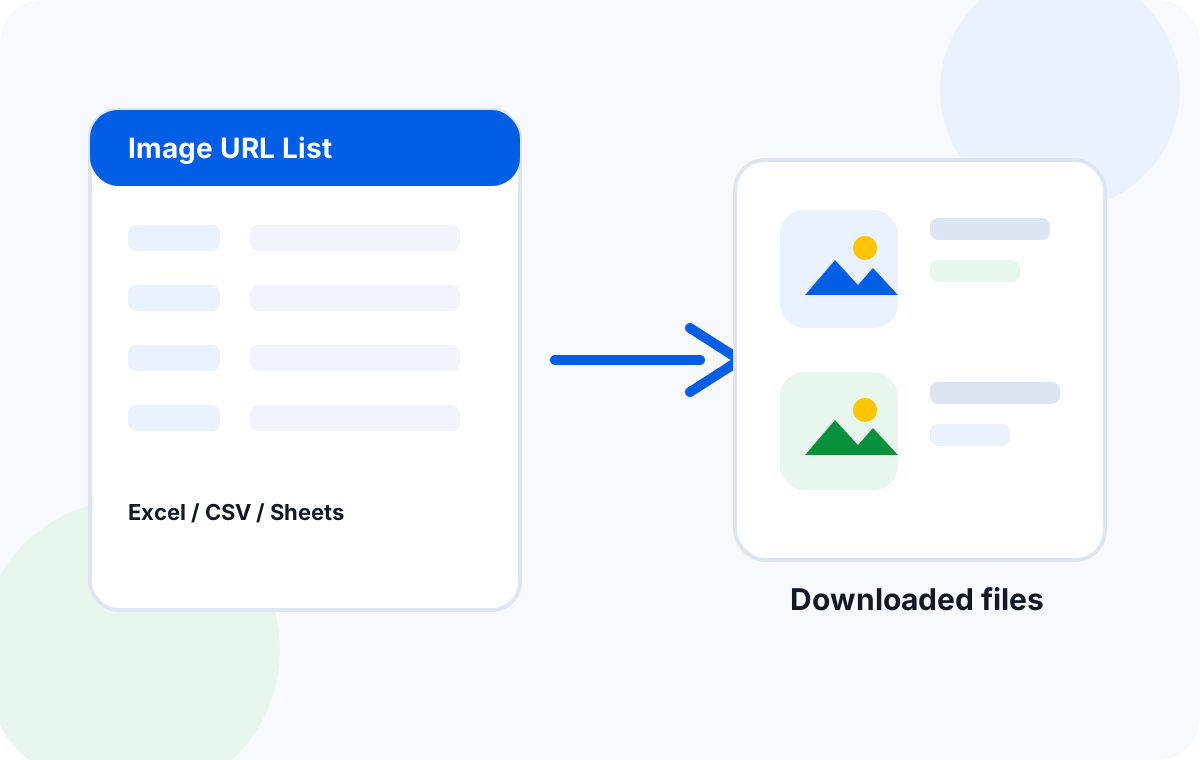
To download images from a Sheets URL list in bulk, open the sheet, copy the column of image URLs, paste the list into Sheet Image Downloader, configure your naming and folder options, and click Download. The tool fetches every image and delivers them as a single ZIP file — no account, no coding, no browser extensions needed.
Anyone who works with image datasets at scale knows the problem: the URLs are in a shared Google Sheet, the list runs to hundreds or thousands of rows, and manually opening each link to save each image is not a real workflow. Copy-paste one column into Sheet Image Downloader and the entire batch runs in the background while you work on something else.
What is Sheet Image Downloader?
Sheet Image Downloader is a free web utility that takes a list of image URLs from any spreadsheet — Google Sheets, Excel, or CSV — and downloads all of them as an organized ZIP. You do not need to install anything or create an account. Just open the tool, paste your URLs, and download the result.
| Capability | Detail |
|---|---|
| Paste from Google Sheets | Copy a column directly from any Sheets document |
| Batch size | Works with thousands of URLs in one run |
| Output format | Single ZIP with optional subfolder organization |
| Naming options | Row-number based or custom prefix/suffix |
| Format support | JPG, JPEG, PNG, GIF, WebP, SVG, BMP |
| Sign-up required | No — fully anonymous |
A 5-step workflow to bulk download from Google Sheets
Follow this process every time you need to pull images from a shared sheet. It takes under two minutes to set up and handles the full batch automatically.
Open your Google Sheet
Open the spreadsheet that contains your image URLs. Make sure the URLs are in a single column — any column works.
Copy the URL column
Click the column header to select all URLs, then copy (Ctrl+C or Cmd+C). Skip the header row to avoid non-image data.
Paste into Sheet Image Downloader
Visit sheetimagedownloader.com, click the URL field, and paste your list. The tool previews the detected count instantly.
Choose folder and naming rules
Select Single ZIP (all files together) or organized subfolders by row number. Add a prefix or suffix if you need a specific naming convention.
Click Download and wait
The tool processes server-side. You receive a ZIP file when it is done — no need to keep the browser tab open.
Who benefits from bulk downloading Google Sheets images?
This workflow serves a wide range of people who manage image assets through spreadsheets. Here are the most common scenarios.
E-commerce product managers
Supplier catalogs frequently arrive as shared Google Sheets with product image URLs. Downloading 300–500 images row by row is impractical. Copy the full URL column, run the batch, and get every product photo in one ZIP organized by row number for easy mapping back to your catalog.
Data scientists and ML engineers
Training computer vision models requires large image datasets. If your image sources are listed in a Google Sheet (from a labeling tool export, a scraped dataset, or a colleague's shared link), this tool gives you a fast path to local files without writing a scraper or configuring an S3 bucket.
Digital marketing teams
Campaign assets — banner images, social media photos, ad creative — often live in shared Sheets. Instead of opening every link individually, copy the URL column and pull everything in under a minute. The ZIP lands in your downloads folder ready to upload to your ad platform or CMS.
Designers and creative agencies
Mood boards and reference image collections are commonly managed in spreadsheets, especially in client onboarding workflows. If a client sends a sheet of 200 reference image URLs, you can pull them all down instantly instead of spending an hour on manual downloads.
Academic and market researchers
Research projects involving image corpora — historical photos, satellite imagery, survey visuals — frequently store source links in shared Sheets. Batch downloading via Sheet Image Downloader makes dataset assembly significantly faster and keeps the output traceable back to the original row numbers.
Frequently asked questions
Do the images need to be publicly accessible?
Yes. Sheet Image Downloader can only fetch images that have direct, public URLs. If the images are behind a login, behind a private bucket, or require a session cookie, the tool will not be able to retrieve them.
Is there a limit on how many URLs I can process?
There is no hard cap, but for best performance we recommend batches under 5,000 URLs. Larger datasets can be split into multiple runs — the batch process is fast enough that handling two or three sheets is still much quicker than manual downloading.
Are downloaded images named logically?
By default, images are named with their row number from the original sheet (e.g., image_001.jpg, image_002.png). You can configure custom prefixes or suffixes in the options panel to match your internal naming conventions.
What image formats are supported?
Sheet Image Downloader supports all common formats: JPG, JPEG, PNG, GIF, WebP, SVG, and BMP. If a URL points to a non-image file, it is skipped and logged in the error report.
Is my data safe? Does the tool store my URLs?
No. All processing happens in real time. Your URLs are never stored on any server after the download completes. We do not log, track, or retain any data you submit through the tool.
Turn your Google Sheets URLs into image files in minutes.
Try Sheet Image Downloader — paste your list, get a ZIP. For questions or edge cases, use the contact page.