
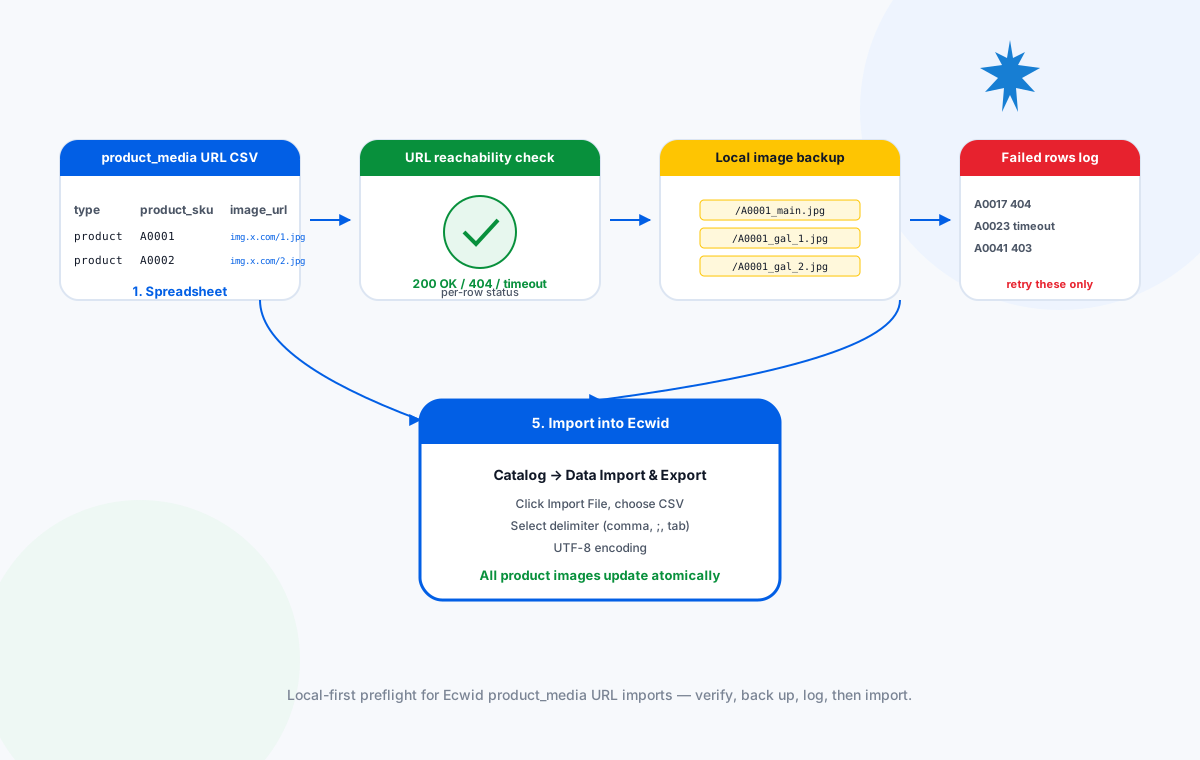
Why Ecwid imports fail mid-catalog
Ecwid's product catalog accepts CSV updates through Catalog → Data Import & Export. When the update only changes images, you point at a small CSV with two columns per row: product_sku (or product_internal_id) and the image URL columns (product_media_main_image_url, product_media_gallery_image_url_1, _2, and so on). On the surface this looks simple. In practice three things go wrong, and every one of them shows up only after the importer has accepted the file:
- The image URL is not directly reachable. Ecwid fetches each URL during the import. A 404, a 403 from a CDN hot-link policy, or a redirect chain that lands on a login page all silently kill that row's image. The rest of the file imports, so the catalog ends up half-updated with no obvious error.
- The image is hosted somewhere private. A file path like
C:\Users\you\Pictures\sku123.jpgor afile://URL is rejected by Ecwid. Images must already be online at a URL Ecwid's servers can fetch. - The catalog data is fully rewritten on every import. This is the Ecwid rule most often missed. If you only include the new image in your CSV, Ecwid deletes every image that was not listed — gallery images included. The importer does not warn you before this happens.
What Sheet Image Downloader can and cannot do for Ecwid. The tool reads your spreadsheet column of image URLs, downloads each file to a local folder named by SKU, and writes a failure report for any URL that returns a non-200 response or times out. It does not push files into Ecwid, validate Ecwid's product category rules, or check image dimensions. After preflight, you run the Ecwid importer yourself with the verified CSV.
Required columns for product_media updates
Ecwid's current catalog format uses a row-type column called type to tell the importer what each row means. For an image-only update, every row should set type=product. The product identifier is required so Ecwid can match the row to an existing product — use product_sku if your store has SKUs, or product_internal_id for the numeric ID.
| Column | Purpose | Required for image update? |
|---|---|---|
type | Row type. Value must be product. | Yes |
product_sku | Existing product SKU. | Yes (or use product_internal_id) |
product_internal_id | Numeric Ecwid product ID. | Optional (alternative to SKU) |
product_media_main_image_url | URL of the new main image. | Required if you are changing the main image |
product_media_gallery_image_url_1 | URL of first gallery image. | Required if the product has gallery images |
product_media_gallery_image_url_2 | URL of second gallery image. | Optional |
product_media_gallery_image_url_N | One column per gallery image, numbered in display order. | Optional, repeat as needed |
Gallery completeness is the trap. Ecwid treats product_media_* columns as the full new state. Any image not listed in the row is removed on import. If your product has five gallery images and your CSV only lists three, the other two will be deleted. Build the CSV by exporting the current image list first, then editing only the rows you want to change.
Naming your local backup by SKU
The backup is the part of preflight most teams skip and most regret skipping later. Saving each image locally under its SKU keeps the file path self-explanatory and lets you re-upload by hand if a CDN goes down, a supplier removes a hosted URL, or Ecwid's importer silently drops a row.
A simple convention works in nearly every case: one folder per SKU, with the file named by the Ecwid column it was sourced from. Main image first, gallery images numbered in display order.
Eight-step preflight workflow
The workflow assumes you have already exported your current Ecwid catalog to a CSV, edited the rows whose images you want to update, and saved the file with UTF-8 encoding. The preflight itself runs locally: no data leaves your machine.
Open your edited CSV in a spreadsheet
Confirm the type column is set to product on every row and that product_sku matches a real SKU already in your store. Rows with empty SKUs will be skipped silently.
Build the URL list
Copy the URL columns into a single column — product_media_main_image_url first, then product_media_gallery_image_url_1, _2, etc., in display order. Save that list as a plain .txt or .csv.
Open Sheet Image Downloader
Launch the desktop app and paste the URL list into the URL input. Choose a destination folder named after the import run, for example /Ecwid-Preflight-2026-06-24.
Pick an SKU-naming rule
Set the file naming to include the source row's product_sku and the original Ecwid column. The default template {sku}_{column}.jpg produces files like A0001_product_media_main_image_url.jpg.
Run the download
Start the batch. Every URL is fetched over HTTPS with a short timeout. 200 OK responses are saved to disk; everything else is added to the failure log.
Review the failure log
Open the failure report. Each non-200 URL is listed with its row number, original SKU, and the HTTP status or timeout error. Re-host or replace those URLs before continuing.
Spot-check the local backup
Open three or four downloaded files in your image viewer. Confirm they are the photos you expected and not error pages or login walls served with a 200 status.
Run the Ecwid importer
Go to Catalog → Data Import & Export in the Ecwid admin, click Import File, choose the verified CSV, set the delimiter (comma, semicolon, or tab), confirm UTF-8 encoding, and start the import.
Why this order matters. Downloading before importing gives you a backup you control. If Ecwid's importer drops a row or a CDN hot-link policy blocks the URL during import, you already have the file locally and can re-upload by hand or write a small follow-up CSV with just the failed SKUs.
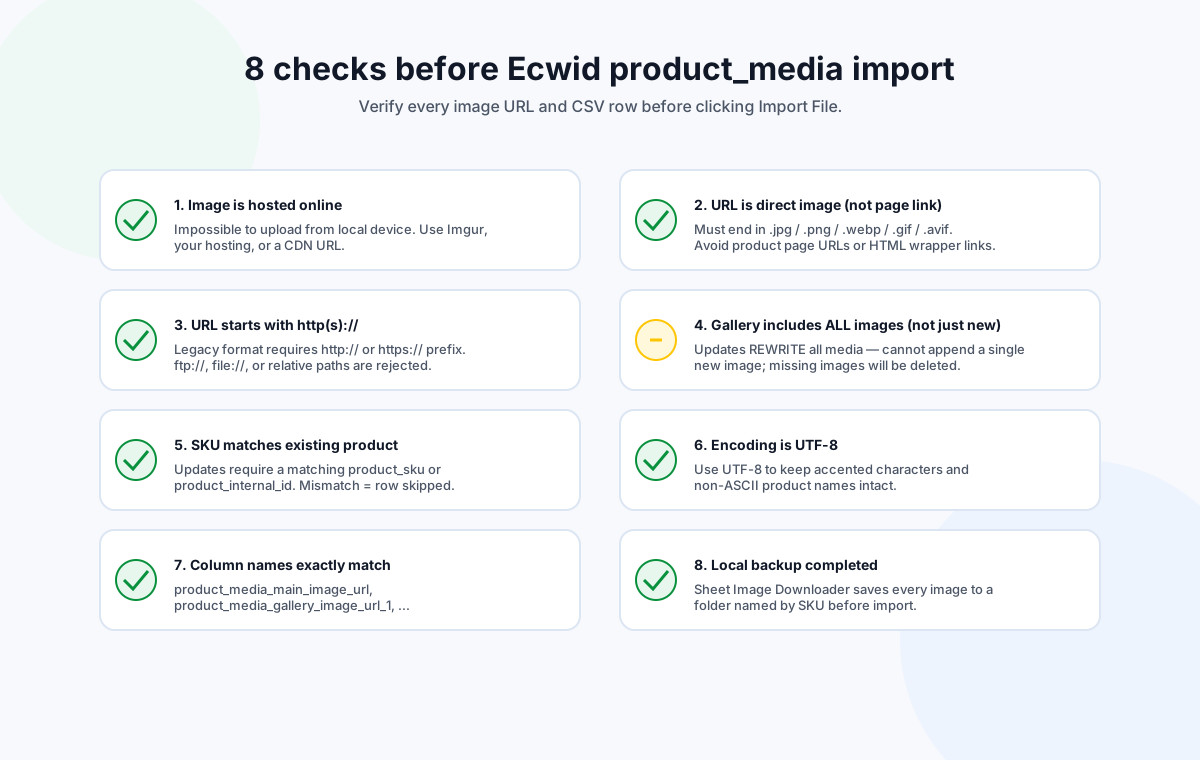
Eight checks before clicking Import
These checks are derived directly from Ecwid's catalog import documentation and from the failure patterns we have seen in repeated runs. Run them in order and the importer will catch fewer surprises.
- Image is hosted online. Ecwid cannot import files from your local disk. Confirm the URL returns a public image, not a redirect to a login wall.
- URL is a direct image. The path should end in
.jpg,.png,.webp,.gif, or.avif. A URL that points to an HTML product page will fail. - URL starts with http(s)://. The legacy format requires an explicit scheme. Relative paths and
file://URLs are rejected. - Gallery includes every image. Ecwid rewrites all media on import. If the product has five gallery images, the CSV row needs all five URLs, not just the new ones.
- SKU matches an existing product. Updates require an existing match. A typo means the row is silently skipped.
- Encoding is UTF-8. Open the CSV in a text editor and confirm. Accented characters in product names will scramble if the file is saved as Windows-1252.
- Column names are exact.
product_media_main_image_urlis case sensitive. The importer does not auto-correctProduct_Media_Main_Image_Url. - Local backup completed. Save the files to disk before importing. If Ecwid's importer partially fails, you have a fallback.
Common import problems and how to spot them
The image shows up as a generic placeholder
The URL returned a 200 but the body is an HTML error page or login wall. Spot-check downloaded files in an image viewer before importing.
Half the catalog updated, half did not
Most likely cause is mixed SKU formats (some uppercase, some lowercase, leading zeros). Ecwid SKU matching is exact. Normalize before exporting.
Gallery images disappeared after import
The CSV only listed the main image and one gallery URL. Ecwid treats that as the new full state and deletes the other gallery images.
Import errors out with "invalid column"
Column name is misspelled or in the wrong case. Compare against the reference table above; Ecwid does not auto-correct.
Verify every image URL locally before any Ecwid import.
Try Sheet Image Downloader — paste your URL list, get a local folder named by SKU plus a failure log you can re-run. For questions or edge cases, use the contact page.
Frequently asked questions
No. Ecwid requires every image URL to be hosted somewhere on the public internet, such as Imgur, your own hosting account, or a CDN. Local file paths like C:\ or file:// are rejected by the importer.
No. Ecwid's product_media data is fully rewritten on every import, so the CSV must contain every image (existing plus new) you want to keep. Missing rows are removed.
In the current catalog format, the main image goes in product_media_main_image_url and gallery images go in product_media_gallery_image_url_1, _2, _3, and so on. The legacy format used a single Image column instead.
No. Sheet Image Downloader downloads your image URLs to a local folder named by SKU, logs which URLs failed, and gives you the local backup and failure report. You then run the Ecwid importer yourself with the verified CSV.
Ecwid accepts comma, semicolon, or tab delimiters. UTF-8 is the recommended encoding. If you save from Google Sheets, choose CSV (current sheet) and verify the delimiter in a text editor before importing.
Editorial note: This preflight is based on Ecwid's current catalog import documentation, verified June 2026. Ecwid occasionally updates column names and delimiter rules. Sellers should confirm the latest column names and import flow inside the Ecwid admin before running a production import. No import outcome is guaranteed by Sheet Image Downloader.