
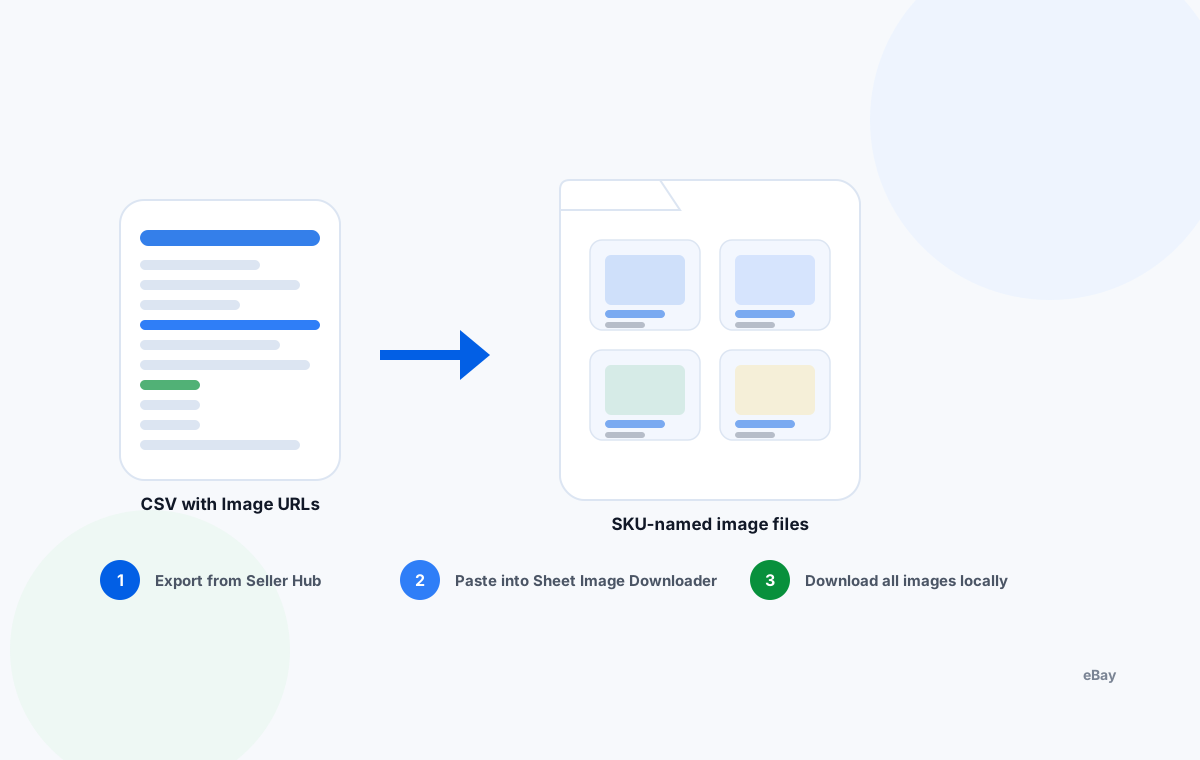
Why download eBay's help product images from a CSV?
When you manage 100, 1,000, or 10,000+ eBay listings, downloading or backing up product images one by one is not feasible. eBay's Seller Hub can export your active listings with image URLs, but there's no native button to bulk-download those images to your computer.
Common reasons sellers need this:
- Relist on another marketplace. Reuse eBay product photos on Amazon, Shopify, or your own website without re-uploading manually.
- Backup your listing assets. eBay can delist items or change image hosting — keep local copies named by SKU for security.
- Prepare feeds for multichannel tools. LitCommerce, Sellbrite, and similar tools need local images + a CSV to create listings on multiple platforms.
- Edit and retouch before uploading. Batch process product photos in Photoshop or AI tools before re-uploading to eBay.
Three methods to get eBay images from a CSV
Depending on where your image URLs live and what you need to do with them, there are three main approaches:
1. img.vision + Seller Hub CSV
Upload images to img.vision → get permanent hosted URLs → paste into eBay bulk listing CSV → upload to Seller Hub. Best for listing creation, not local backup.
2. Chrome extension (eBay Image Downloader)
Browse to any eBay listing page → click the extension → download all images from that page. Works for one-off scraping but not bulk CSV automation.
3. Sheet Image Downloader (this guide)
Paste any CSV of image URLs → download all images locally → renamed by SKU. Works with Seller Hub exports, img.vision exports, or any URL list. No browser needed.
| Feature | img.vision | eBay Image Downloader (Chrome) | Sheet Image Downloader |
|---|---|---|---|
| Bulk download from CSV | ❌ (hosting, not download) | ❌ | ✅ |
| Works offline | ❌ (cloud hosting) | ✅ (browser-based) | ✅ |
| SKU-based filename | ❌ | ❌ | ✅ |
| eBay bulk listing upload ready | ✅ | ❌ | ⚠️ (use img.vision for URLs) |
| No account needed | ❌ (paid hosting account) | ✅ | ✅ |
| Retry failed URLs | ❌ | ❌ | ✅ |
Using eBay Seller Hub Reports for bulk listings
eBay Seller Hub (formerly File Exchange) lets you download a spreadsheet of all your active listings — including the image URLs. Here's how it works:
Log in to Seller Hub
Go to sellercenter.ebay.com → Reports → Active Listings. Select "Download CSV" and choose the fields you need: Item ID, Title, SKU, and Picture URLs.
Export to CSV
eBay generates an xlsm or xlsx file. Open it in Excel or Google Sheets and isolate the columns: SKU (or Item ID) and Picture URLs. Note: eBay may list multiple image URLs separated by commas in one cell.
Split multiple URLs per row
If one cell contains "img1.jpg, img2.jpg, img3.jpg", split them into separate rows — one image URL per row with the same SKU. Sheet Image Downloader needs one URL per row.
Paste into Sheet Image Downloader
Column A = SKU, Column B = Image URL. Paste the full list into Sheet Image Downloader, set your output folder, and click Download. All images are saved as SKU-01.jpg, SKU-02.jpg, etc.
SPLIT() function or Excel's "Text to Columns" can quickly separate them into one-URL-per-row format before pasting into Sheet Image Downloader.
img.vision for eBay image hosting
img.vision is an image hosting service built for e-commerce sellers. It takes your product images, hosts them at permanent URLs, and gives you a CSV export of all URLs — which you can then paste into eBay's bulk listing upload.
The workflow is:
- Upload your product images to img.vision (bulk upload supported)
- Download the URL CSV from img.vision's dashboard
- Map those URLs into eBay's Seller Hub bulk listing template
- Upload the template to create or update listings
img.vision is ideal when you need hosted image URLs for bulk uploads. Sheet Image Downloader is the complementary tool when you want to pull images back down locally — for backup, editing, or feeding into another platform.
Chrome extension alternatives
The eBay Image Downloader Chrome extension lets you scrape all images from any eBay listing page directly to your download folder. It's useful for one-off scrapes but has limitations for bulk workflows:
What it does well
Quickly download all images from a single eBay product page — no CSV needed, just browse and click. Good for competitive research or grabbing images from a supplier's public listing.
Where it falls short
No CSV automation — can't process 500 listings at once. Downloads go to your browser's default folder with generic filenames (IMG_001.jpg). No SKU mapping. Not available if you use a non-Chromium browser.
Sheet Image Downloader workflow (step by step)
Here is the complete end-to-end workflow for downloading eBay product images from a CSV using Sheet Image Downloader.
Export your listing CSV from Seller Hub
Seller Hub → Reports → Active Listings → Download CSV. Keep the Item ID / SKU and Picture URLs columns. Save as .csv or .xlsx.
Prepare one URL per row
If Picture URLs column has comma-separated multiple URLs, split them. Each row should have exactly one image URL. Duplicate the SKU in each new row for multi-image listings.
Arrange columns: SKU | Image URL
Column A = SKU (or Item ID), Column B = Image URL. Remove any header rows. Sheet Image Downloader uses the first column as the filename base.
Open Sheet Image Downloader
Launch the app. Paste the full CSV content (including headers if present — the app skips non-URL rows). Or drop the .csv/.xlsx file directly onto the app window.
Set output folder and naming pattern
Choose a destination folder. The default naming is {col1}-{index}.{ext}, which produces SKU-01.jpg, SKU-02.jpg, etc. The first column becomes the filename base.
Click Download
Sheet Image Downloader fetches each URL, downloads the image, and names it according to your pattern. A progress bar shows status. Failed URLs are listed at the end.
Retry failed URLs
After the main batch, copy the failed URL list and paste it again. Sheet Image Downloader's retry mode re-attempts only the failures without re-downloading successful images.
Verify your output folder
Open the output folder. Check that image counts match the original CSV (e.g., 3 images per SKU = 3 files per folder). Rename any generic files if needed.
SKU naming convention for eBay images
Consistent naming makes it easy to match local files back to eBay listings when re-uploading or auditing. Here's a recommended pattern:
| Naming pattern | Example output | Best for |
|---|---|---|
{SKU}-01.jpg |
WDJ-8821-01.jpg, WDJ-8821-02.jpg | Multi-image listings (01 = main, 02+ = gallery) |
{ItemID}_main.jpg |
284719582_main.jpg | When you only keep the primary photo |
{SKU}_{color}-01.jpg |
ABC-1044_red-01.jpg, ABC-1044_blue-01.jpg | Variant listings with color-specific images |
Sheet Image Downloader supports custom naming via the first column. Add a naming prefix in your CSV's first column (e.g., "WDJ-8821-01") and the app preserves it exactly when downloading.
QA checklist after downloading
Before you use these images in a relisting or feed tool, run through this checklist:
- Count check: Does the number of downloaded files match the image count in your source CSV?
- Naming check: Are all files named with their SKU prefix (not IMG_001)?
- Open a sample: Double-click 3-5 random images to confirm they load and aren't corrupt or too small.
- Format check: Are all images JPG or PNG? eBay accepts JPG, JPEG, PNG, and GIF — avoid BMP or TIFF if uploading to Seller Hub.
- Missing images: Cross-reference the failed-URL log with the original CSV. Check whether those URLs are still live on eBay.
- Folder structure: If you organized by category, confirm each SKU's images landed in the right subfolder.
Frequently asked questions
img.vision is an image hosting service that gives you permanent URLs for product photos — ideal for bulk CSV uploads to eBay Seller Hub. A Chrome extension like "eBay Image Downloader" lets you scrape images from any eBay listing page directly to your computer. Sheet Image Downloader sits in the middle: it takes a CSV of image URLs (from any source) and downloads them locally, renamed by SKU, with no browser needed.
Seller Hub Reports exports product data and image URLs in a CSV. You can use those URLs with Sheet Image Downloader to pull all images locally in one batch. eBay doesn't provide a direct "download all listing images" button — you need a third-party tool or the Seller Hub CSV as the input list.
Yes. Export your active listings from Seller Hub (File Exchange or Reports) as CSV or Excel. Extract the image URL column, paste it into Sheet Image Downloader alongside a SKU column, and download every image renamed to its SKU. Works offline, no cloud upload.
Sheet Image Downloader uses the first column of your file as the filename. Make sure your CSV has SKU in the first column and image URL in the second. If your export has image URLs in column A and SKU in column B, swap the column order before pasting.
eBay image URLs can expire or be blocked if they require session tokens. Try the retry feature in Sheet Image Downloader: paste the failed URLs again and download in a fresh pass. For persistent 403s, the source listing may have removed the image — check the original eBay listing directly.
Download eBay product images from CSV, locally.
Sheet Image Downloader reads your CSV, fetches every image URL, and saves them as SKU-named files on your computer. No cloud upload, no signup, no browser extension.