
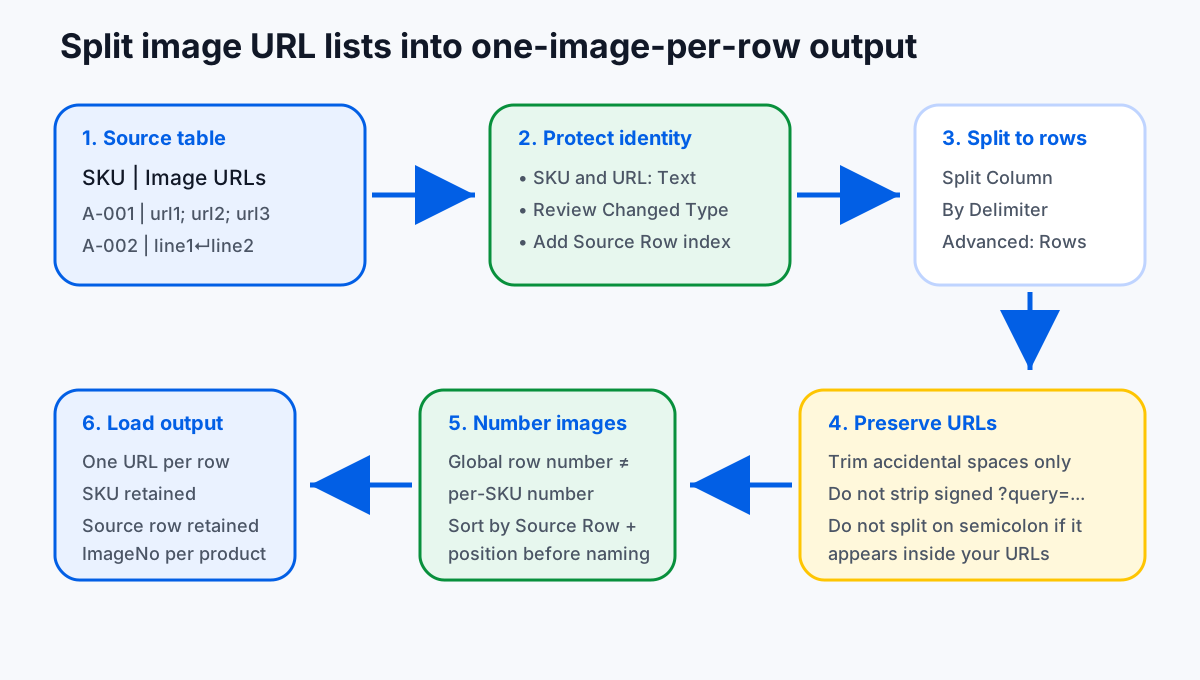
For Windows Excel, select your source range, create a table, open Data → From Table/Range, set SKU and URL fields to text, add a Source Row index, then use Home → Split Column → By Delimiter. In the dialog, choose the delimiter and use Advanced options → Split into Rows. Load the result as a new table, then add a per-SKU image number for filenames if needed.
Supplier spreadsheets often compress a product gallery into one cell: one SKU column and one “Images” column containing three, ten, or even thirty URLs separated by semicolons, commas, pipes, or line breaks. That layout may be easy for a human to paste into a portal, but it is fragile for downloads, migrations, QA review, and bulk import. Most image workflows expect one direct image URL per row, with the SKU, role, folder, filename, and position beside it.
The goal is not merely to split text. The goal is to create a trustworthy manifest. If a product has five image URLs, the output should create five rows that still know the original SKU, the original spreadsheet row, and the order inside the original cell. If a SKU appears on several source rows, that should remain traceable. If a URL contains a signed query string such as ?token=abc&expires=..., the split must not remove it. If a line break separates URLs, you should not clean line breaks away before using them as delimiters.
This guide focuses on Excel Power Query because it is more repeatable than manual copy-paste and safer for large catalog files than formula spill ranges. Microsoft's official Power Query documentation describes splitting a text column by delimiter and using advanced options to split into columns or rows. The same official Excel support pages describe TEXTSPLIT as a function that can split strings by column and row delimiters in supported versions. Those are useful capabilities, but catalog data needs extra guardrails around SKU text, signed URLs, and numbering.
Downloadable example files
The downloadable examples use example.com placeholder URLs only. They are not live media links and are intended for transformation testing, delimiter testing, and expected-output comparison. The input includes a repeated SKU, a blank image cell, a CRLF-style line-break example, a signed query string, and a line-break-delimited row whose second URL contains a semicolon. That row demonstrates why splitting every row on semicolon would corrupt the data.
Examples: Download example input CSV and download expected output CSV. Import the input CSV through Data → From Text/CSV, keep identifiers as text, and load it as an Excel table named ImageURLTable. The Delimiter column explicitly identifies each row as SEMICOLON or LF; use the M example below for this mixed-delimiter sample. Save your working workbook as .xlsx.
Prepare the Excel table before splitting
Preparation decides whether the split is reversible. Do not begin by deleting fields, converting identifiers to numbers, or cleaning all whitespace. A catalog row can contain a SKU with leading zeroes, a supplier ID that looks like scientific notation, or a URL token whose capitalization matters. Excel and Power Query may add automatic type conversion steps; review them before expanding the URL list.
- Save an untouched source copy. Keep the supplier export or platform export exactly as received.
- Convert the working range to a table. Select the range and use Ctrl+T. Use clear headers such as
SKU,Image URLs,Title, andSupplier. - Open Power Query. Choose Data → From Table/Range. Power Query opens the table in its own editor.
- Protect text fields. Set SKU, product ID, and image URL columns to Text. If Power Query inserted a
Changed Typestep before you confirmed text handling, delete or edit that step so leading zeros and long identifiers are not damaged. - Add a Source Row index before expansion. Use Add Column → Index Column → From 1 and name it
Source Row. This records the original row identity before one row becomes many rows.
The Source Row index is especially important when a SKU repeats. A repeated SKU may be legitimate: one row from a parent product, one from a variant, one from a supplier override, or one from a marketplace feed. If you split first and only add an index later, the new index tells you the output order but not the original source row. Keep both concepts separate.
Already missing zeros? Changing a numeric value to Text does not restore digits Excel already removed. Re-import the original source with SKU typed as text. If you cannot find the original identifier, flag the row rather than guessing how many zeros to add.
Power Query steps: split the URL column into rows
After preparation, select the column that contains the combined URL list. Choose Home → Split Column → By Delimiter. Pick the delimiter that actually separates the URLs in your file. Microsoft lists common delimiter choices such as colon, comma, equals sign, semicolon, space, tab, and custom delimiters, and its Power Query page specifically describes using advanced options to split into rows. For image URL cells, the most common safe custom delimiter is a line break when the source system exports one URL per line inside the cell.
- Select or enter the delimiter. If the file uses semicolons between URLs, choose semicolon only after checking that semicolons do not appear inside the URLs themselves. If the file uses line breaks, choose a custom line-break delimiter or use M code for
#(lf)after normalizing CRLF carefully. - Use each occurrence of the delimiter. A product gallery usually needs every URL separated, not just the first delimiter.
- Open advanced options. Choose Rows, not columns. Splitting to columns creates
Image URL.1,Image URL.2, and so on; splitting to rows creates a scalable one-image-per-row table. - Trim only accidental outside spaces. After expansion, you can trim leading or trailing spaces around the URL value. Do not remove internal characters, query strings, encoded characters, ampersands, equal signs, or semicolons that belong to the URL.
- Filter blanks deliberately. Blank URL cells may be removed for a clean download file, but for QA you may want to keep them as exception rows until they are reviewed.
- Load to a new worksheet. Use Home → Close & Load To... and choose a new table so the source export remains unchanged.
https://example.com/img.jpg?style=a;b, splitting on semicolon will corrupt the URL. Use a delimiter that does not occur in the data, ask for a cleaner export, or parse with a more controlled rule.Line breaks need similar care. If the cell uses CRLF line breaks, avoid a blanket cleanup step that replaces all line breaks with spaces before you split. In Power Query, you can split on line feed and trim carriage-return remnants after the split, or use M code that handles both. The key principle is simple: do not destroy the delimiter before using it.
The downloadable sample has mixed delimiters, so do not apply a single delimiter to the entire sample column. For the click-by-click method, first filter to one delimiter type; for all rows together, use the explicit per-row M example below. Rows containing an unsafe delimiter need a corrected supplier export, not a more aggressive split.
Order and numbering: global index is not per-SKU numbering
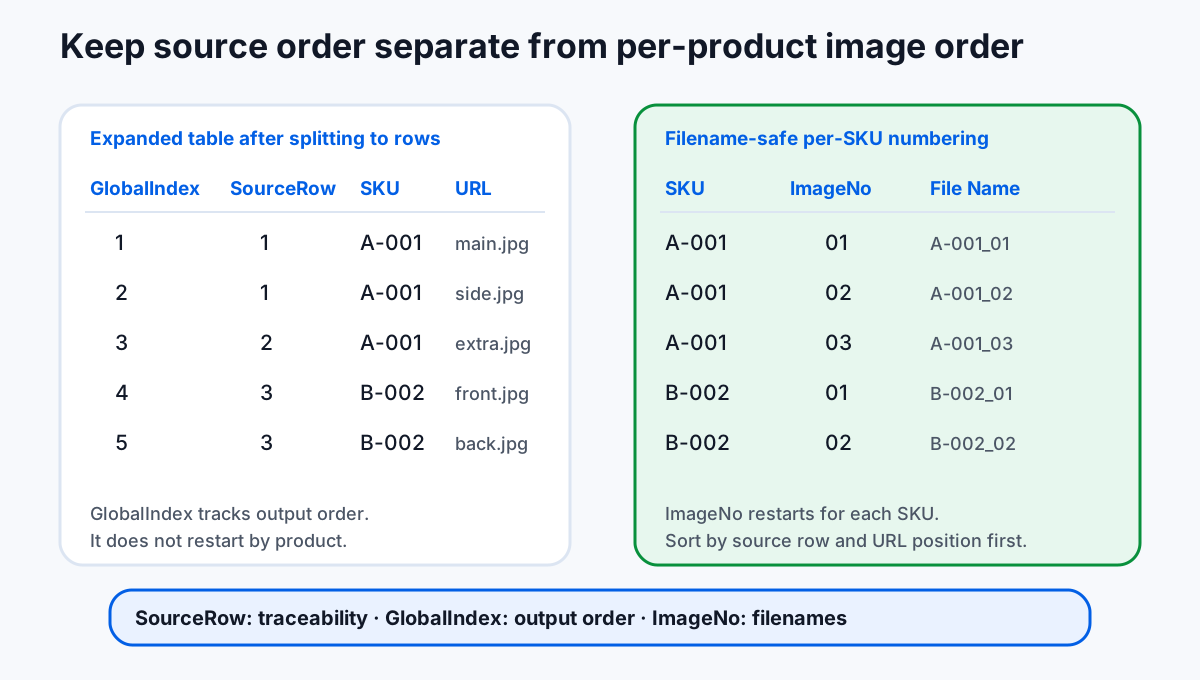
After expansion, teams often want filenames such as SKU-001_01, SKU-001_02, and SKU-001_03. That is a per-product image number. It is not the same as a global output row number and not the same as the original Source Row. Mixing these three fields causes avoidable mistakes.
| Field | When to create it | What it means |
|---|---|---|
Source Row | Before splitting | The original row in the supplier or catalog export. Use it for traceability. |
GlobalIndex | After splitting | The output table's row order. Use it for audit logs or sorting the expanded table. |
ImageNoPerSKU | After splitting and sorting | The image sequence for a SKU or product group. Use it for filenames and gallery order. |
If a SKU appears on several source rows, decide the numbering rule before naming files. One common rule is “group by SKU across the whole file, sort by Source Row and original position, then number 01, 02, 03.” Another rule is “restart numbering for each Source Row.” Both can be valid. What matters is that the rule is explicit, stable, and reflected in the output columns. The example output keeps repeated SKU-001 source rows separate. It contains source-row identity and within-cell position, not a per-SKU filename sequence; create that sequence only after choosing your grouping rule.
Optional Power Query M code with list positions
The user interface is enough for many files, but M code can be more reliable when you need URL position inside the original cell. The pattern below keeps SKUs as text, adds Source Row, splits on the delimiter declared in each row, creates a list of records with positions, expands those records, and only trims the outside of each URL. Name your Excel table ImageURLTable. The downloadable sample includes SKU, Image URLs, and Delimiter columns. Set Delimiter to LF for line breaks or SEMICOLON for semicolons. For a different table, adapt those names first. Do not label a row SEMICOLON if semicolons appear inside its URLs.
For per-SKU numbering, sort the expanded table by SKU, Source Row, and URL_Position_In_Source_Cell, then group by SKU and add an index inside each grouped table. If your filename order must follow the original spreadsheet rather than alphabetical SKU order, preserve a final sort column before grouping and restore the desired output order afterward.
Formula alternatives and version cautions
TEXTSPLIT can be convenient for a small one-off transformation in supported Excel versions. Microsoft describes TEXTSPLIT as splitting text strings by using column and row delimiters, and its support examples include splitting delimited text into rows. However, formula workflows have practical limitations for catalog operations. They may spill into occupied cells, require newer Microsoft 365 or Excel versions, and use different argument separators in different locales. A formula written with commas in one locale may need semicolons in another locale, which is confusing when your data itself may contain semicolon-delimited URLs.
Formulas also do not automatically preserve surrounding product context for every row unless you build a larger dynamic-array pattern. That can be powerful, but it is harder to audit for non-technical teammates. For recurring supplier feeds, a Power Query saved on the workbook is easier to refresh: paste a new export into the source table, refresh the query, and review the output.
For a single semicolon-delimited cell B2, a supported English-locale Excel installation can spill URLs vertically with =TEXTSPLIT(B2,,";",TRUE). For line feeds, use =TEXTSPLIT(B2,,CHAR(10),TRUE). The blank second argument leaves the column delimiter unused; the third argument supplies the row delimiter. These formulas do not repeat the SKU alongside each spilled row. Do not use the semicolon version when that character is inside a URL.
Turn the expanded table into a download-ready workflow
Once the table contains one URL per row, add the columns your downstream workflow needs. Save the prepared workbook as .xlsx. For Sheet Image Downloader, a modest download worksheet might contain Image URL, File Name, and Folder Path. A filename can be built from SKU and image number, such as SKU-001_01. A folder path can be the SKU or a batch plus SKU, such as supplier-batch-10/SKU-001. Keep Source Row and URL_Position_In_Source_Cell in your master manifest even if you hide them from the simplified download sheet.
Do not strip signed query strings to make filenames shorter. The filename and URL are separate fields. A signed URL may require the complete query string to fetch the file. Likewise, do not deduplicate rows merely because the same image URL appears under two SKUs. A shared lifestyle image may be intentional; the relationship between each SKU and the image is still a catalog record.
Before running a full batch, test repeated SKUs, blanks, line-break cells, and query strings. Compare the output with the expected-output CSV linked above. If the counts, order, or signed URLs differ, correct the transformation before downloading or importing. For a stable reference, bookmark this split multiple image URLs Excel workflow and keep it beside the supplier cleanup procedure.
Related spreadsheet workflows
For the full column layout, use the product image URL spreadsheet template. Once the split is clean, follow the Excel image URL download guide and the SKU filename and folder guide. Keep platform import sheets separate: a downloader worksheet is not automatically a valid Shopify, WooCommerce, or Squarespace import file.
FAQ
Can Excel split multiple image URLs in one cell into rows?
Yes. In Windows Excel, Power Query can split a text column by delimiter and use advanced options to split into rows. Prepare the table first so SKU, source row, and URL order survive the expansion.
Should I use semicolon as the delimiter for image URLs?
Only if semicolon is guaranteed not to appear inside any URL. Signed URLs and query strings can contain punctuation. When possible, use line breaks or another delimiter that is not present in the URL data.
Why add a Source Row index before splitting?
It records where each expanded URL came from in the original export. A global row number added after expansion is useful, but it cannot tell you the original row once one source row becomes many output rows.
Can I use TEXTSPLIT instead of Power Query?
Sometimes. TEXTSPLIT is useful in supported Excel versions, but formula availability, spill behavior, and locale-specific separators can make it less reliable for repeatable catalog workflows than Power Query.
Can Sheet Image Downloader use the result?
Yes, after you prepare one direct image URL per row. The app can read the spreadsheet, use optional filename and folder columns, download reachable files locally, and show download results.
Turn a clean one-URL-per-row sheet into organized local image files.
After Power Query expands the URL list, use spreadsheet-controlled filenames and folders to save reachable product images locally and keep failed rows visible for review.
Checked October 13, 2026: Microsoft Support documentation reviewed for this guide includes Split a column of text (Power Query), which documents splitting a text column by delimiter and using advanced options for rows or columns, and TEXTSPLIT function, which describe TEXTSPLIT behavior in supported Excel environments. Confirm your Excel version, locale, and source delimiter before production cleanup.