
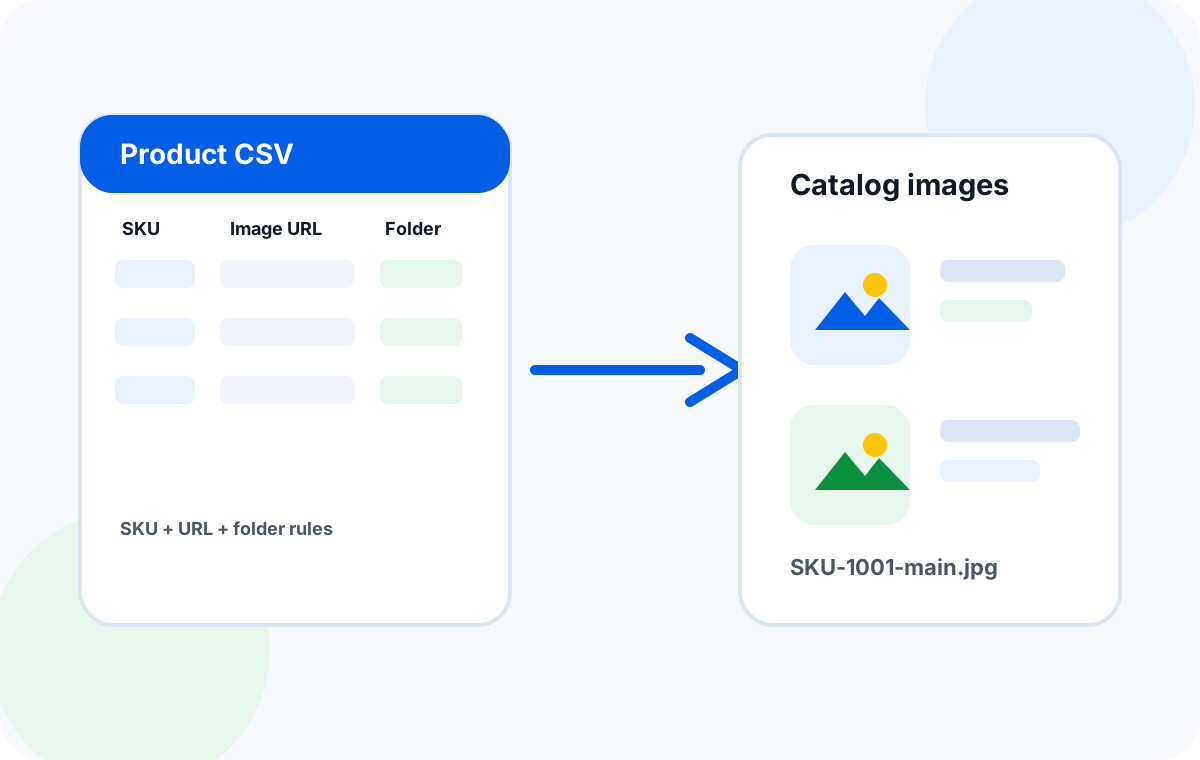
Why naming matters at scale
When you download ten images, file names don't matter much. When you download ten thousand — across dozens of suppliers, product families, and image variants — the difference between a organized library and a chaotic mess is entirely decided by what you put in the spreadsheet before you click Run.
A well-named image file carries its context inside the filename: which product it belongs to, which angle or variant it shows, and ideally an index that tells you the order it appeared in the feed. This means your downstream team — whether that's a catalog manager, a web developer, or a retoucher — never has to open the file to understand it.
The essential spreadsheet columns
A minimum viable image spreadsheet for organized output needs four columns:
- Image URL — direct link to the image file (.jpg, .png, .webp). Pages or HTML links will fail silently; always verify URLs resolve to an image before downloading.
- Filename — the output name the downloader should use. Can be built automatically from other columns (see naming formulas below) or written directly.
- Folder / category path — tells the downloader which subfolder to place the file in. Can be a single folder name like
Summer-2026or a nested path likeFootwear/Running/Mens. - Image type / variant — optional but strongly recommended when a product has more than one image. Values like
front,back,detail,lifestyle,swatchmake every file self-describing.
Choosing a folder structure
The best folder structure is the one that matches how your team actually searches for images. Here are three patterns that work well for product catalogs:
1. By product category
Top-level folders represent major categories, with subfolders for subcategories:
Images/
  Footwear/
    Running/
      Mens/
      Womens/
    Casual/
  Apparel/
    Tops/
    Bottoms/
  Accessories/
Use this structure when you have broad product families and need to find all images for a category quickly.
2. By supplier + season
Images/
  Acme-Supply/
    Spring-2026/
    Fall-2026/
  BestGoods/
    Q1-2026/
    Q2-2026/
Use this when you work with multiple suppliers and need to attribute images back to source batches easily.
3. By campaign or channel
Images/
  Website-Homepage/
  Amazon-Listings/
  Instagram-Grid/
  Print-Catalog/
Use this when the same product images serve different output channels with different naming or cropping requirements.
Naming formulas that work
Build the filename from components so it's consistent and human-readable. The most reliable pattern is:
{SKU}-{variant}-{index}.{extension}
For example: RVN-A4-front-01.jpg — product RVN-A4, front view, first image in the batch.
| SKU column | Variant column | Index | Output filename |
|---|---|---|---|
| RVN-A4 | front | 01 | RVN-A4-front-01.jpg |
| RVN-A4 | back | 02 | RVN-A4-back-02.jpg |
| RVN-A4 | detail | 03 | RVN-A4-detail-03.jpg |
| SHO-X7 | lifestyle | 01 | SHO-X7-lifestyle-01.jpg |
Handling multiple images per product
Most supplier feeds give you one row per SKU with multiple image URLs — one for each angle. The correct approach is one row per image URL, not one row per SKU:
- Create a separate row for each image URL of the same product
- Copy the SKU and folder values into each row
- Change the variant value (front, back, detail) to distinguish them
- Set a row index to order them in the batch sequence
This structure means every downloaded file is independently traceable to a specific URL row, which makes retries precise — if the back view fails, you retry only the row that holds that URL.
Normalizing messy supplier SKUs
Suppliers rarely use clean, consistent SKU codes. Common problems:
- Lowercase vs. uppercase inconsistency (
rvn-a4vsRVN-A4) - Embedded spaces or special characters (
RVN / A4,RVN-A4(B)) - Supplier prefixes that change between batches (
ACME-RVN-A4vsRVN-A4) - Color or size appended to the SKU (
RVN-A4-BLK-Mwhen you only wantRVN-A4)
Before downloading, add a clean-up column and apply a normalization formula. A practical clean-up routine:
- Copy the raw supplier SKU to a new column
- Strip spaces with
=SUBSTITUTE(A2," ","") - Remove known prefixes with
=SUBSTITUTE(B2,"ACME-","") - Upper-case the result with
=UPPER(C2) - Use the cleaned column as the basis for filenames and folder paths
QA checklist before download
Run through this checklist before submitting a batch to catch common problems early:
- Every Image URL cell returns an actual image when opened in a browser (not a webpage)
- All filenames have the correct extension matching the URL (.jpg, .png, .webp)
- Folder path cells use a consistent separator (forward slash
/recommended) - No duplicate filenames within the same folder — duplicates will overwrite each other
- SKU column is normalized and free of stray spaces or special characters
- Rows with empty or invalid image URLs are flagged or removed
- The output folder has been created or confirmed writable before the batch runs
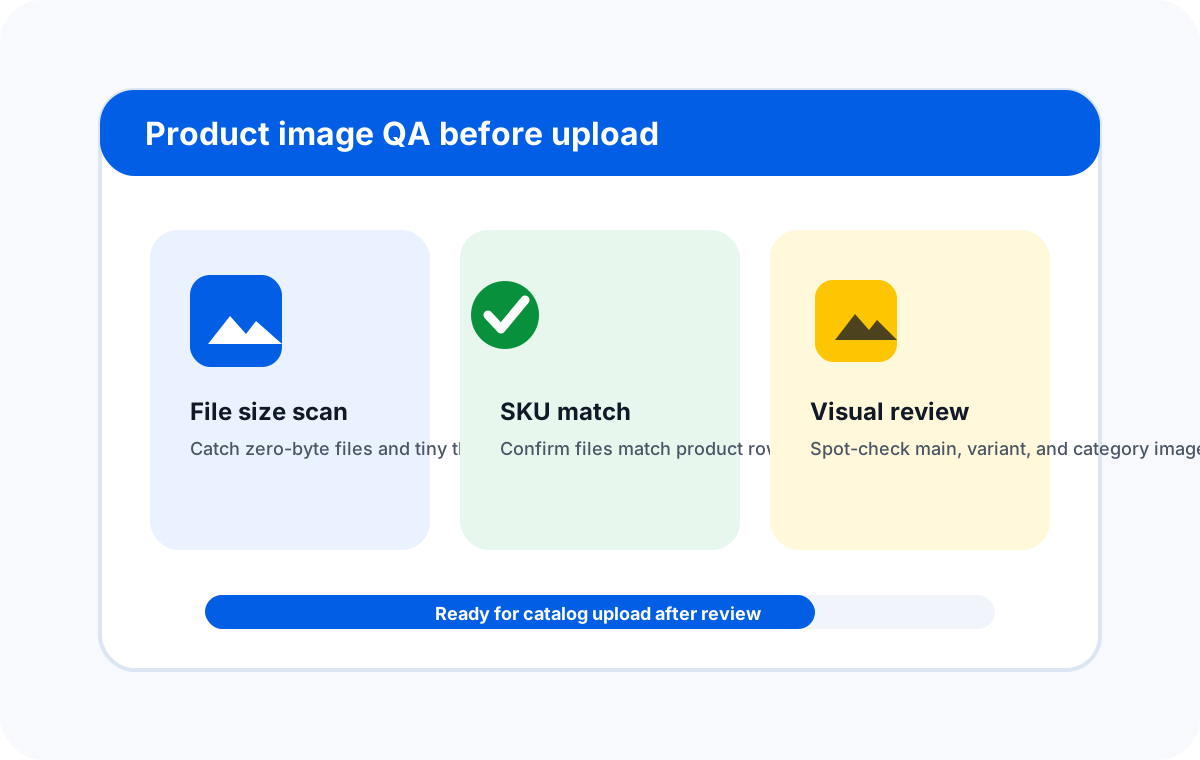
A QA-ready spreadsheet: each row has a valid URL, clean filename, and consistent folder path
Download images organized by SKU today
Sheet Image Downloader reads your spreadsheet columns and builds the folder structure automatically — no manual sorting after the batch finishes.
Frequently asked questions
Category/Subcategory — and the downloader will place each image into the matching subfolder automatically. This keeps large catalogs organized without extra manual work.
SKU-001_main.jpg or PRODUCT-A4_front-01.webp. This makes every file self-describing — you know the product, the angle, and the order without opening the file.