
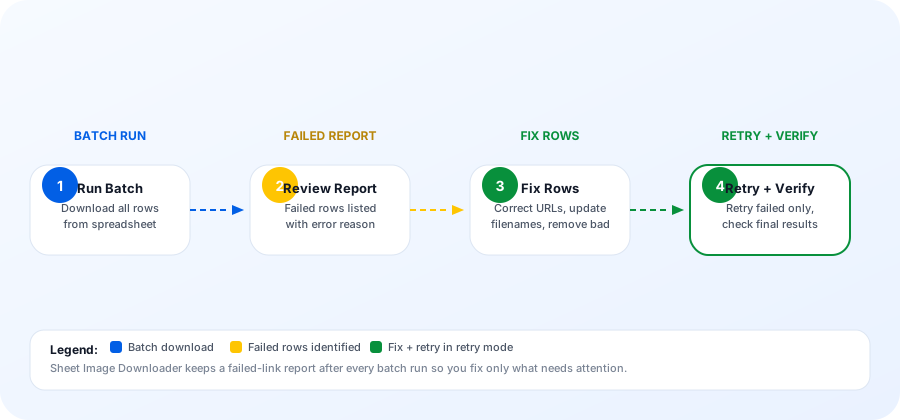
After a batch run, open the CSV retry report exported by Sheet Image Downloader. Filter to rows with a FAILED status. For each failed row, fix the URL — or remove it if it cannot be recovered — then run the app in Retry Failed Only mode. The tool skips all successful rows and processes only the remaining unrecovered items.
Most bulk image downloads fail on a small subset of URLs. The temptation is to re-run the entire batch, but that wastes time on rows that already succeeded. A focused retry workflow handles exactly this: it isolates the failed rows, gives you specific error information, and reruns only the work that still needs to be done.
Why image URLs fail during bulk downloading
Not all failures are the same. Understanding the error type tells you whether the URL can be fixed or should be removed from the batch.
| Error type | What it means | Fixable? |
|---|---|---|
| 403 Forbidden | The source site blocks automated/hotlink requests. The server sees the download as a bot and rejects it. | Sometimes — try adding headers or use an alternative image URL. |
| 404 Not Found | The image has been removed, renamed, or the supplier updated their catalog. The URL no longer points to a file. | Often — find the updated URL from the source system. |
| Timeout | The source server is slow, temporarily unreachable, or the image file is very large. | Possibly — retry later or check network conditions. |
| Redirect loop | The URL redirects through tracking links or a CDN that eventually fails or expires. | Sometimes — find the final direct image URL. |
| Auth required | The URL points to a private dashboard, signed URL, or page that needs an active login session. | Rarely — these URLs are not suitable for batch downloading. |
| Non-image URL | The URL returns a webpage or JSON instead of an image file. Common when copying from product listing pages. | Usually — find the direct image URL by opening the page and inspecting the image. |
How to read the failed-row report
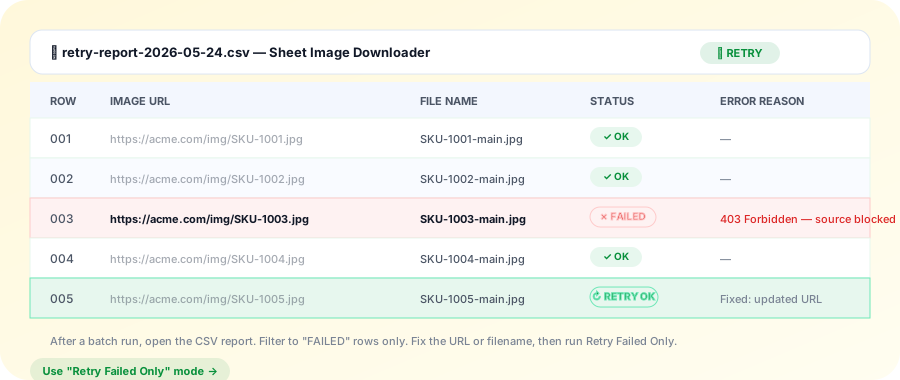
After each batch run, Sheet Image Downloader exports a CSV report with one row per input row. The report includes the original URL, the assigned filename, the download status, and the error reason for any failure.
What to look for in the report
- Filter by the Status column for rows marked FAILED.
- Read the Error Reason column — it tells you whether the failure is fixable or not.
- Check the File Name column — a filename that already exists in your output folder may indicate an earlier partial download.
- Count the failed rows to estimate how much work remains before the batch is complete.
Fixing specific failed rows
Once you have the failed-row list, work through each failure systematically. Do not guess — use the error reason to guide the fix.
403 / Hotlink blocked
Try opening the URL in your browser. If it loads, the source may allow browser-based access but not automated requests. Look for an alternative image URL on the same product page or in the supplier's export.
404 / Image removed
Check if the supplier has an updated catalog or product page. Often a product SKU search finds the new image URL on the current listing.
Non-image URL pasted
Open the URL in your browser, right-click the image, and copy the direct image URL. Replace the product page URL with the direct image URL in your spreadsheet.
Auth / private dashboard
These rows cannot be fixed for batch downloading. Remove them from the spreadsheet or accept that they will remain as failed rows.
Running Retry Failed Only mode
After fixing the failed rows in your spreadsheet, switch the downloader to Retry Failed Only mode before running the next batch.
In this mode the app:
- Skips all rows that already downloaded successfully
- Processes only the rows that are still marked as failed or are newly added
- Updates the retry report after each run so you can track what is still outstanding
This is significantly faster than re-running the full batch, especially for large catalogs where only a handful of rows failed.
Verifying retry success
After the retry pass completes, do a quick verification pass before treating the batch as done.
- Open the updated retry report — all remaining FAILED rows should be zero or represent rows you chose not to fix.
- Open 3–5 files from the beginning, middle, and end of the output folder to confirm they are actual image files and not placeholder images.
- Sort the output folder by file size to catch any zero-byte or corrupted files.
- Check that filenames match your naming rule and that the folder structure reflects the spreadsheet categories.
When not to retry a failed URL
Some failed URLs should be left as failures rather than chased endlessly.
- Private or login-protected URLs — images behind authentication are not suitable for automated batch downloading. Accept these as failures and move on.
- URLs you do not have rights to download — respect copyright and platform terms. If the supplier or platform does not allow bulk retrieval, stop at the failed row.
- URLs that redirect through tracking systems — temporary tracking links expire quickly and are not worth fixing for a one-time download.
- Very large images that consistently timeout — if a server consistently times out on large files, the source may be unreliable. Consider whether the specific image is worth the effort.
Retry best practices for recurring batch jobs
If you run bulk image downloads on a schedule — weekly supplier updates, monthly catalog refreshes, recurring marketplace syncs — build the retry workflow into your standard operating process.
| Practice | Why it matters |
|---|---|
| Keep the original URL column untouched | Preserves a clean source of truth so you can always rebuild the spreadsheet. |
| Label fixed rows with a "retry" tag | Makes it easy to audit what was changed and why after the retry succeeds. |
| Archive the original retry report before each run | Gives you a complete audit trail if you ever need to trace a problem back to a specific run. |
| Set a reasonable retry limit per row | If a URL fails three times across multiple attempts, it is unlikely to succeed on the fourth. Fix or remove it. |
| Notify the source owner of consistent 403 blocks | Some suppliers will whitelist your IP or provide a direct image export if they know about your use case. |
FAQ
Why do some image URLs fail during a bulk download?
Image URLs can fail because the source site blocks hotlinking, requires authentication, returns a redirect instead of an image file, removes the image, or provides a webpage URL instead of a direct image link. A failed-link report lists the specific error for each row so you know exactly what to fix.
How does the Retry Failed Only mode work?
After a full batch run, the failed-link report saves every row that did not download. You fix those specific URLs or filenames, then run the downloader in Retry Failed Only mode — it skips the successful rows and processes only the remaining failed rows.
What error codes appear in the retry report?
Common codes include: 403 Forbidden (source site blocks automated access), 404 Not Found (image removed or URL changed), timeout (source server slow or unreachable), redirect loop (URL points through too many tracking links), and auth required (login or signed URL expired).
When should I not retry a failed image URL?
Do not retry URLs you do not have the right to download, URLs that point to private dashboards or require your login session, or URLs that return a product page instead of a direct image file — these will fail again or raise a compliance issue.
Stop re-downloading what already succeeded.
Sheet Image Downloader's Retry Failed Only mode lets you fix the rows that need attention and skip everything that already worked. Contact us for help with edge-case URLs.