
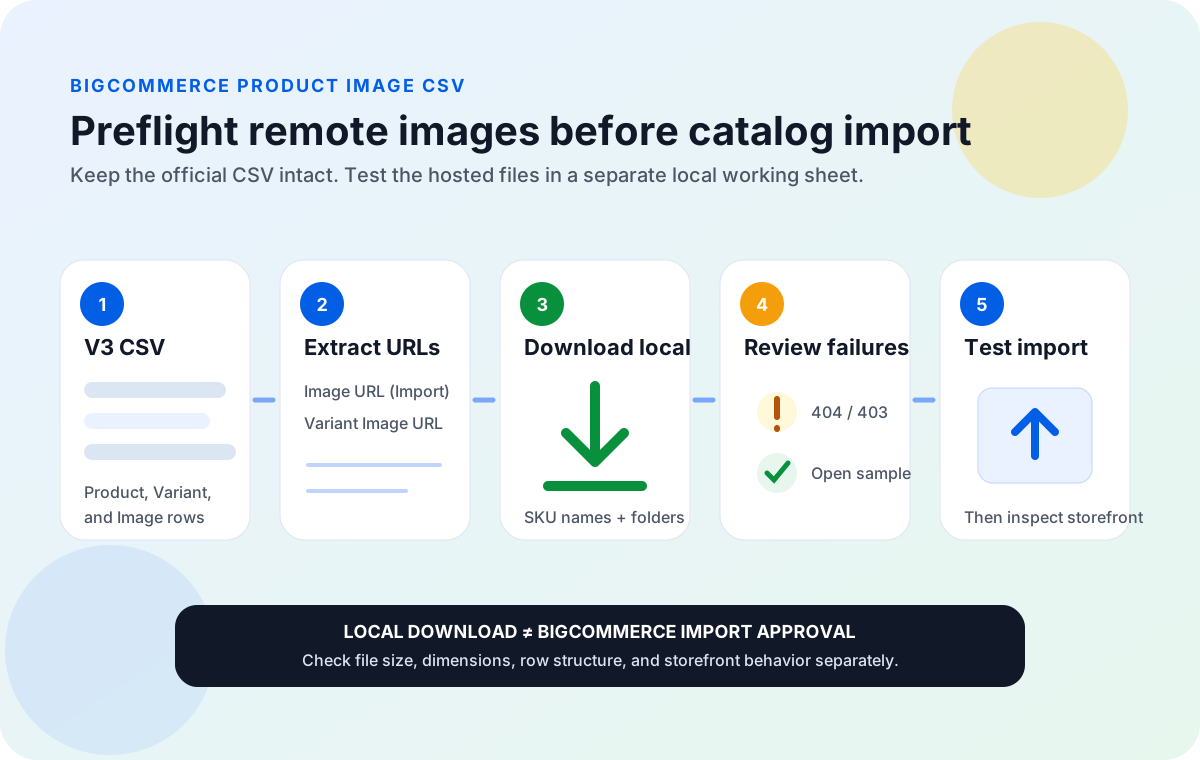
In BigCommerce's modern V3 product CSV, base-product images use separate Image rows with the hosted file in Image URL (Import). Variant rows can use Variant Image URL. Before import, copy those URLs into a small working spreadsheet, download them locally, inspect failures, and then return to the original BigCommerce CSV. This confirms that your team can fetch the listed resources and gives you a backup. It does not certify that BigCommerce will accept every image or every CSV row.
A product CSV can be perfectly readable and still produce an incomplete storefront. The import may finish, but a product page opens with a blank gallery, the wrong thumbnail, or a missing variant image. A supplier may remove a file after the CSV was prepared. A URL may point to a login page. One cell may contain a WebDAV filename instead of its full public path.
BigCommerce offers both individual product entry and bulk CSV import. For a larger catalog, CSV is faster, but one stale image host can affect hundreds of products in the same run. A local check focuses on the part most likely to break: the remote image URLs.
How BigCommerce represents product images in a V3 CSV
The official Modern Product Import/Export guide separates products, variants, and images into different row types. The official V3 sample template begins with an Item column and includes the image fields shown below.
| CSV field | Row type | What it does | Preflight use |
|---|---|---|---|
Item | Product, Variant, or Image | Identifies the row as Product, Variant, or Image; use the exact values from the official template. | Filter Image rows without losing the parent product context. |
ID | Image | Required as a column when adding a new image, but the cell must be left blank. | Preserve it in the BigCommerce file. It is not needed in the download sheet. |
Image URL (Import) | Image | Contains the full hosted URL for a base-product image. | Map this column to Image URL in the local check sheet. |
Internal Image URL (Export) | Image | Appears in exports as BigCommerce's current internal image reference. | Keep it for comparison, but use the current import template and documentation when preparing an import. |
Image Description | Image | Supplies the image description and alt-text-related metadata. | Review it in the source CSV. The downloader does not edit or upload this metadata. |
Image is Thumbnail | Image | Accepts TRUE or FALSE. For new image imports, BigCommerce says the field must either be filled in or removed from the CSV. | Retain the intended value beside each image and verify final thumbnail assignment after import. |
Image Sort Order | Image | Uses whole numbers and sorts from lowest to highest. A blank value becomes 0. | Add the order to the local filename if visual sequence matters. |
Variant Image URL | Variant | Associates one image with a product variant. | Include these URLs in the preflight as a second source column. |
For several base-product images, BigCommerce tells merchants to add a new Image row beneath the product row for each image. Variant images work differently: paste the full URL into Variant Image URL on the relevant Variant row. BigCommerce allows one associated image per variant.
This simplified sample only illustrates row placement. Do not replace the official template with it. Start from a current BigCommerce export or sample template so the full set of required product fields remains intact.
Official BigCommerce image requirements worth checking
BigCommerce's current guide gives precise requirements for imported product images. These are the rules that should drive the preflight, not guesses copied from an old migration checklist.
URL and format rules
- The image must be hosted at a referenceable URL.
- The URL must use HTTP or HTTPS.
- A WebDAV image needs its full URL path, not only a filename.
- The image URL can contain up to 1,024 characters.
- Supported formats are JPEG/JPG, GIF, WebP, and PNG.
- TIFF, BMP, and PDF are not supported.
Size and row rules
- BigCommerce calls 1280 by 1280 pixels the optimal product image size.
- The maximum product image file size is 8 MB.
- New base images need
Item, a blankID, andImage URL (Import). Image is Thumbnailmust be filled or removed from the CSV when adding new images.- Each variant can have one associated image.
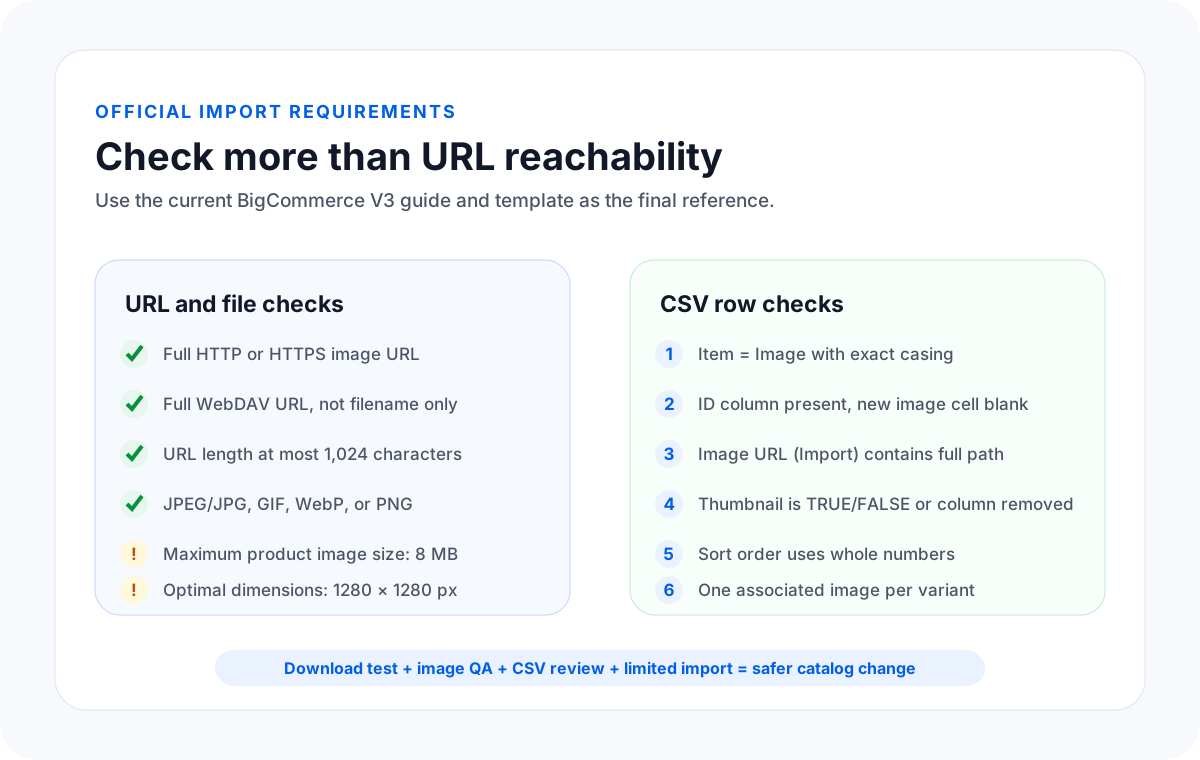
A URL returning a file to your desktop is useful evidence, but not the whole answer. A reachable 12 MB PNG can still exceed BigCommerce's 8 MB limit. A 200 response can contain an HTML error page. A supported JPEG can have unsuitable dimensions. Build those distinctions into the review instead of treating every green download row as import-ready.
Build a small preflight sheet without editing the import file
Keep the original BigCommerce CSV unchanged during the URL test. Create a separate Excel or CSV working file with the three columns Sheet Image Downloader uses:
| Working column | Value to supply | Why it helps |
|---|---|---|
Image URL | Copy from Image URL (Import) and Variant Image URL. | Provides the direct resource the app will request. |
File Name | Use a stable product or variant SKU plus image role and sort order. | Keeps the local file traceable to the catalog row. |
Folder Path | Group by product SKU, category, migration batch, or supplier. | Makes spot checks and handoffs easier. |
If the import file has no clean identifier on an Image row, carry the parent product's SKU into the working sheet while extracting rows. That relationship is easy for a human to see in a CSV because Image rows sit beneath the product. It is easy to lose after the URLs are copied into a separate list.
Keep Image Description, thumbnail status, and sort order in extra review columns if your team needs them. The app ignores those business columns, but leaving them beside the URL helps the reviewer compare each local file with its intended storefront role.
A practical BigCommerce image URL preflight
- Export or download the current V3 template. Use a current BigCommerce export or official sample rather than rebuilding the headers from memory.
- Make a protected copy. Save the untouched CSV before changing products, variants, or image rows.
- Extract both image URL fields. Collect nonblank values from
Image URL (Import)andVariant Image URL. Preserve the parent SKU, row type, thumbnail flag, and sort order. - Create the local check sheet. Map the hosted URL to
Image URL. Add optionalFile NameandFolder Pathvalues that preserve product identity. - Run a small sample first. Include a main image, a secondary image, a variant image, a query-string URL, and one known bad URL. Confirm the output is understandable before processing the catalog.
- Download the full set locally. Choose a dedicated destination folder and a conservative connection count. The app can run parallel downloads, but the source host may rate-limit a large burst.
- Export and review failed URLs. Fix stale links, permission failures, or supplier-hosting problems. Use Retry Failed Only after correcting temporary issues instead of repeating successful rows.
- Open representative files. Check the first file, the last file, one file from each supplier or category, and every thumbnail or variant image with high merchandising importance.
- Run separate size and dimension checks. Confirm the files stay within BigCommerce's 8 MB maximum and review dimensions against the 1280 by 1280 optimal-size guidance. Sheet Image Downloader does not perform these checks.
- Return to the original CSV. Correct only the affected URLs and fields. Preserve row order and BigCommerce's exact column names.
- Import a limited batch. Test a small product set in the control panel before applying the file to the full catalog.
- Inspect the storefront and import report. Confirm thumbnail choice, gallery order, variant selection, alt descriptions, and image rendering on the live product pages.
The CSV stores references, not the source image itself. If a supplier changes a URL after your migration, a local copy gives the team a recoverable asset tied to the original SKU. It also makes visual review possible without repeatedly loading remote images.
Why BigCommerce product images fail during CSV import
| Symptom | Likely cause | What to check |
|---|---|---|
| The downloaded file is HTML, not an image | The URL opens a login page, hotlink error, or CDN response page. | Open it in a private browser window and replace it with a direct public file URL. |
| The image downloads locally but BigCommerce rejects it | The link may be signed, IP-restricted, over 8 MB, or otherwise outside the current import rules. | Use a durable public URL, check file size and format, then run a limited import. |
| A variant image is missing | The file was reachable, but the URL or variant association is wrong. | Recheck Variant Image URL on the correct Variant row. |
| A WebDAV image does not import | The CSV contains only a filename or partial path. | Use the complete HTTP or HTTPS URL for the modern V3 import flow. |
| The wrong product image becomes the thumbnail | The thumbnail value is missing, inconsistent, or the result differs from the intended row. | Review Image is Thumbnail, then confirm the result on the product page after import. |
What this preflight can and cannot prove
| Question | Preflight answer | Final authority |
|---|---|---|
| Can the app request the URL and save a response? | Yes. Successful and failed requests are visible in the run, and failed URLs can be exported and retried. | Sheet Image Downloader run results |
| Is the downloaded file visually the correct product image? | Only after a person or separate image-analysis process opens and reviews it. | Catalog reviewer |
| Is the file under 8 MB? | Not checked by the app. | File-system or image QA check |
| Is the image 1280 by 1280 pixels? | Not checked by the app. | Image metadata inspection |
| Does the URL meet BigCommerce's current importer rules? | The download confirms practical reachability from your machine, not acceptance by BigCommerce's servers. | Current BigCommerce documentation and test import |
Are Item, blank ID, thumbnail, and sort-order fields valid? | Not checked by the app. | CSV review and BigCommerce importer |
| Will every variant show the intended image? | Not guaranteed by downloading the URL. | Post-import storefront QA |
Treat the download result as one check, not the whole import approval. Sheet Image Downloader handles local URL retrieval, naming, folders, failure export, and focused retries. BigCommerce handles catalog validation. Your QA process handles visual correctness, dimensions, file size, and live storefront behavior.
Import-day QA checklist
Before clicking Import
- Use a current V3 export or official template.
- Keep a backup of the original CSV.
- Every new Image row has exact
Itemcasing. - New image IDs are blank.
- Every import URL is a full HTTP or HTTPS path.
- Formats are JPG/JPEG, GIF, WebP, or PNG.
- Files have passed the 8 MB check.
- Thumbnail and sort-order values are deliberate.
After the test import
- Review BigCommerce's import result.
- Open products from the start, middle, and end of the batch.
- Check the assigned thumbnail.
- Check gallery sequence.
- Select variants and confirm the image change.
- Review image descriptions in context.
- Test storefront rendering on mobile.
- Retain the local backup and failed-URL report.
Related workflows: bulk download product images from a spreadsheet, organize downloaded images by SKU, and retry failed image downloads from Excel.
FAQ
What column does BigCommerce use for product image URLs in the modern CSV importer?
BigCommerce's modern V3 product import template uses Image URL (Import) on Image rows. Variant rows use Variant Image URL for the single image associated with that variant.
Can the modern BigCommerce V3 CSV use a local image path or bare WebDAV filename?
No. In the modern V3 product import flow, use a hosted, referenceable HTTP or HTTPS URL in Image URL (Import) or Variant Image URL. If the image is stored in WebDAV, enter its full URL path rather than only the filename.
Which product image file types does BigCommerce support for CSV import?
BigCommerce lists JPEG or JPG, GIF, WebP, and PNG. TIFF, BMP, and PDF are not supported for product image import. The guide also states an 8 MB maximum and calls 1280 by 1280 pixels optimal.
Does Sheet Image Downloader validate every BigCommerce image rule?
No. It can read direct URLs from a local spreadsheet, download reachable files, organize them with optional names and folders, export failed URLs, and retry failed rows. It does not confirm pixel dimensions, the 8 MB limit, image content, CSV schema validity, or BigCommerce acceptance.
Can I add several images to one BigCommerce product through CSV?
Yes. Add a separate Image row beneath the product row for each base-product image. A variant can have one associated image through Variant Image URL on its Variant row.
Find broken BigCommerce image URLs before the CSV import.
Download direct URLs, preserve SKU-based names and folders, export failures, and return to the official importer with a cleaner source file.
Checked July 27, 2026: BigCommerce's Modern Product Import/Export guide, official V3 product import template, relevant Catalog API documentation for product and variant image behavior, and Sheet Image Downloader's active release source were reviewed for this article. Platform fields and limits can change, so confirm the current BigCommerce template before a production import.